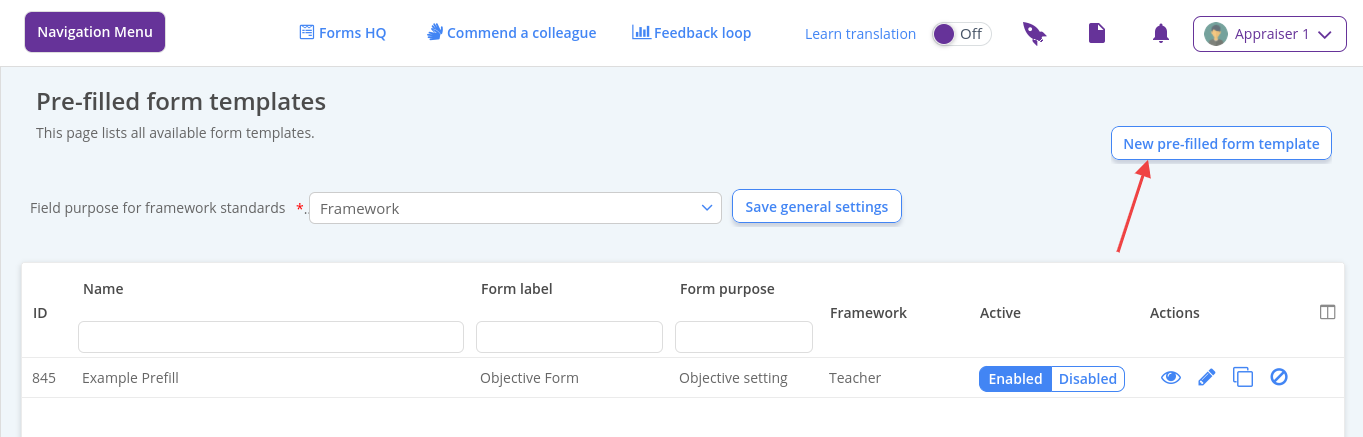
Navigation Menu / Setup / Advanced Setup / Prefilled forms
Click New Prefilled Form Template
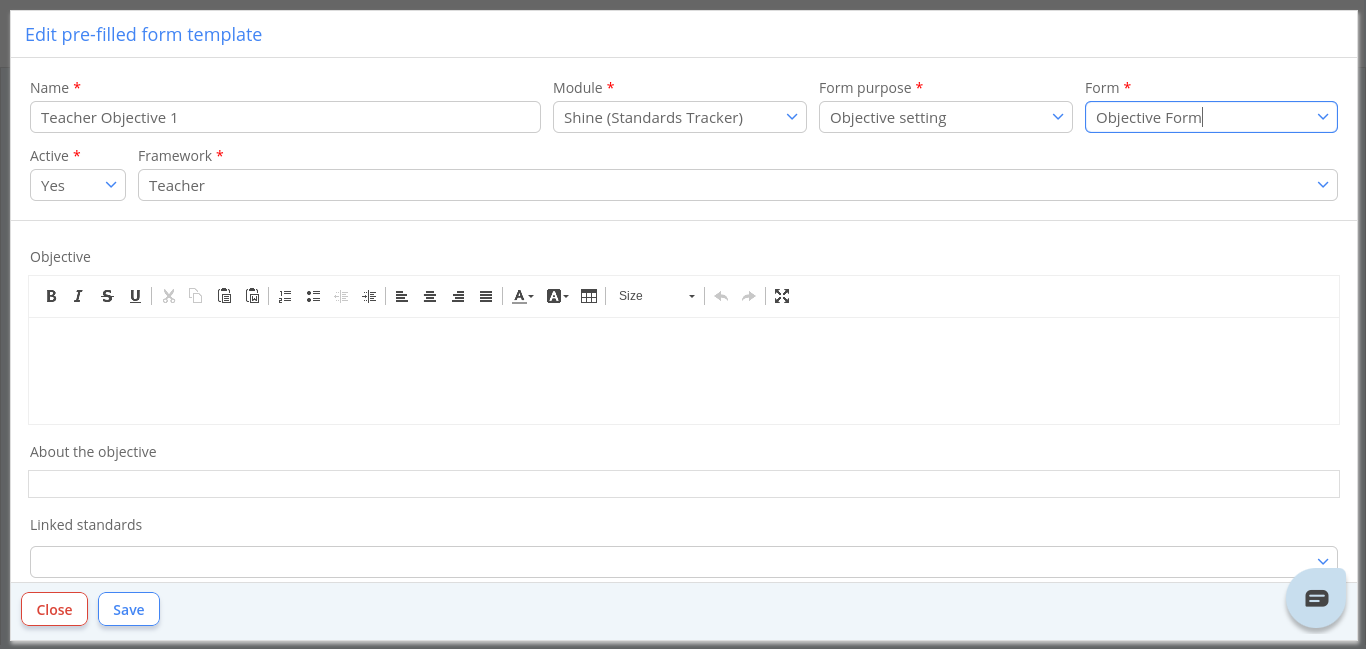
Name - enter the label of your prefilled form
Select the relevant module, Appraise
Select the relevant purpose of the form i.e if you're creating an objective form, select Objective Setting
Select the relevant form the Form dropdown, i.e. Objective Form
Active - Select Yes
Select the relevant framework you want the form to be allocated to, i.e. if you're creating an objective for the Teacher cycle, select the Teaching framework
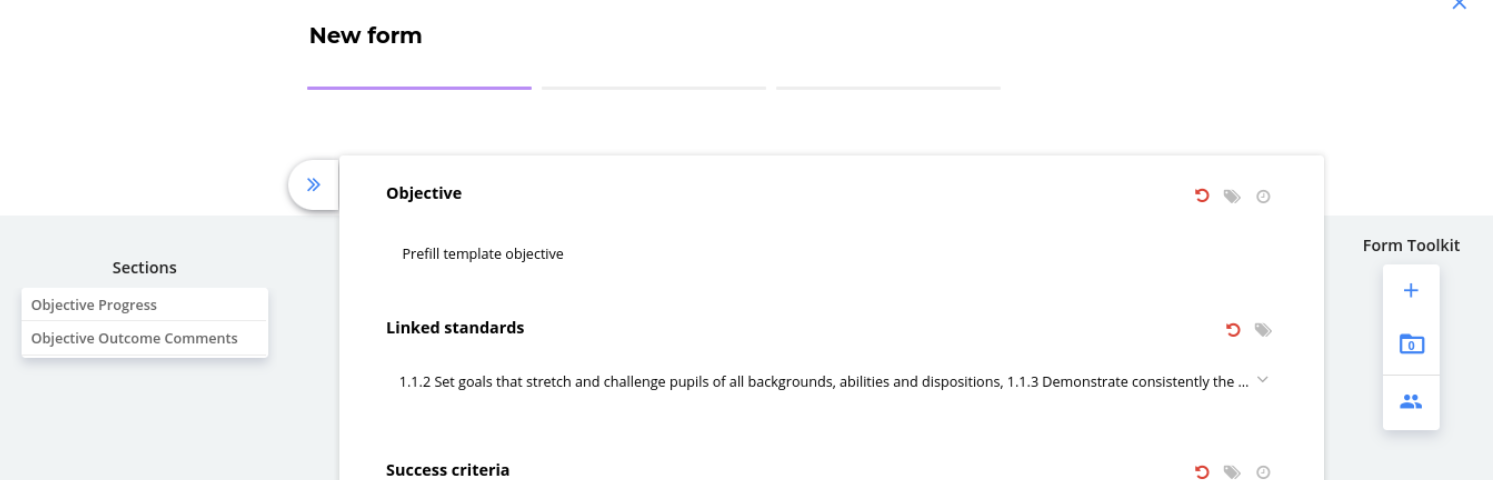
Complete the template and click Save
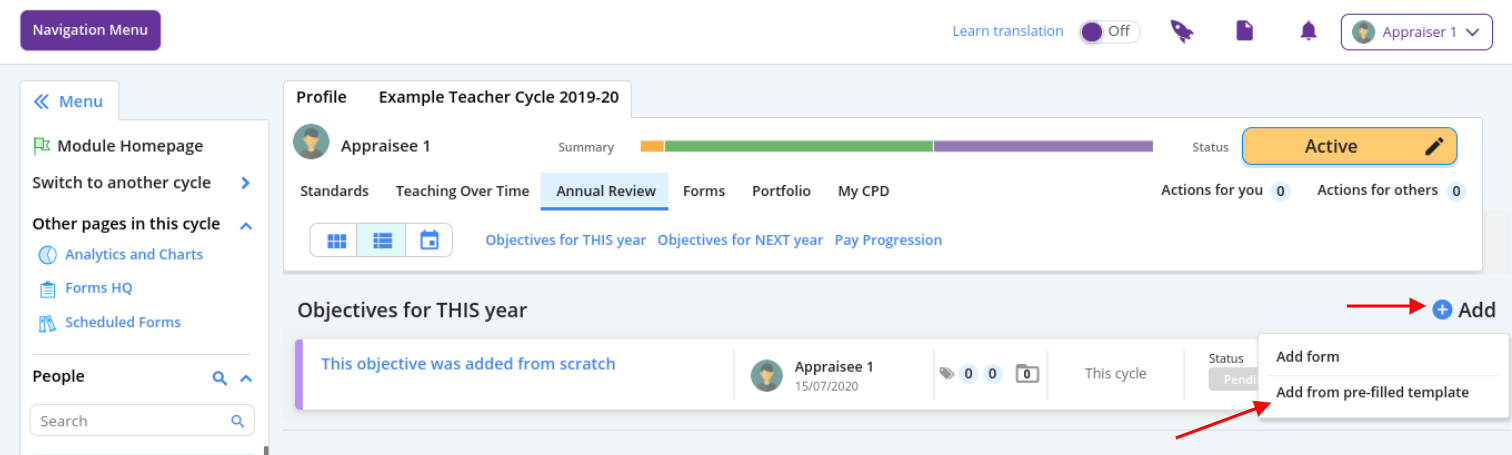
To view the form, go to a user record in the relevant cycle
Go to their Annual Review tab
Click Add then From prefilled template
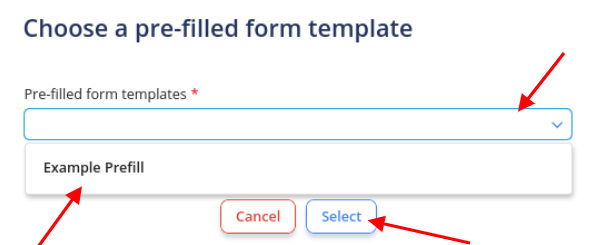
Select the template from the list and click Select
If you wish to save the form to the record, click Submit or Submit & Close - if you're not ready to add this objective yet, click Cancel then OK. Then close the form via the cross button