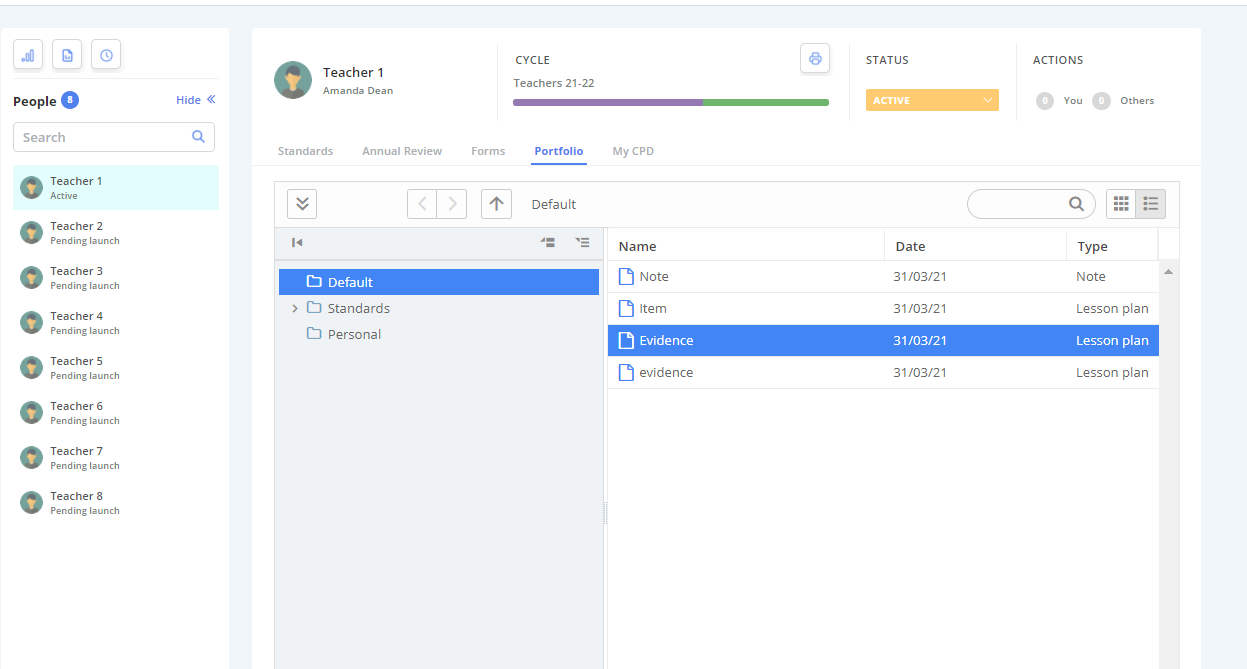
The Appraise module is a professional development tool that allows you to work with your peers and managers to help develop yourself.
In most cases, your Appraise record will allow you to;
- Maintain a view of your performance against a set of standards or skills;
- Work on goals or objectives;
- Maintain a portfolio of work that you are most proud of;
- Record CPD and learning events;
- Complete forms that may be available for you; and
- See a story feed of your achievements and successes.
TABLE OF CONTENTS
When you access the module, you'll land on a simple summary page. It will show your current record as well as any historical records you have.
- The top section will provide you with information about your record
- The bottom section will display a list of forms that you or others have completed and you can read or edit these by clicking on them.
- The right hand section will update each time an action occurs on your record and you can open these by clicking on them.
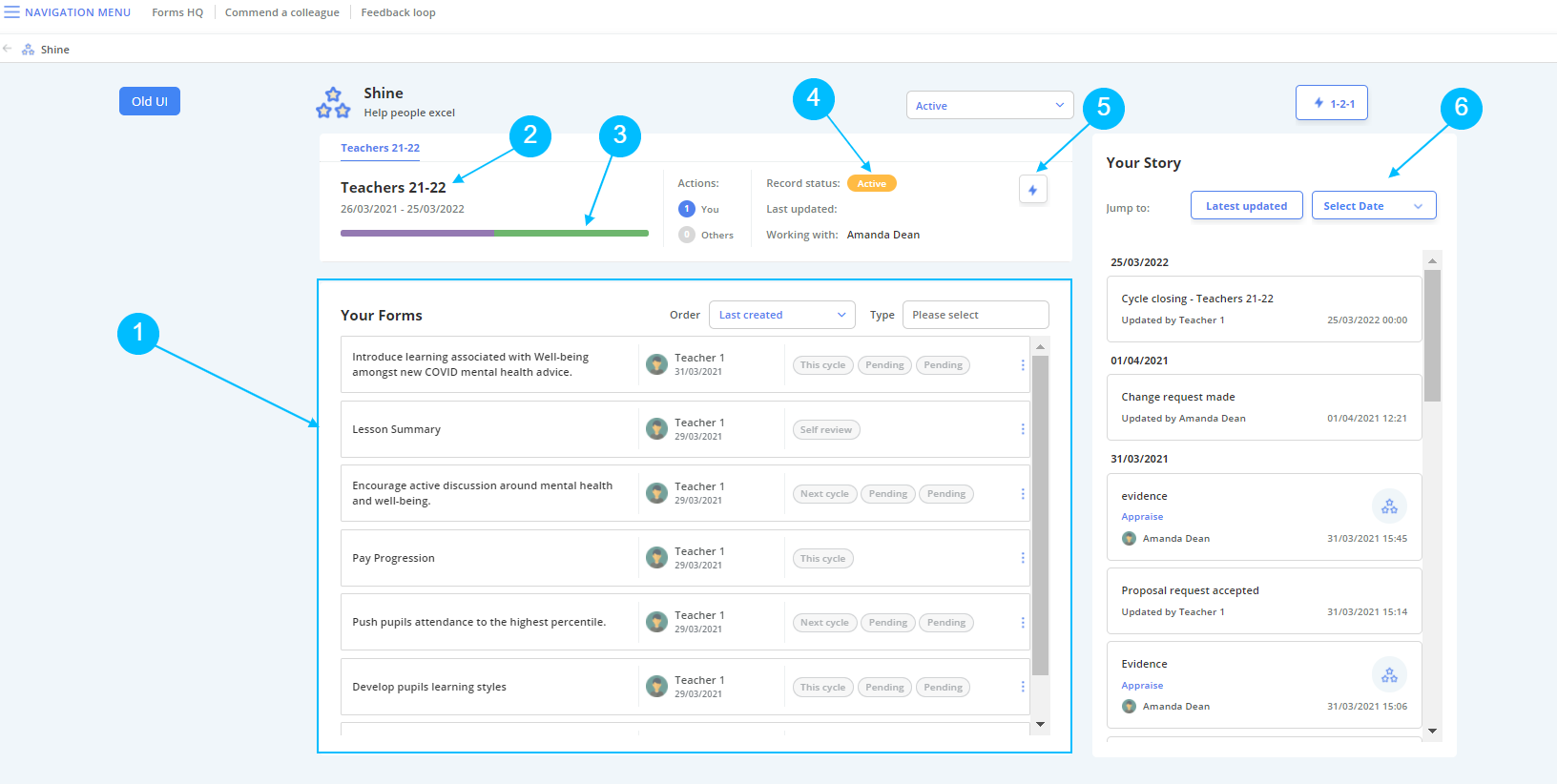
Let's take a closer look...
Home Page
1. Your Forms
This is the area that will display all of your forms for both this and the next cycle. including your objective forms.
2. Your Current Cycle
This is your overview header. It shows the current cycle you are enrolled in, and also acts as the link to open your record.
3. Your Performance Indicator
This is an overview status bar which shows a breakdown of your current standards performance. To view this is more detail, open your record.
4. Your Record Status
Self-explanatory again, this is the current status of your record in the cycle.
5. Quick Add
Quick Add is a useful tool that allows you to add/create an item without having to go into your record.
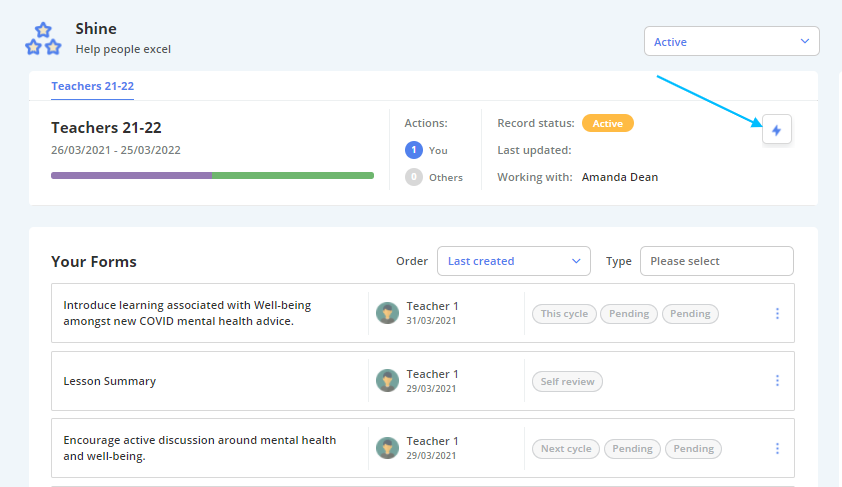
1. To access Quick Add, simply select the button located at the top of the page.
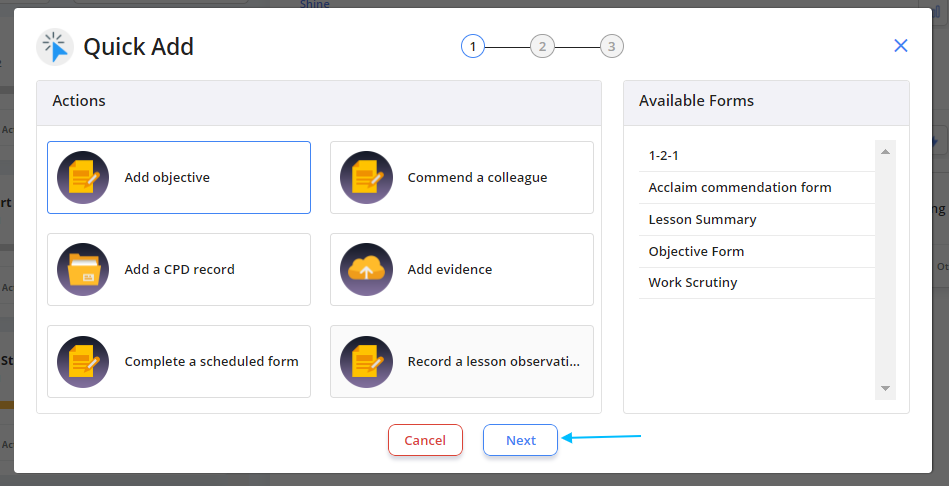
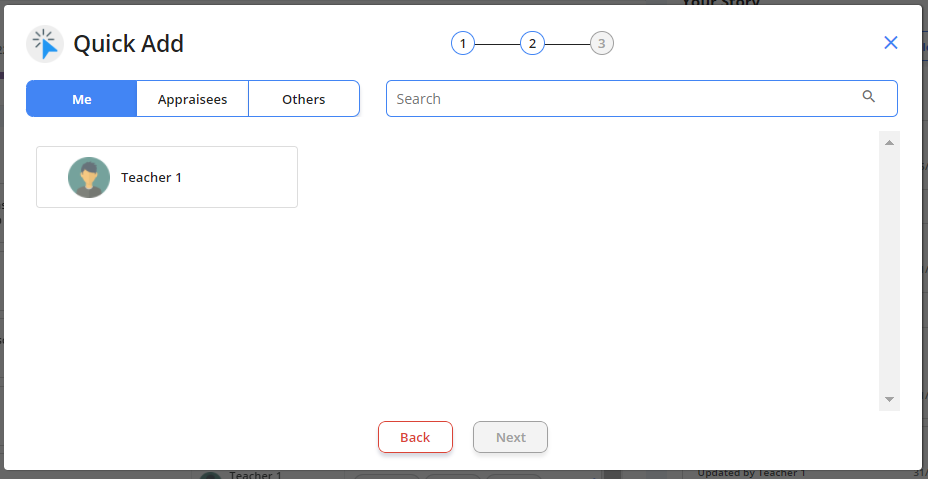
The Quick Add menu looks like this:
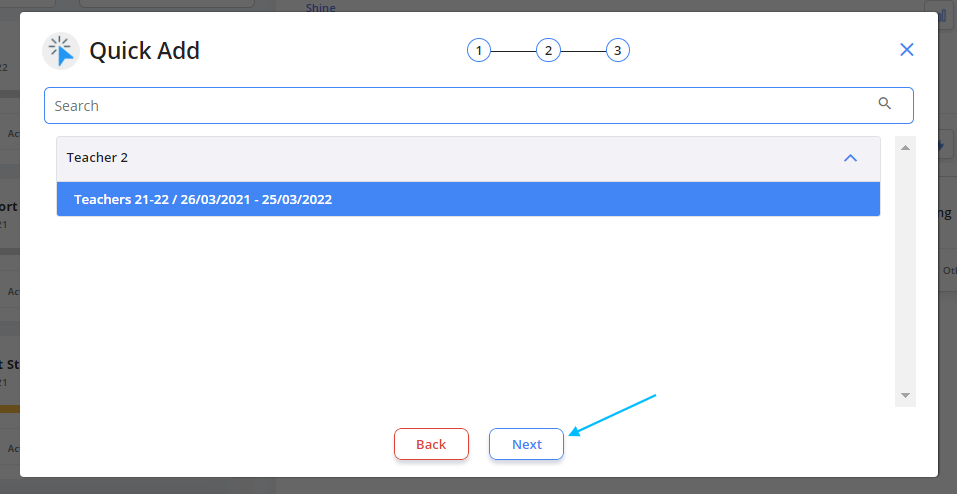
2. Select the form/action you would like to use, and select "Next".
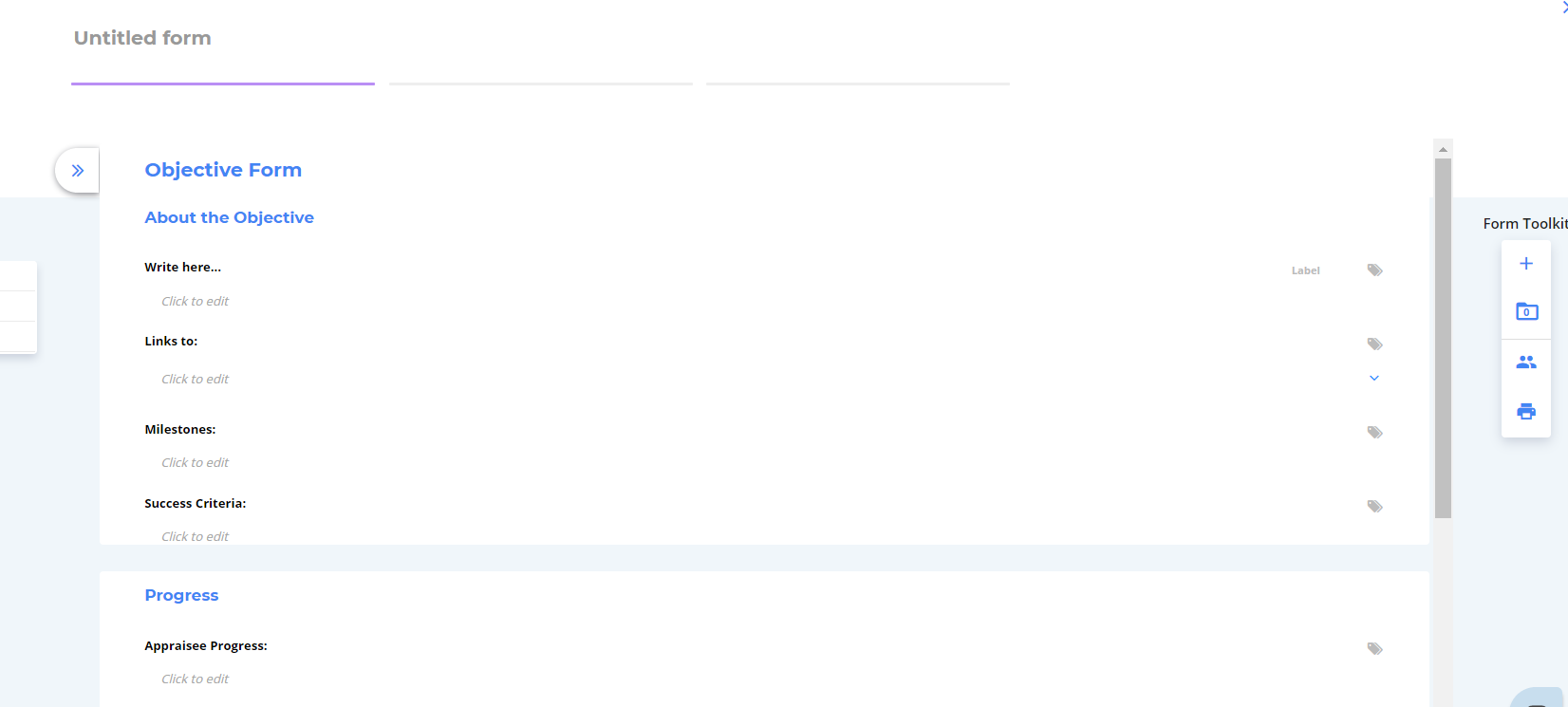
3. The wizard will then guide you through a series of screens to complete the task as you usually would in a record. For e.g. Adding an Objective (See Below).
6. Your Story
This is the news feed for your record. It shows any changes made to your record, as well as who made them.
Things listed here will be change requests, forms, evidence uploads etc.
Your Record
You access your record by clicking on the name of the record - in our example here, it reads Teachers 21-22.
This will open the record page - yours may look a little different to our example here and it may have different tab labels.
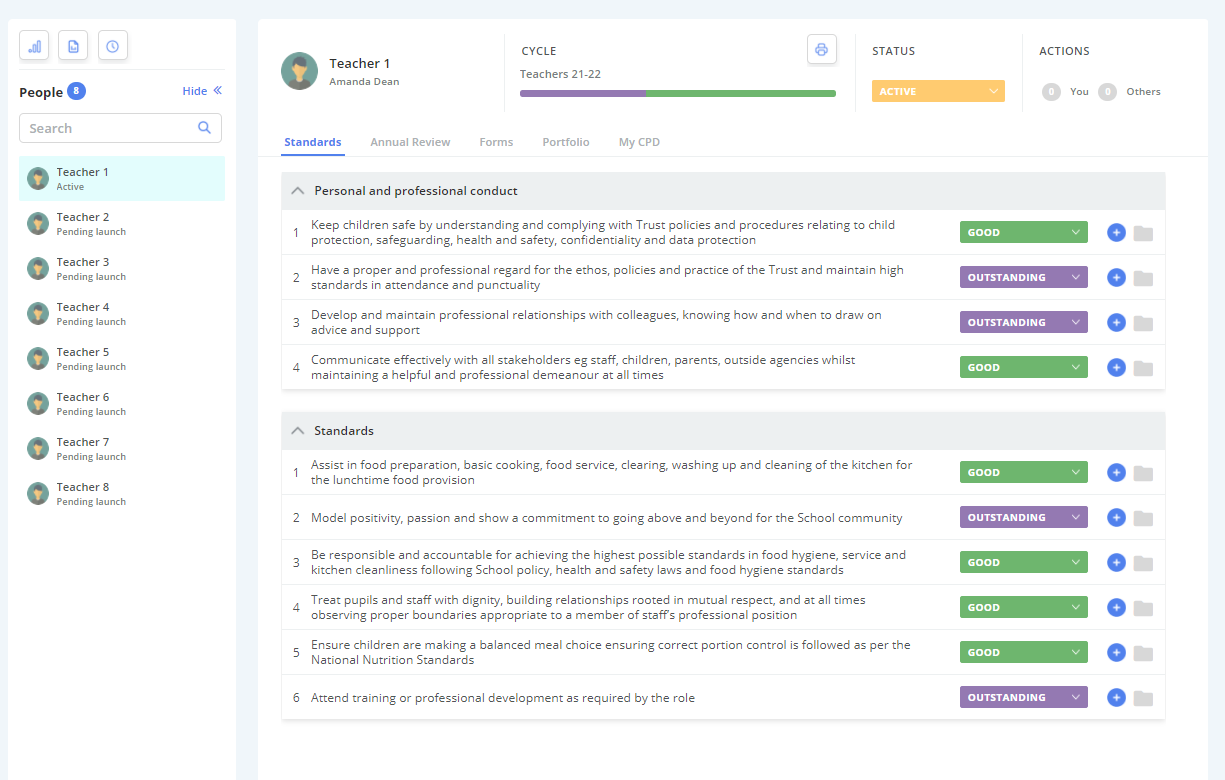
Standards Page
This is the Standards page of a users record, it also acts as the landing page when opening a users record.
Make a Change Request
You can make changes to your standard grades at any time, known as a change request.
Change requests are sent to your Appraiser to either Accept or Decline, based on your supporting evidence.
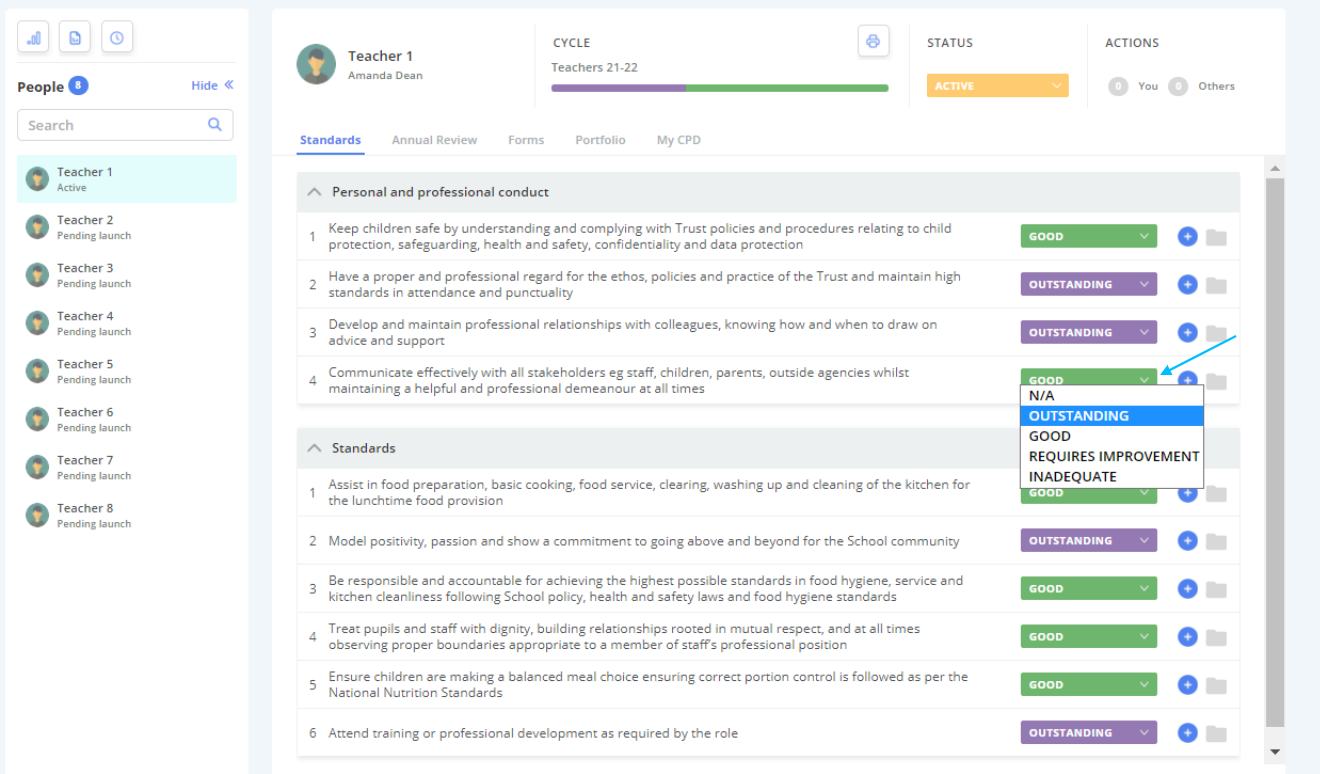
1. To do this, select the drop down arrows to the right of the current grade and select the updated value you wish to display.
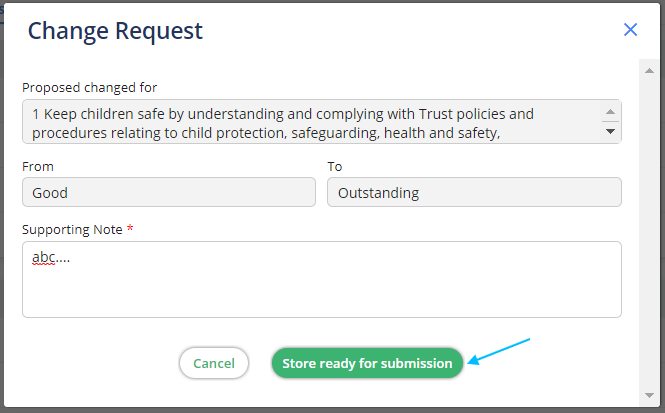
2. You will be re-directed to this pop-up box, which allows you to add notes / commentary regarding why you feel the change is applicable.
Submit when ready.
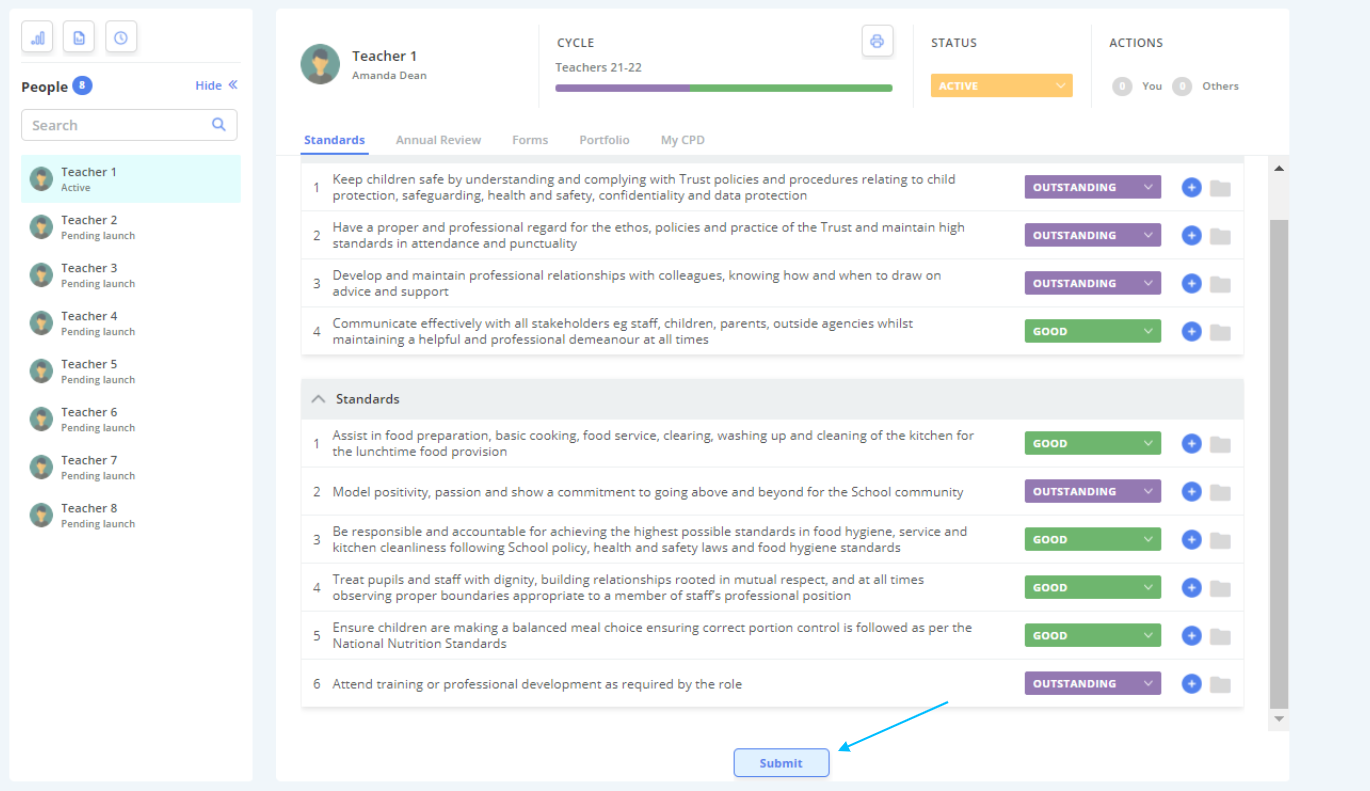
Note: You can make multiple changes to your set of standards.
3. Once you have made you desired changes, select "Submit" at the bottom of the screen to submit the changes for review by your Appraiser.
Your Appraiser will be prompted by your changes on their next log in via the Action Station.
Respond to a Change Request
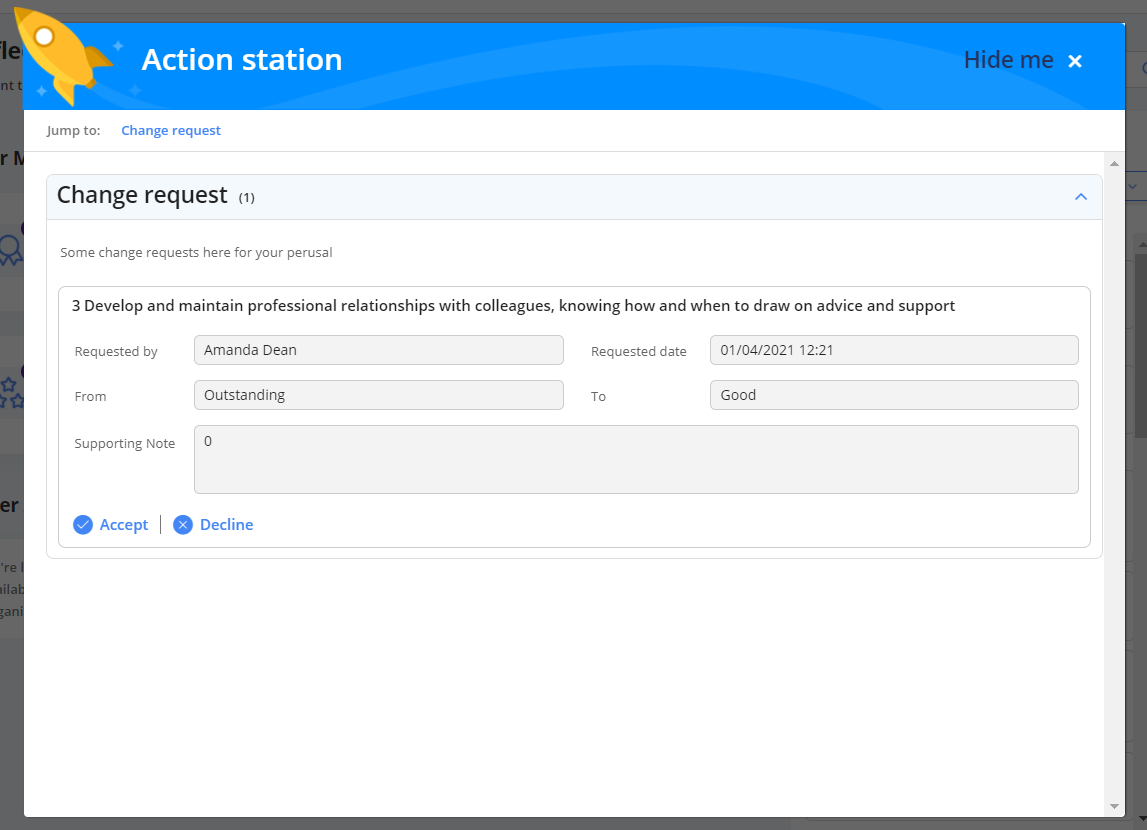
If your Appraiser makes a change to your standards, you are alerted in your Action Station to Accept or Decline the change.
1. To respond to the change request, select either "Accept" or "Decline".
Add Items against a Standard
Both an Appraiser and an Appraisee can add various items against a standard.
1. To do this, select the small "+" next to the standard you wish to add an item(s) for.
2. Choose the relevant item from the drop down list.
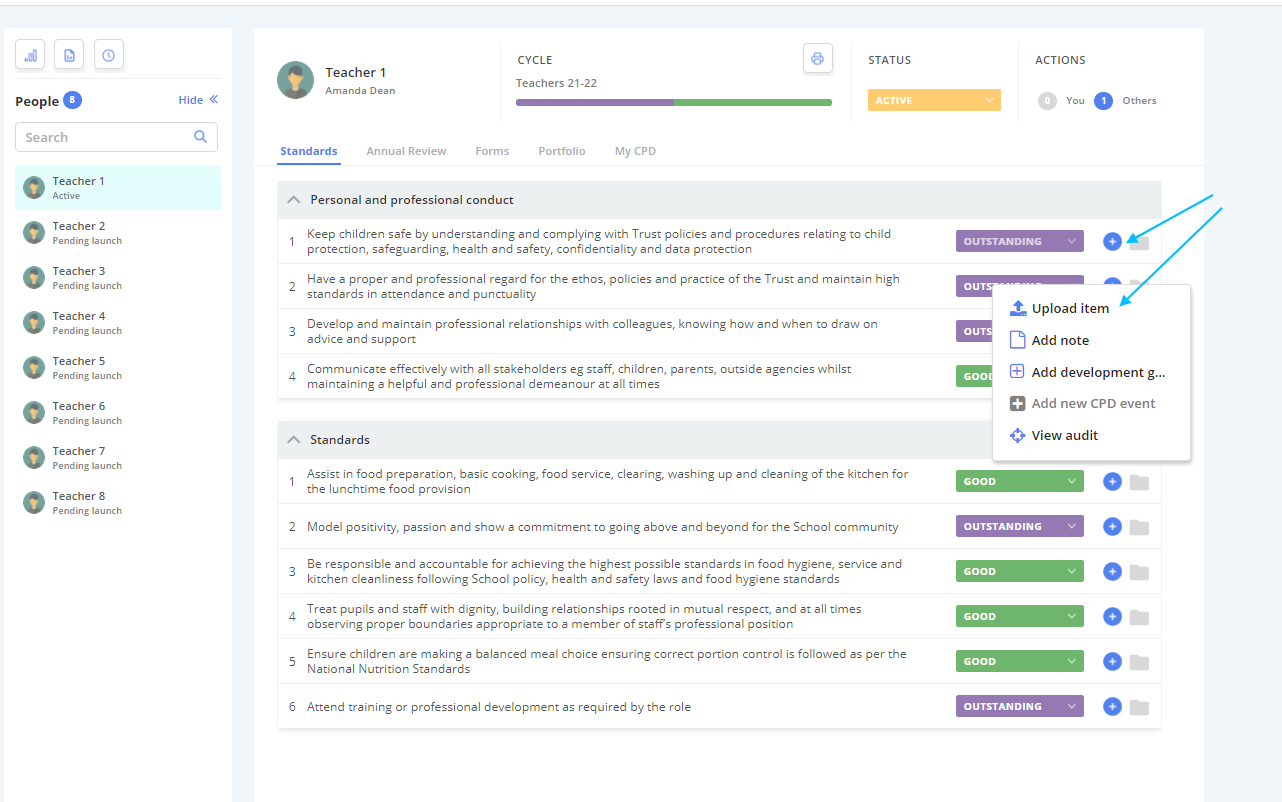
As you can see there are a few options to choose from:
- Upload an item (evidence)
- Add a Note
- Add a Development Goal
3. Work through the relevant wizard and select "Submit" when finished.
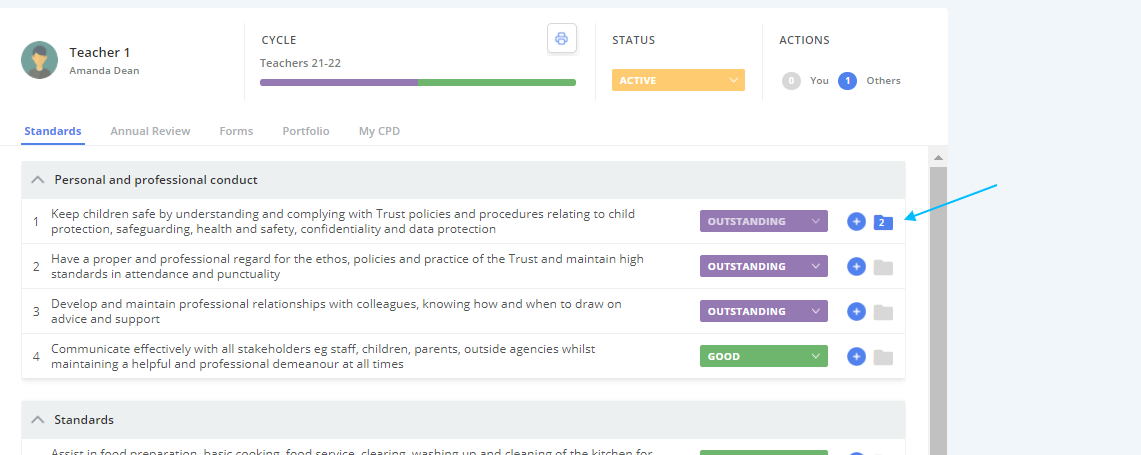
The number of items related to a particular standard is shown in the folder icon to the right of the associated standard. This number is a total, including all 3 item types listed above.
Objectives/Cycle Page
This is the page of your record which is related to any cycles you are currently enrolled into. Typically this is also a page where your objectives are shown.
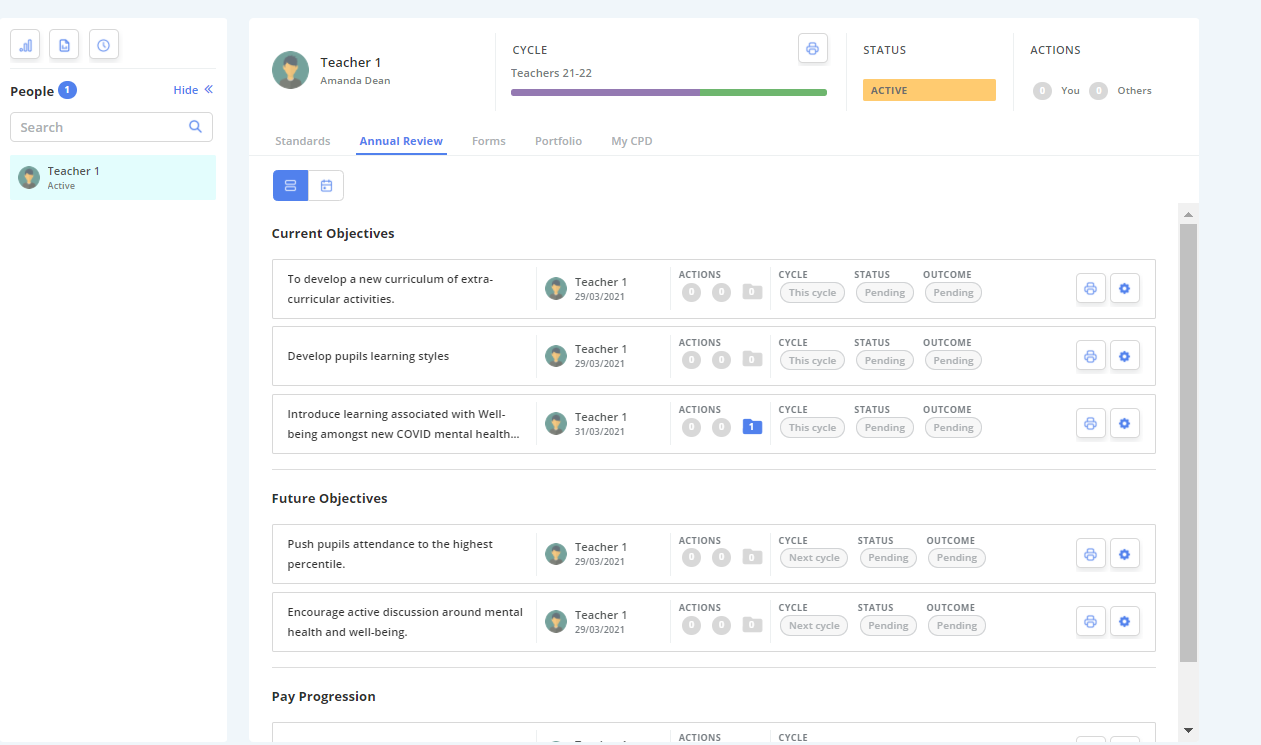
Viewing your Objectives
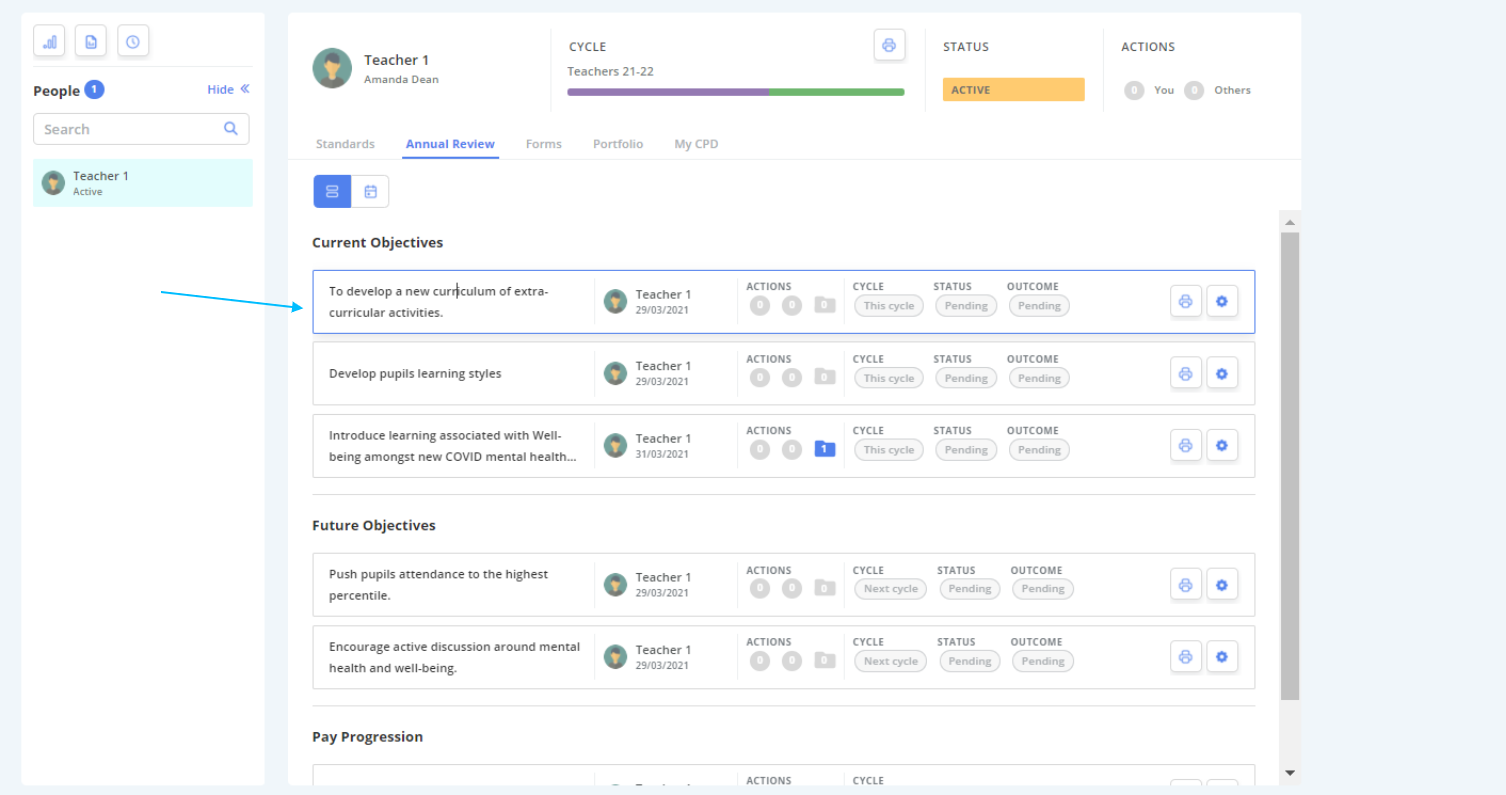
1. If you want to view an objective in more detail, simply click on the objective bar you wish to view.
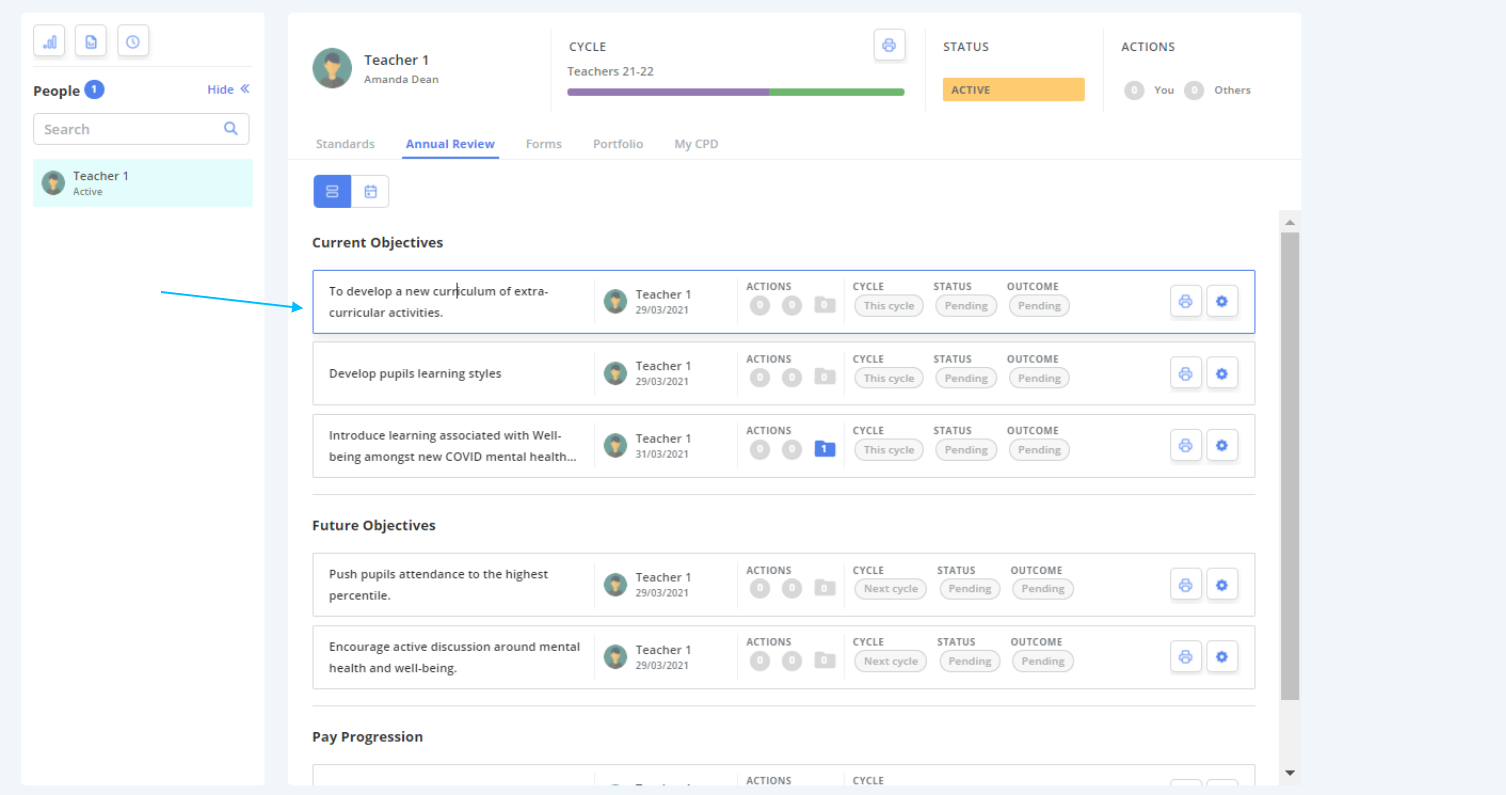
2. This then opens the form, which you can read but cannot edit. (Only Appraisers can set/edit objective forms).
Add Items against an Objective
Both an Appraiser and an Appraisee can add various items against an objective.
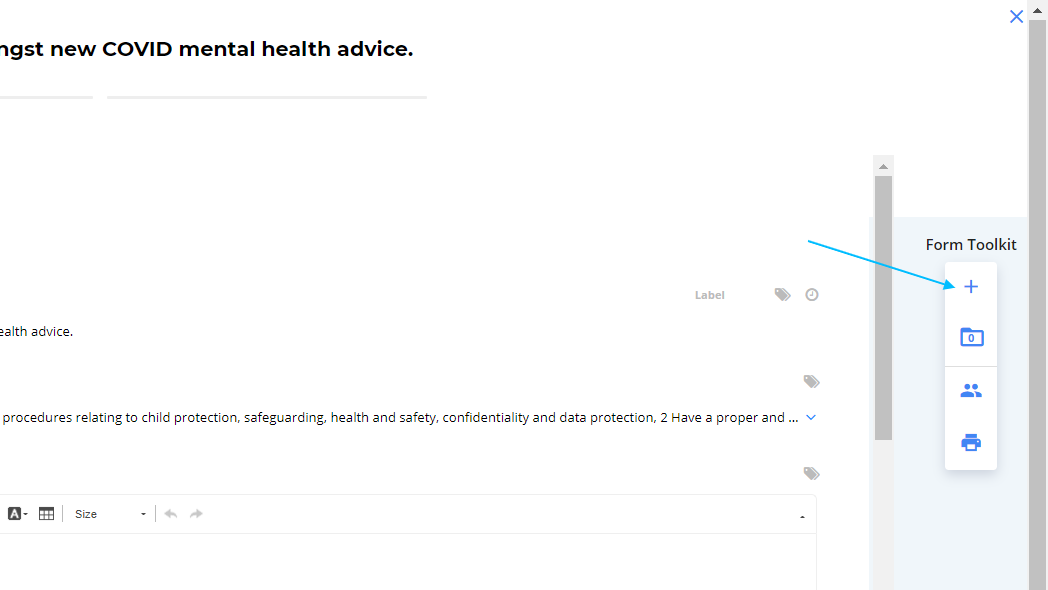
1. First, open the objective you wish to add an item of evidence against.
2. Choose the "+" plus icon from the Form Toolkit, located at the right hand side of the screen.
3. Work through the wizard and select "Submit" when finished.
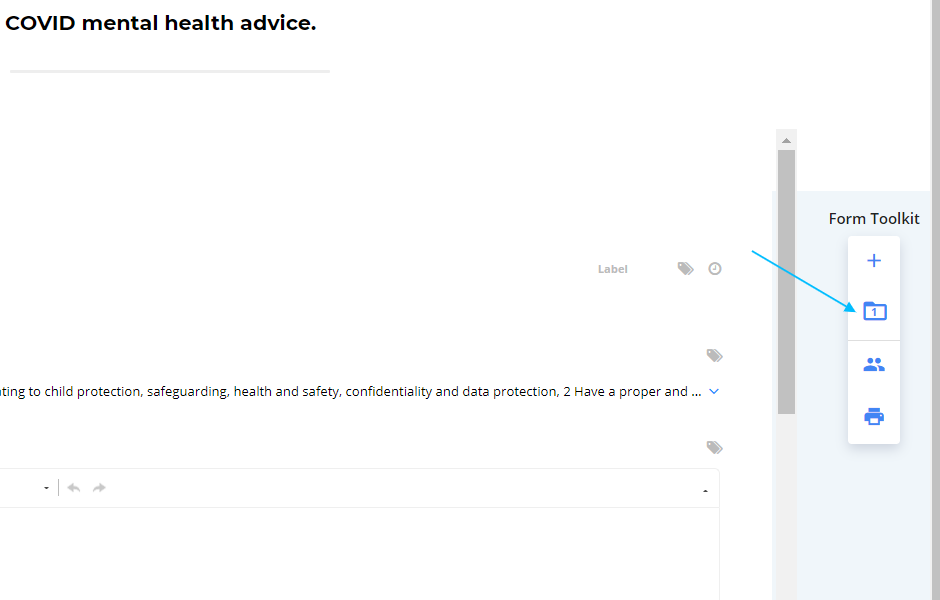
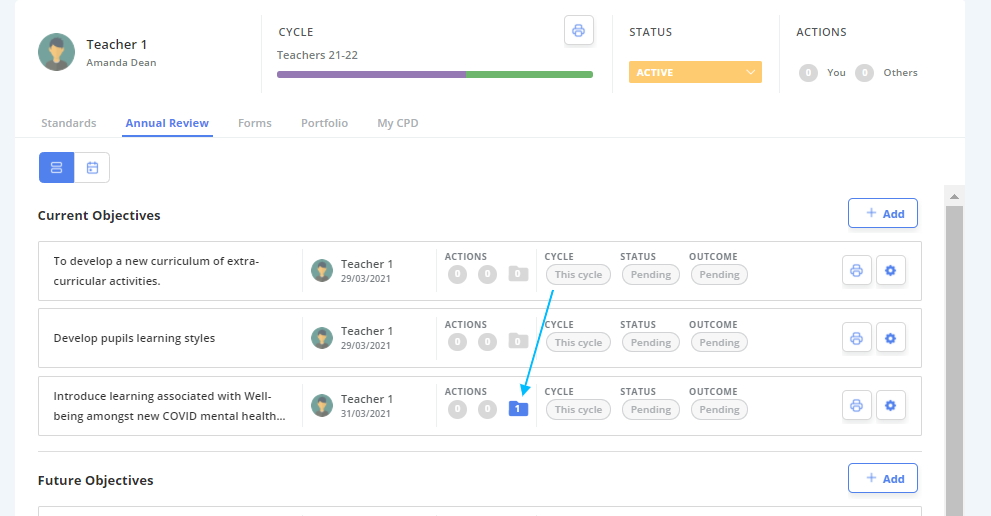
The number of items related to a particular objective is shown in the folder icon to the right of the screen (shown below) and also on the Objectives home page.
Forms Page
This page stores all of your form entries in one place.
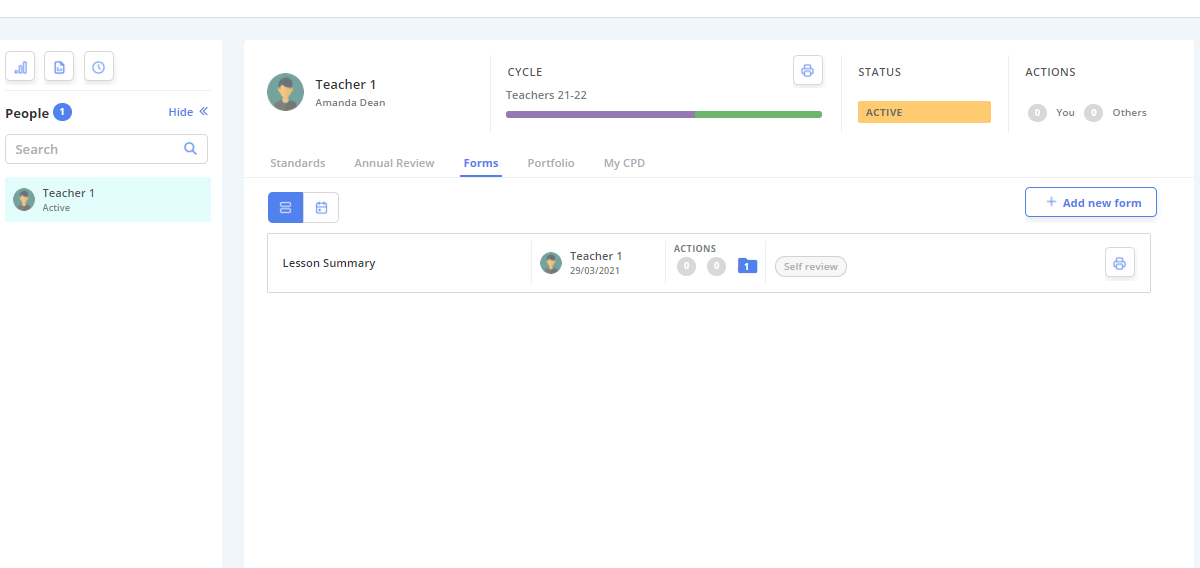
View/Change your Form(s)
You can view and edit your forms at any time.
1. To add a new form, select "Add New Form" located at the top right of the page and select the relevant form.
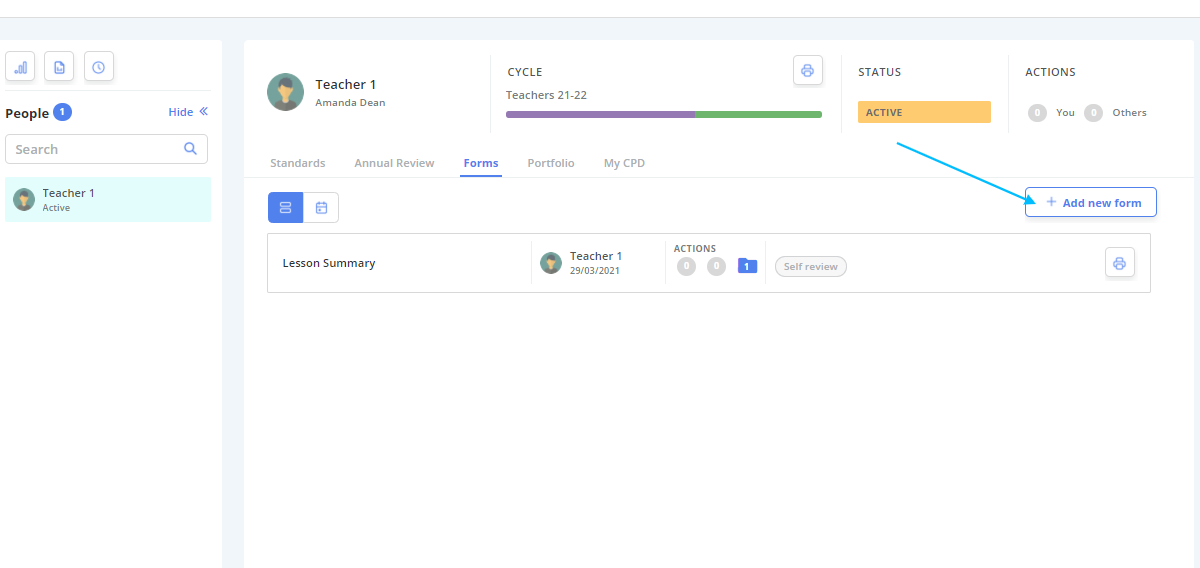
2. To edit or view an existing form, simply click on the form to open it.
Edit as usual.
Note: The forms track each change that has been made. If you re-open the form, each item in the form will have a small clock icon to the right of the screen. If you hover over this icon, it lists every time that item was changed, when, and by who. (Shown below).
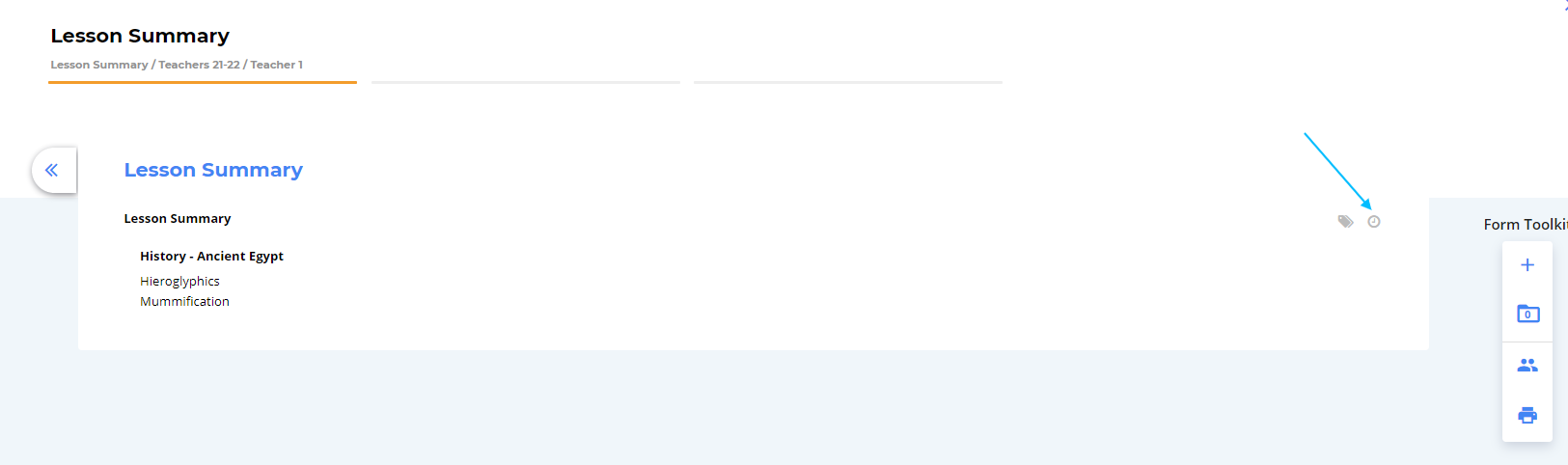
3. "Submit and close" when editing is complete to update to form.
Add Items against a Form
Both an Appraiser and an Appraisee can add various items against a form.
1. First, open the form you wish to add an item of evidence against.
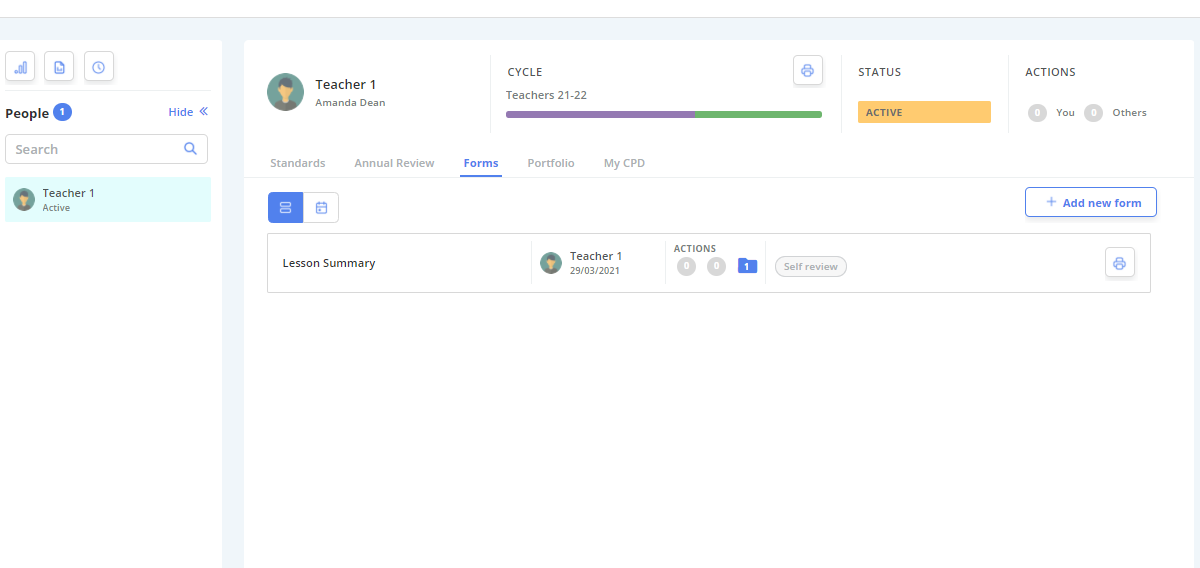
2. Choose the "+" plus icon from the Form Toolkit, located at the right hand side of the screen.
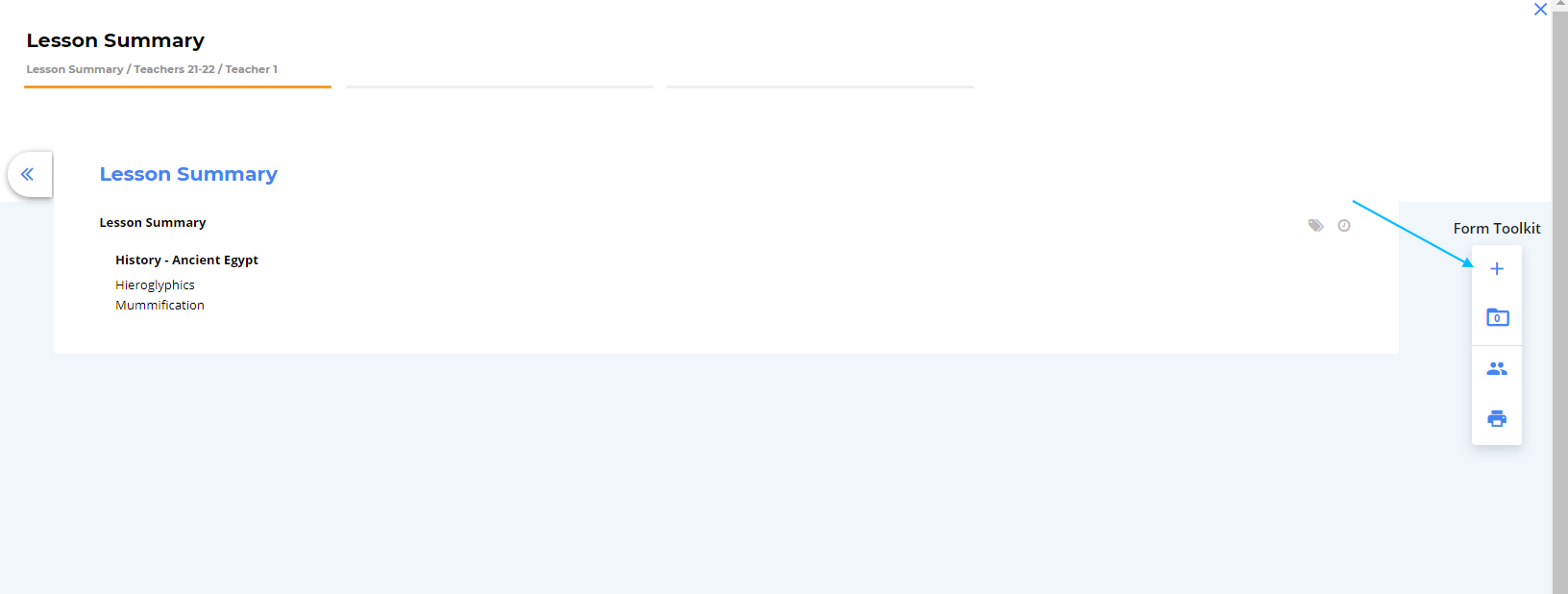
3. Work through the wizard and select "Submit" when finished.
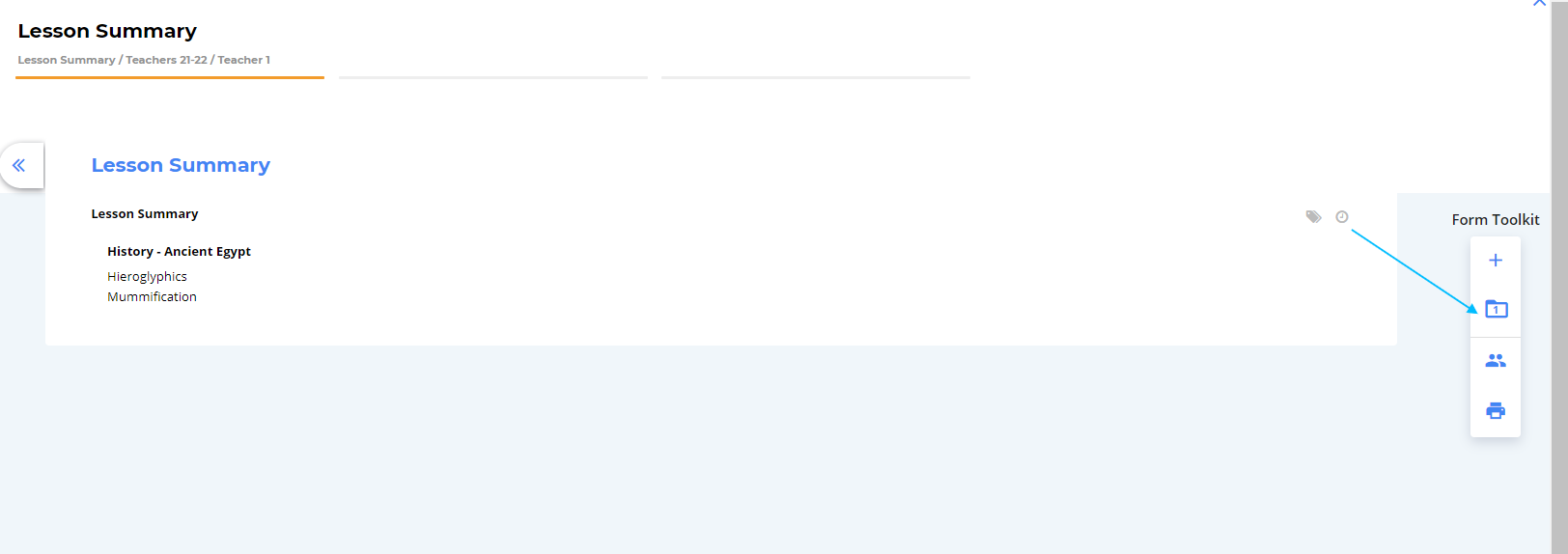
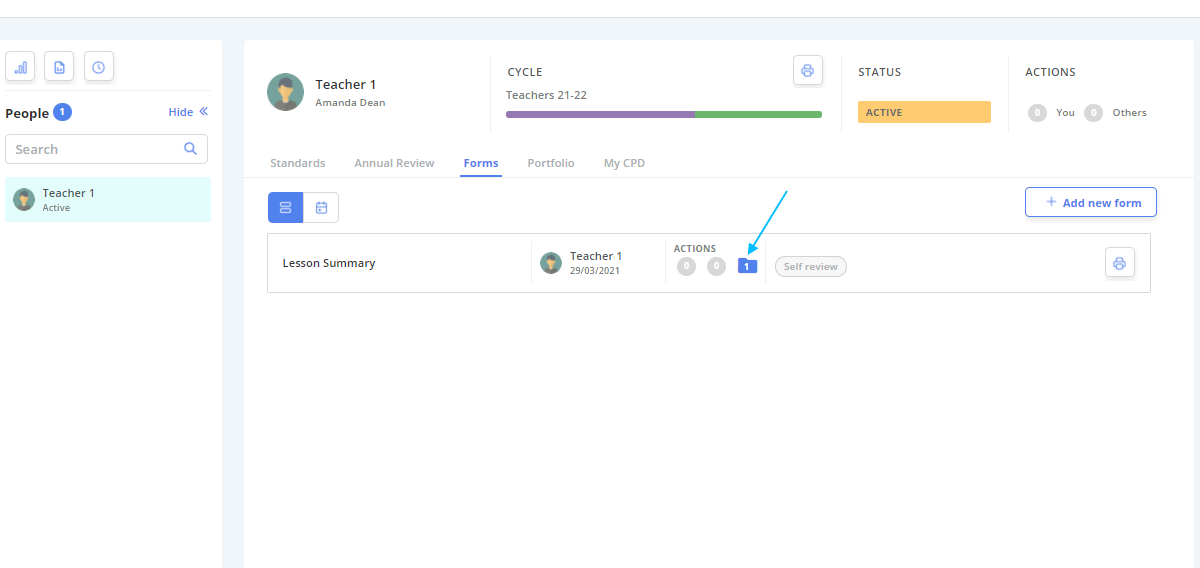
The number of items related to a particular form is shown in the folder icon to the right of the screen (shown below) and also on the Forms home page.
Portfolio Page
The Portfolio tab is a correlation of all the items/notes/and evidence uploaded against your record. You can view them all in one place here.