1. Add new user
Navigation Menu > Setup > Simple Setup > Users
Please note - this will not automatically add a user to a cycle, you must do this separately. Please see: Add user to cycle
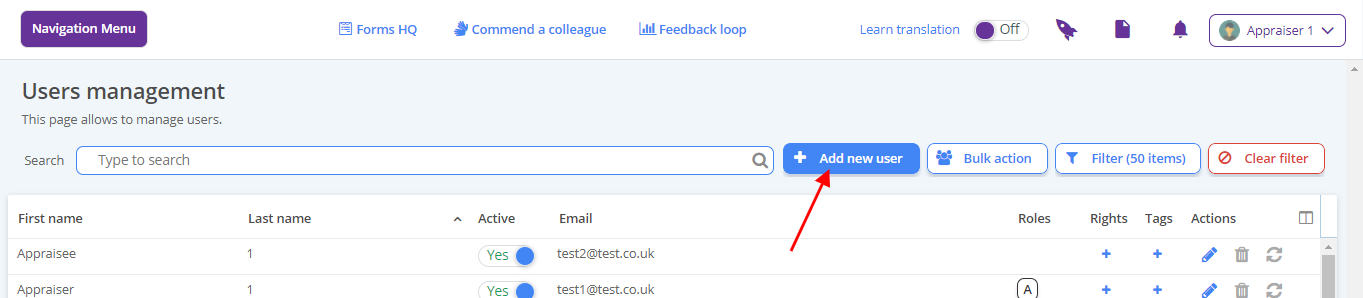
Go to the Users Page. Click Add new user
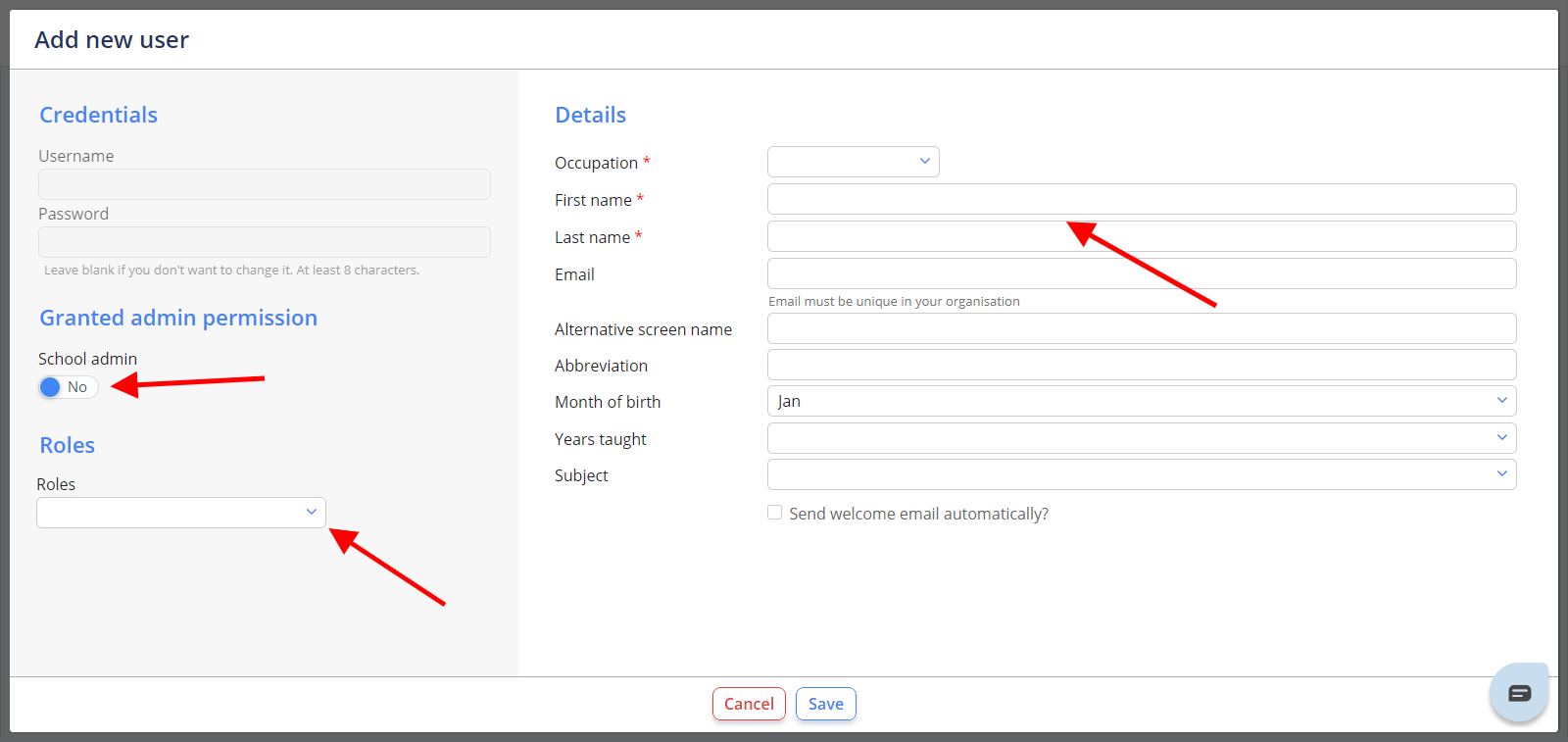
Complete the form
Click Save. The new user will appear in the list. To generate login details for this user, please see in this article: Print/Generate User Login Details
- Email is optional but advisable
- Where the user is a headteacher or admin user, allocate this right in the Granted admin permission section
2.How to allocate or remove fixed additional permissions
Locate the user, open their record and then scroll to the bottom of the form.
Add or remove the headteacher right as required
If the user requires administrative rights, allocate or remove this right in the Granted admin permission section
Click Save. The user’s permissions will update.
3. How to edit a user
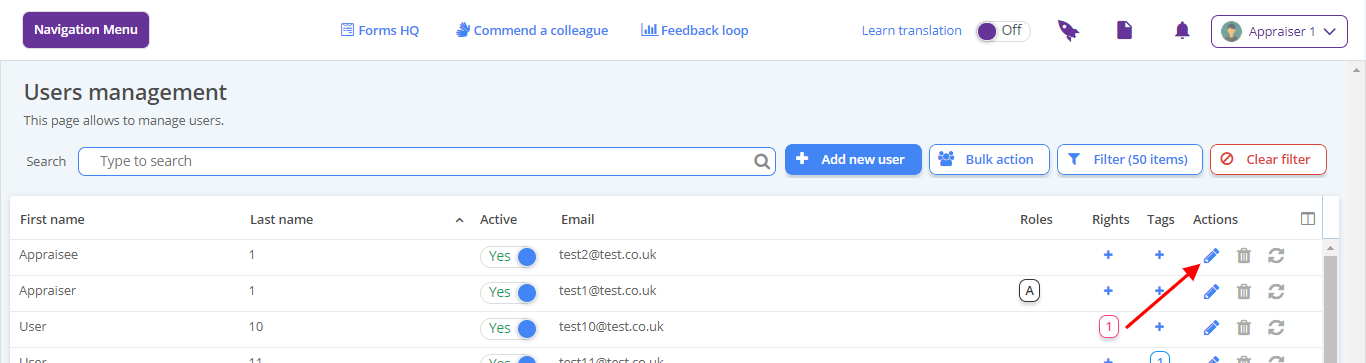
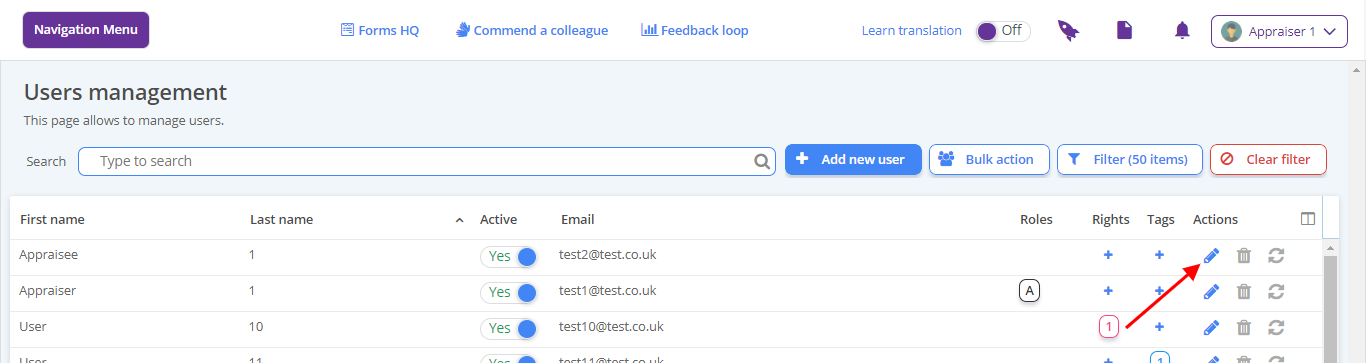
- Locate the user and select the pencil icon towards the very right of the name
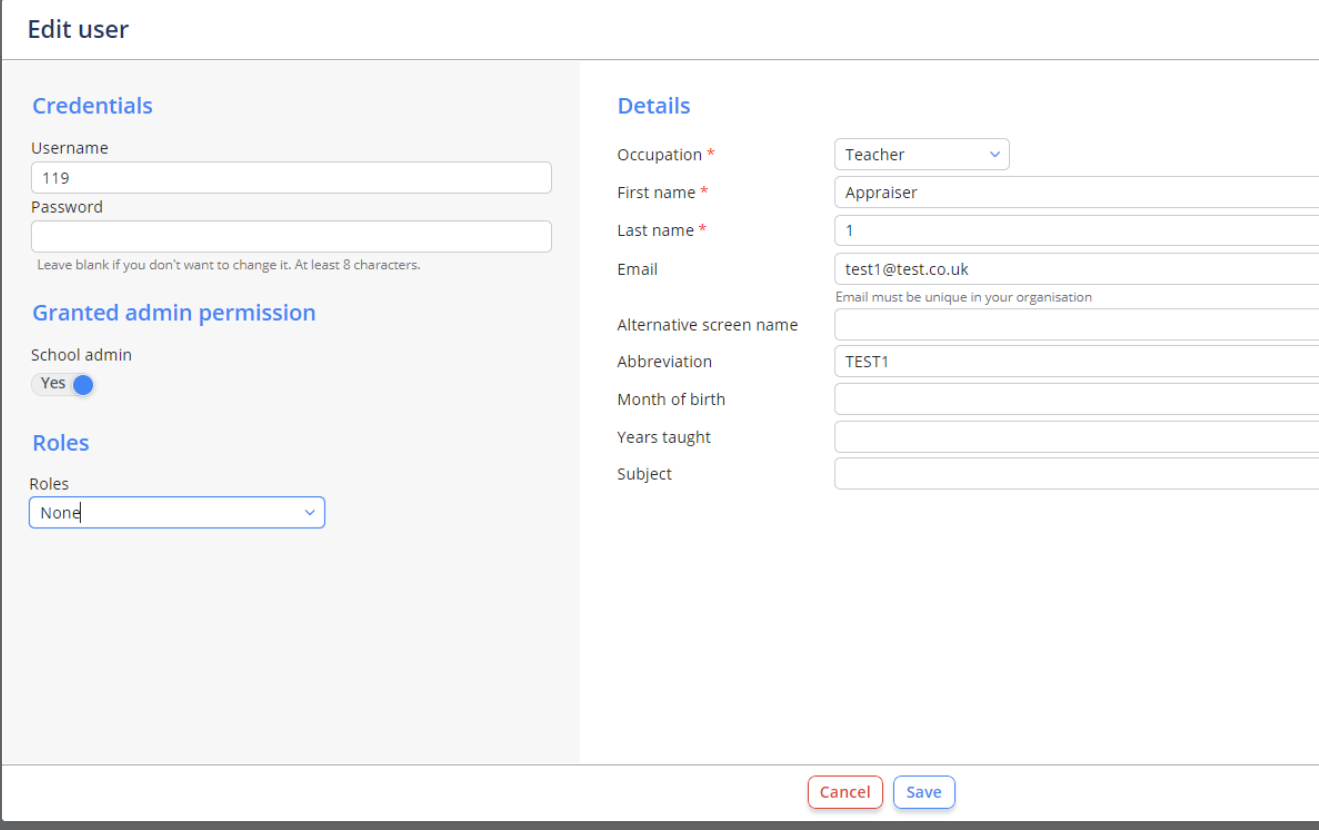
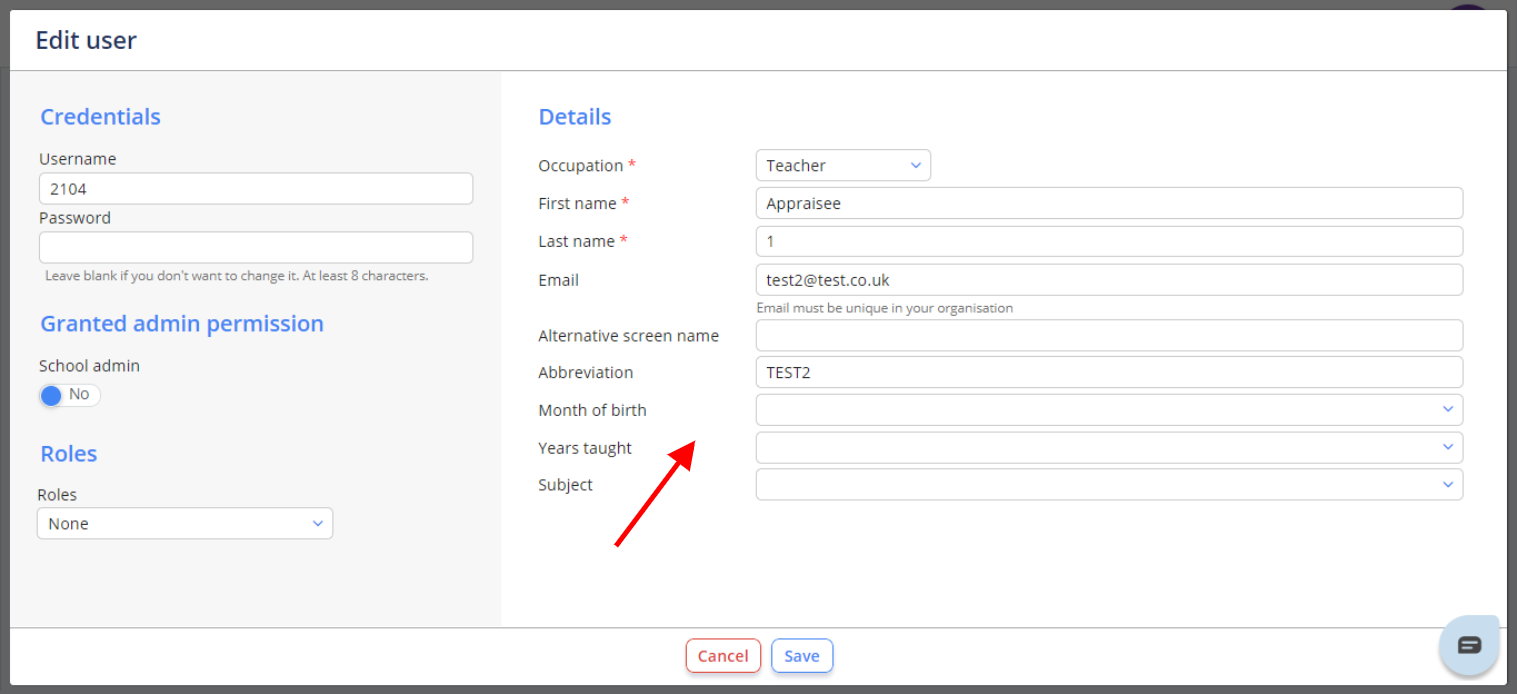
- Make any relevant changes to the user details on the form
- Click Save
4. How to deactivate a user account
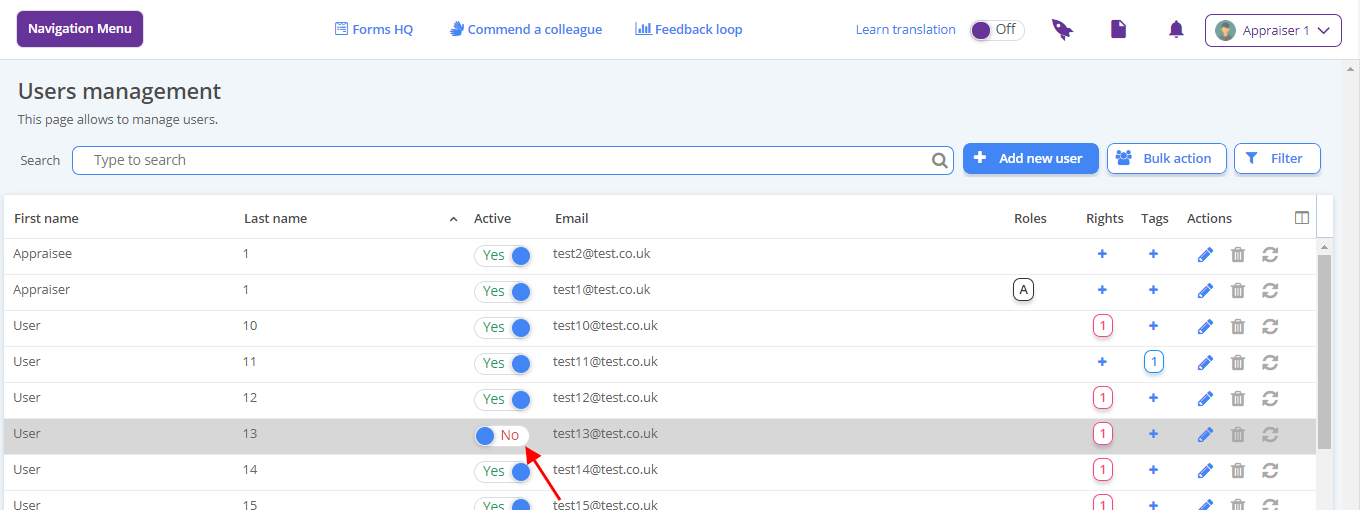
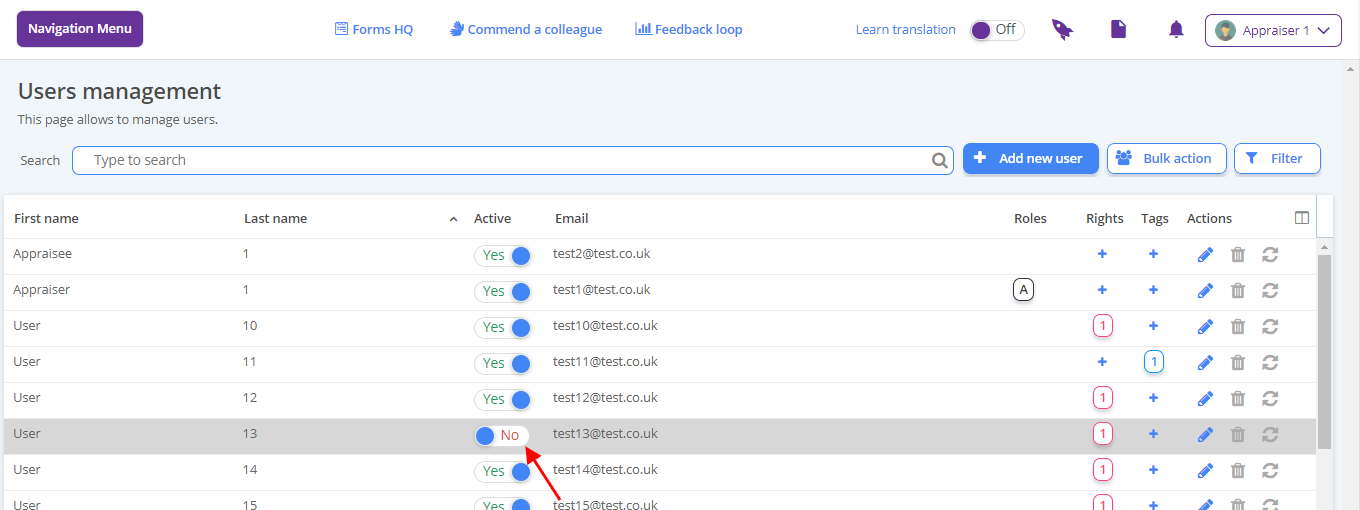
Locate the user and toggle the Active status button. The record will update immediately.

5. How to reactivate a user account
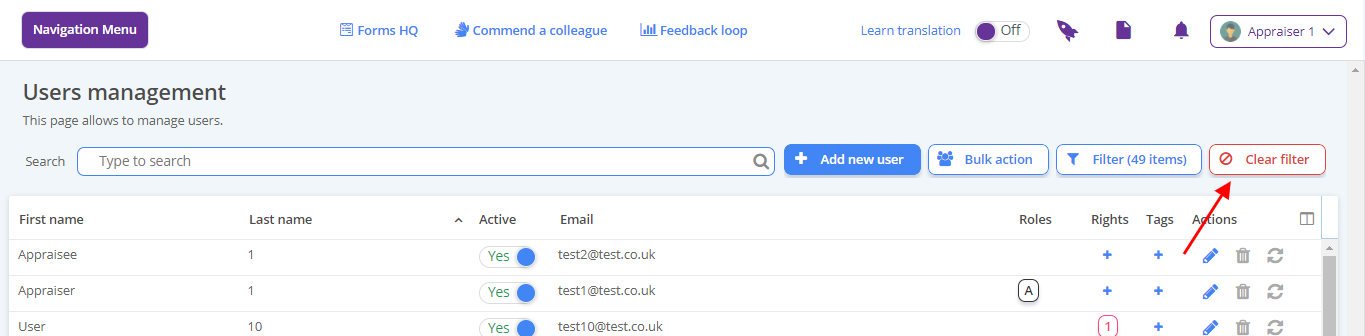
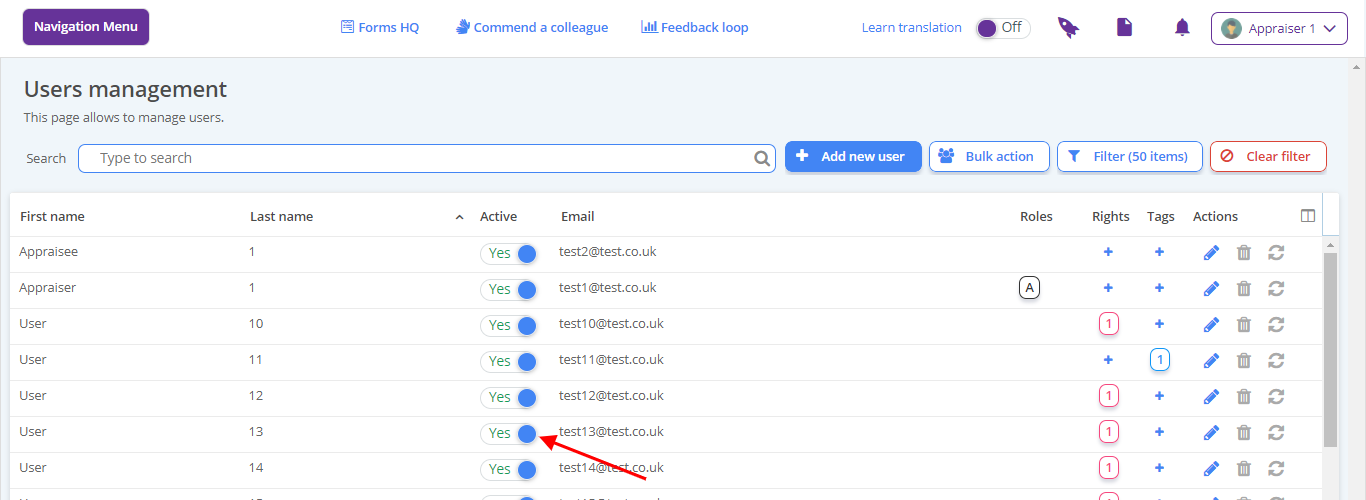
Clear the filter at the top right of the screen to expose all users
Use the toggle in the active column of the table to restore the user.
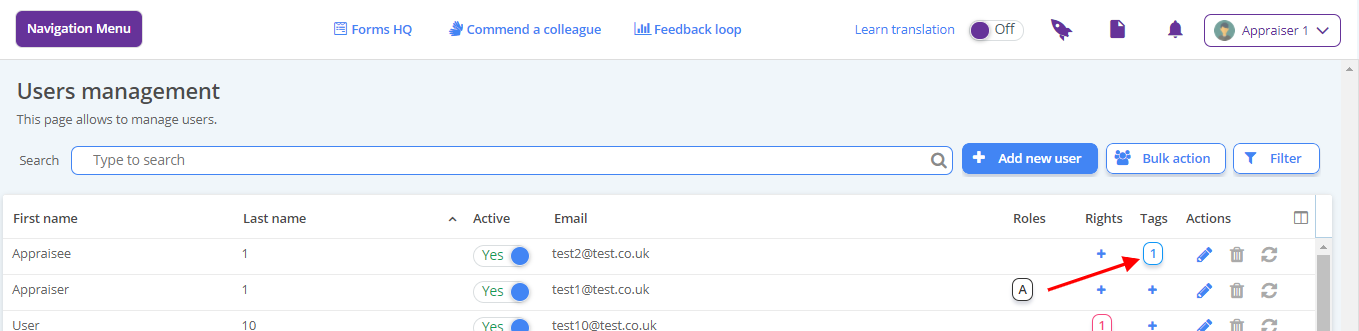
6. How to tag a user
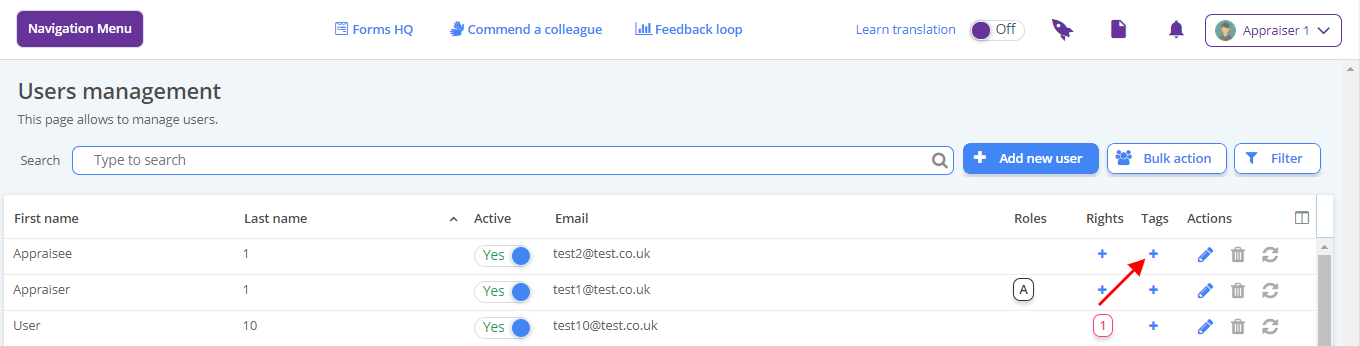
Locate the user and click the plus sign to the right
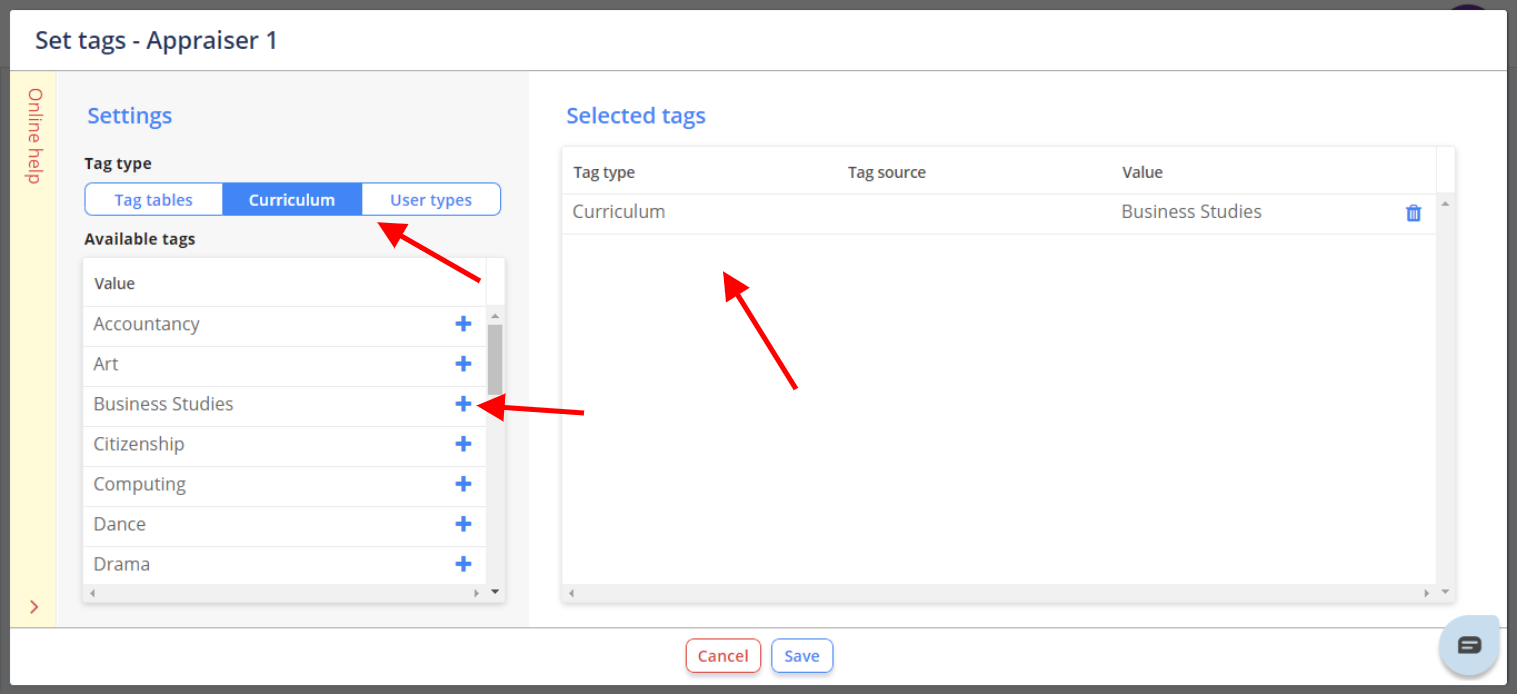
Select the tag types from the lists
Click the plus icon for the tag you wish to add, then Save
7. How to allocate a permission set/special rights
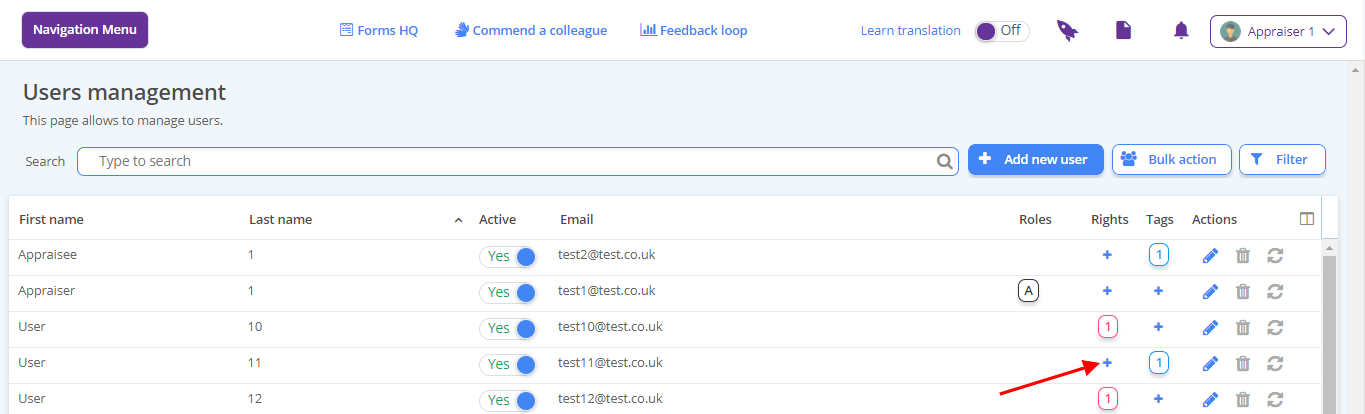
Locate the user click the plus icon on the Rights column
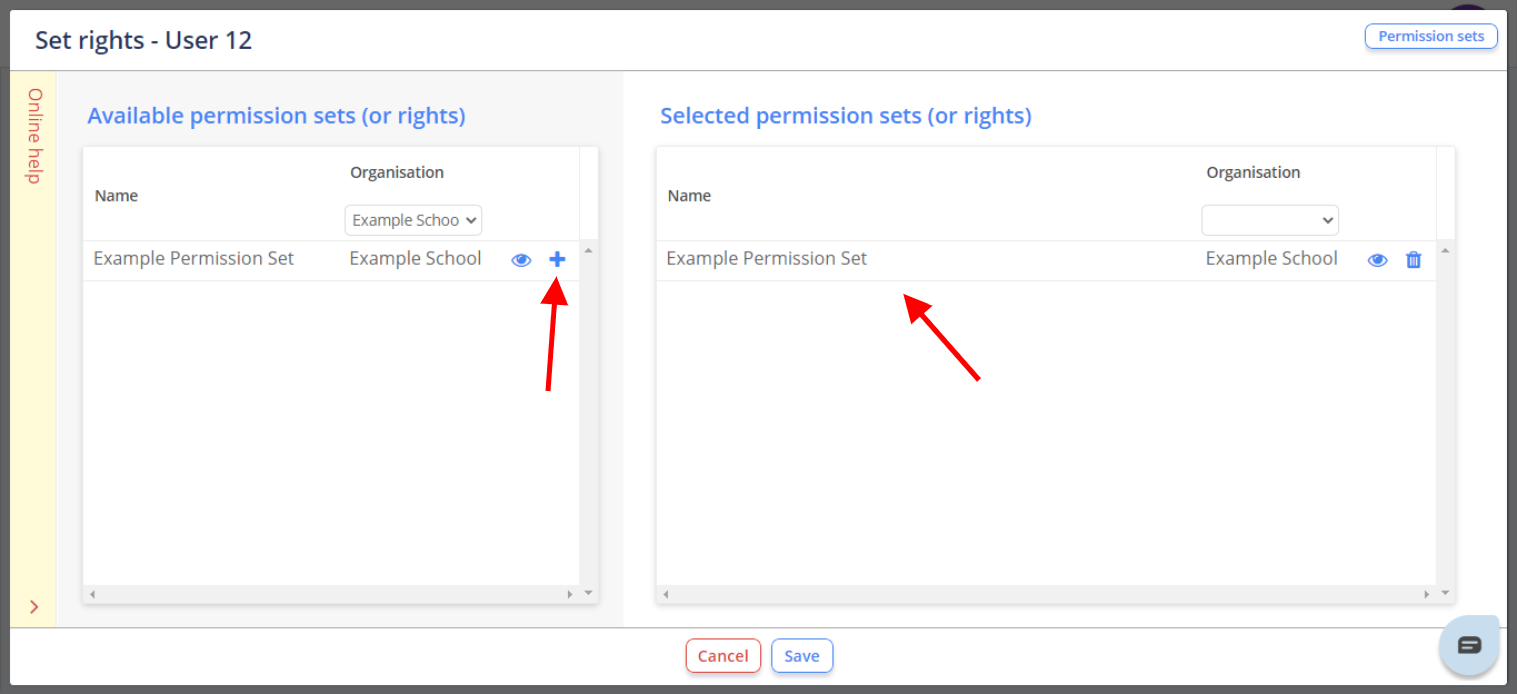
Click the plus icon for the permission set you wish to allocate and click Save. If you need to allocate Head Nominee or Senior Teacher rights, click the relevant permission set here - this will provide this user with special access
8. How to revoke a permission set
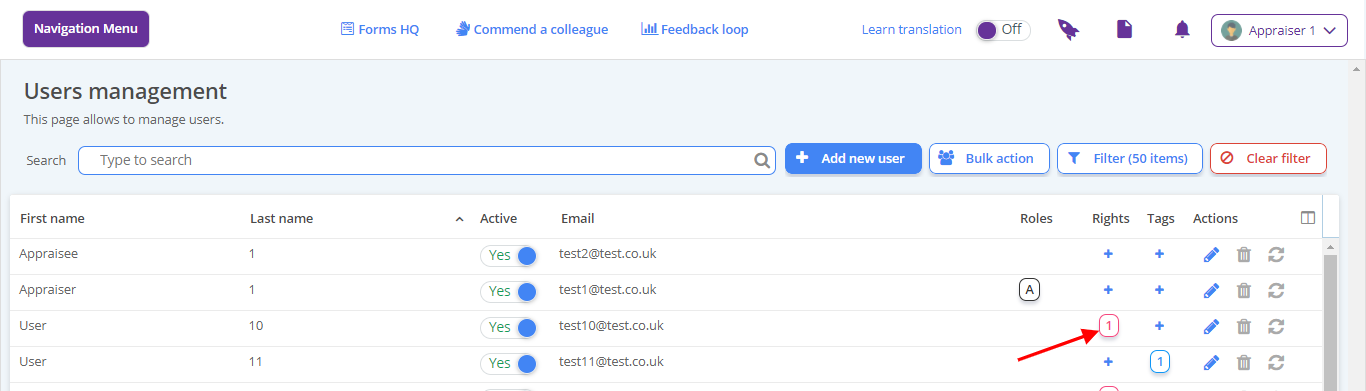
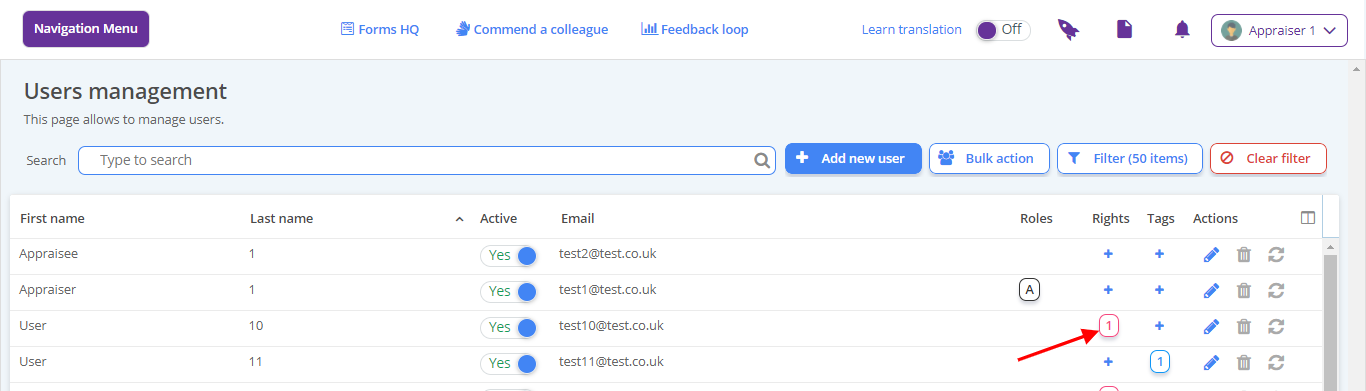
Locate the user and click the red number icon in Rights column
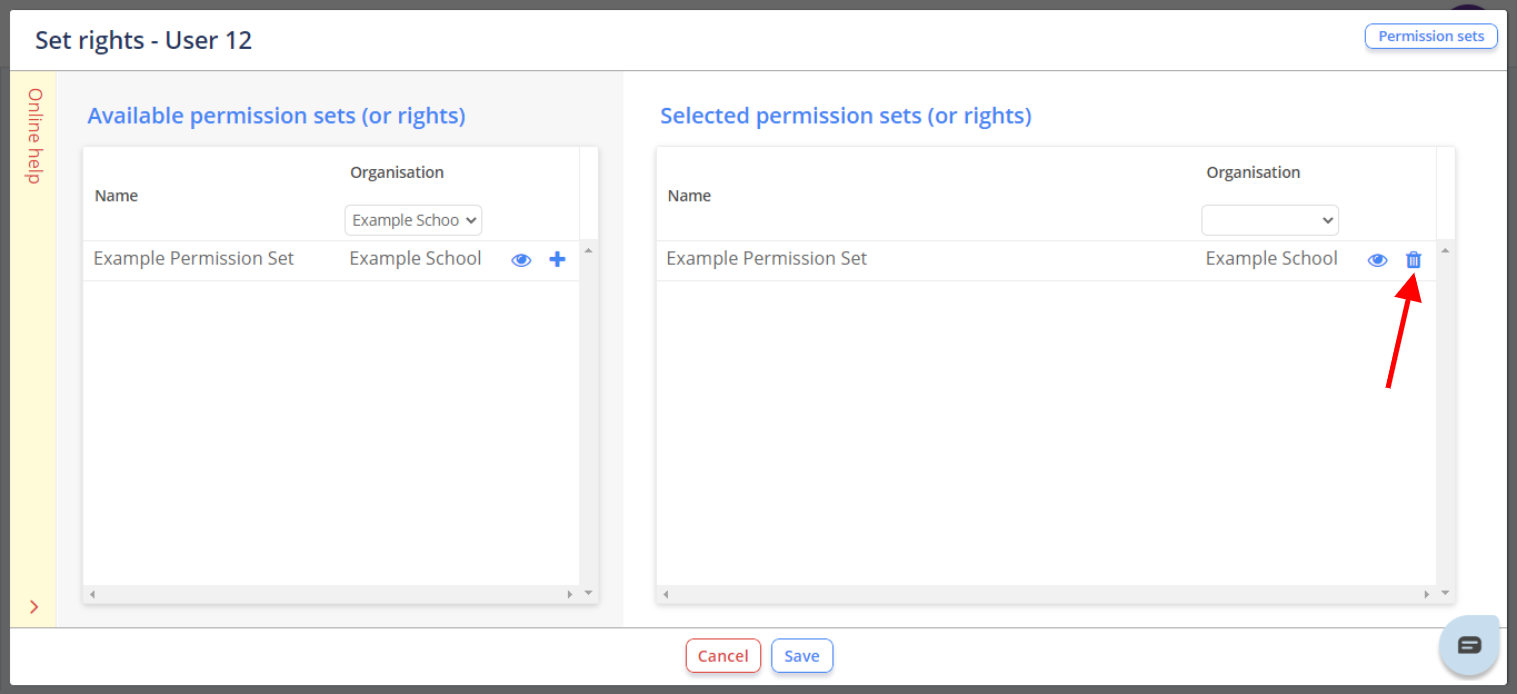
Click the bin icon for the permission set you wish to revoke and then click Save.
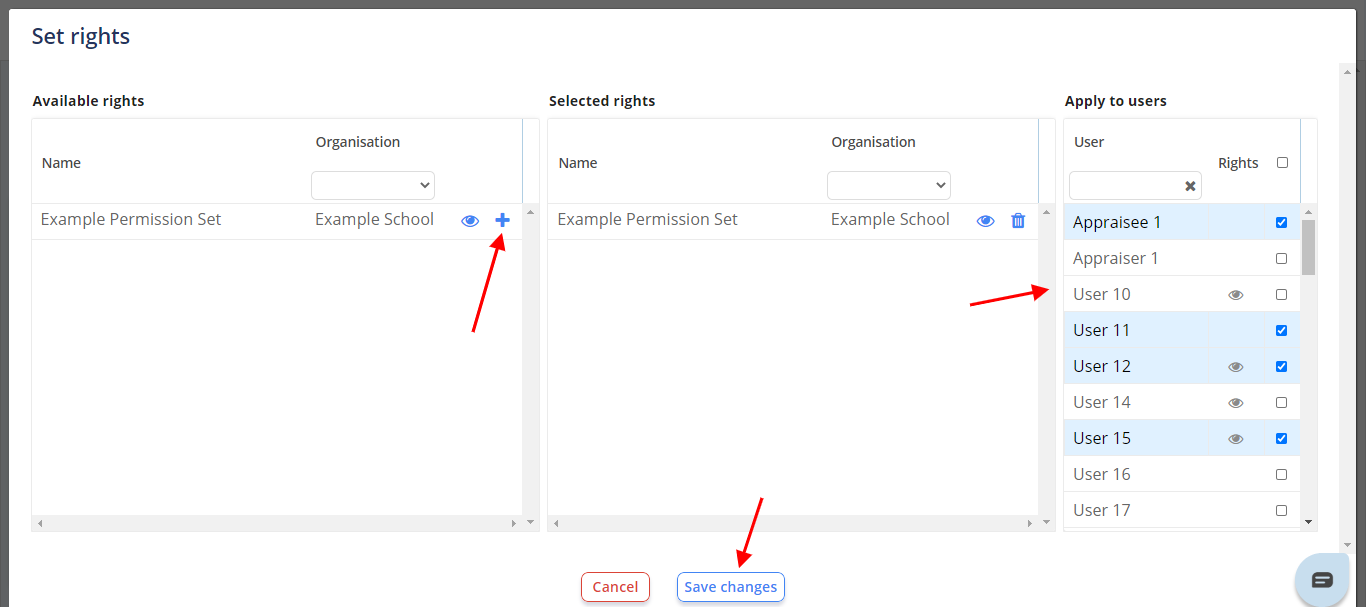
9. How to allocate a permission set as a bulk action
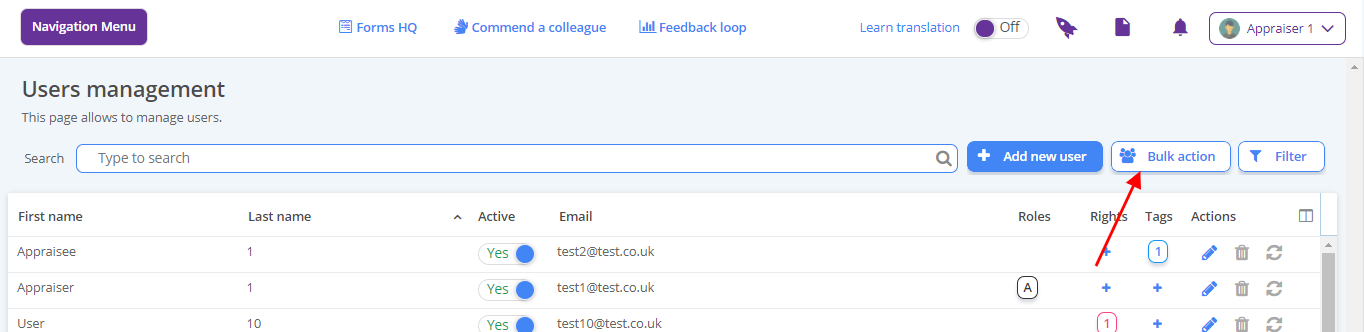
- Click the Bulk Action button
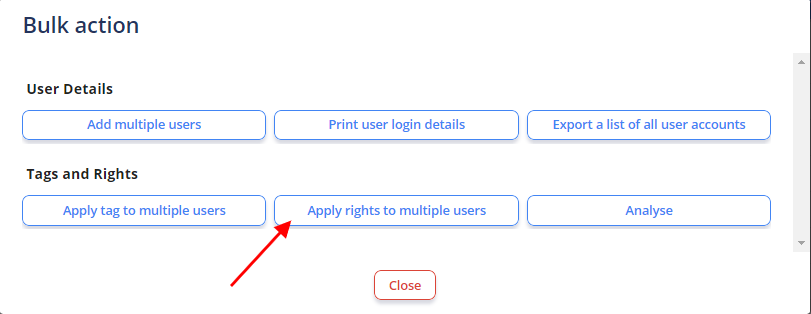
- Click the Apply rights button
- Select the required permission set(s) by clicking the plus icon.
- Select the users who need the permission set(s) and then click Save
10. Print/Generate User Login Details
Navigation Menu > Setup > Simple Setup > User
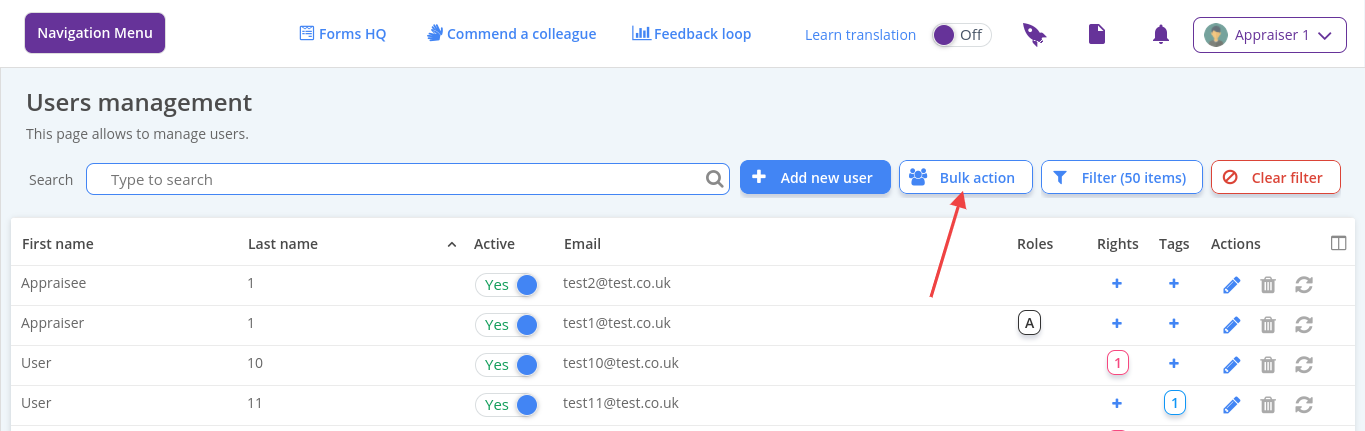
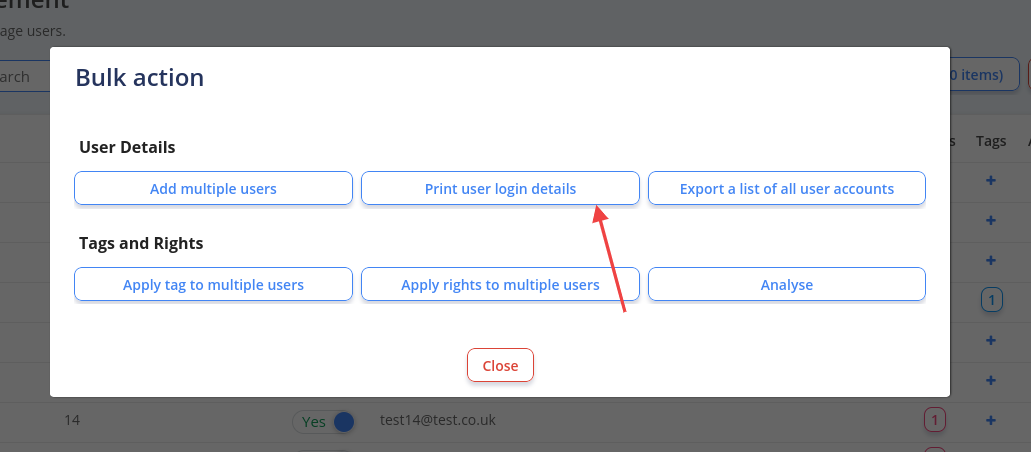
Go to the Users page. Click Bulk Action and then Print user login details
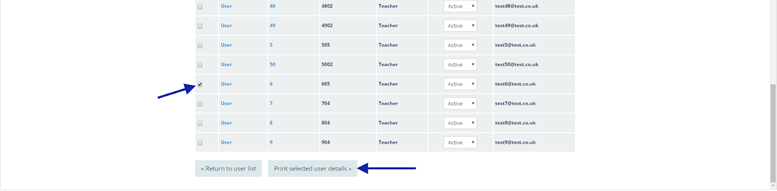
Select the tick box for the relevant user(s) who need new login details
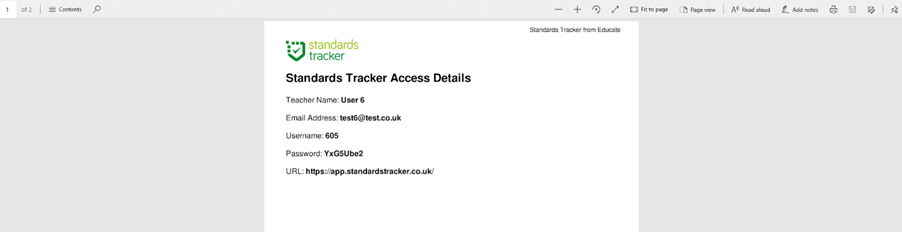
Click Print selected user details > click OK - A PDF containing login details for the user(s) will be exported to your Downloads folder. You can hand this out to your users to allow them to log in