TABLE OF CONTENTS
- Create your Framework
- Create your Grade Set
- Create your Form
- Creating your First Instance
- Using Self-Evaluate
Introduction
- Generate evaluations for any organisational level
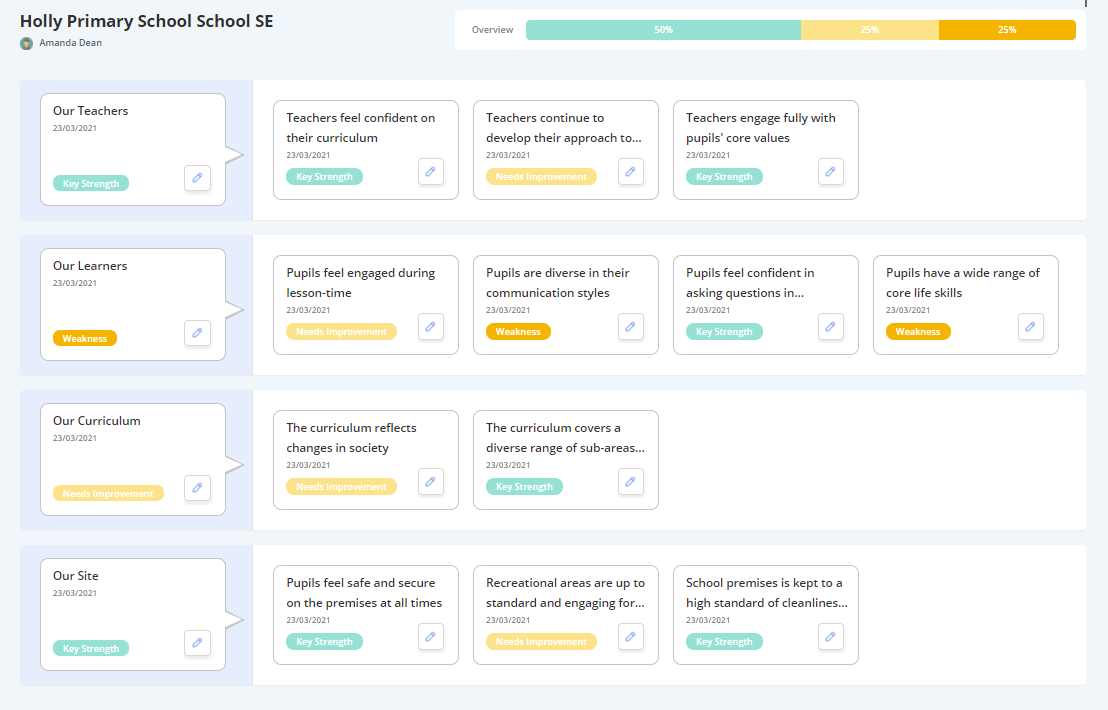
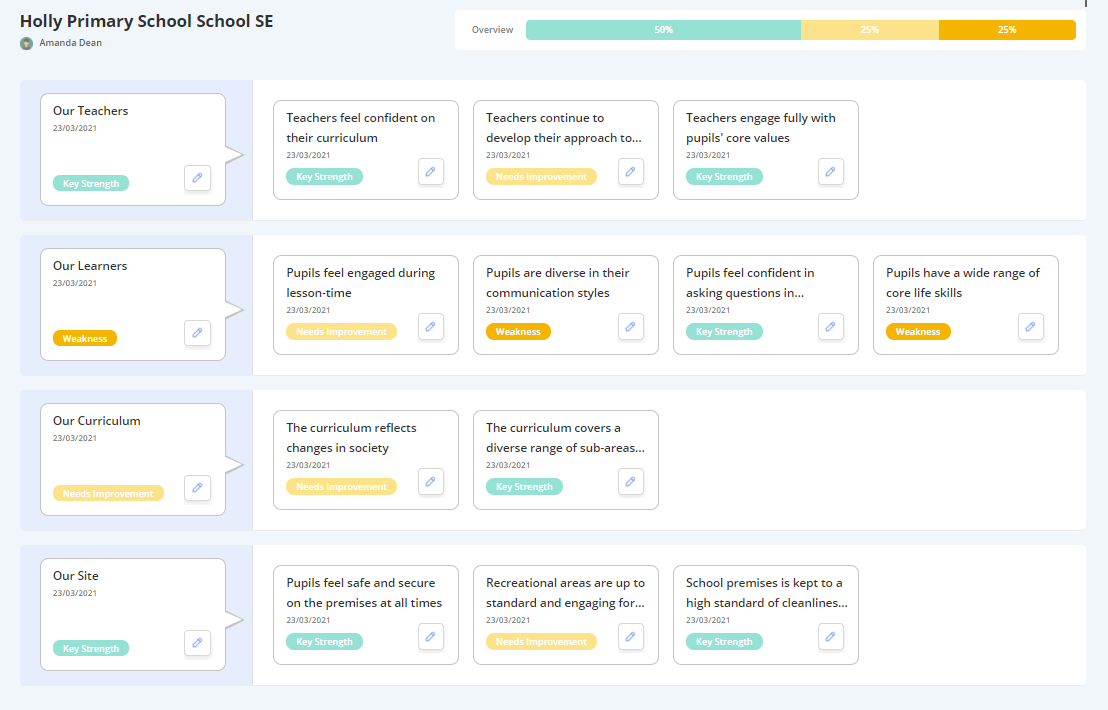
- Maintain an overview of your progress at any given time
- Add Evaluation items and sub-evaluation items to keep track of organisational goals
- Maintain a commentary against each item to keep track of updates
- Link organisational goals with planning items and standards to triangulate school development
- A School Framework
- A Grading System
- A Commentary Form
Create your Framework
Navigation Menu / Setup / Advanced Setup / Frameworks Designer
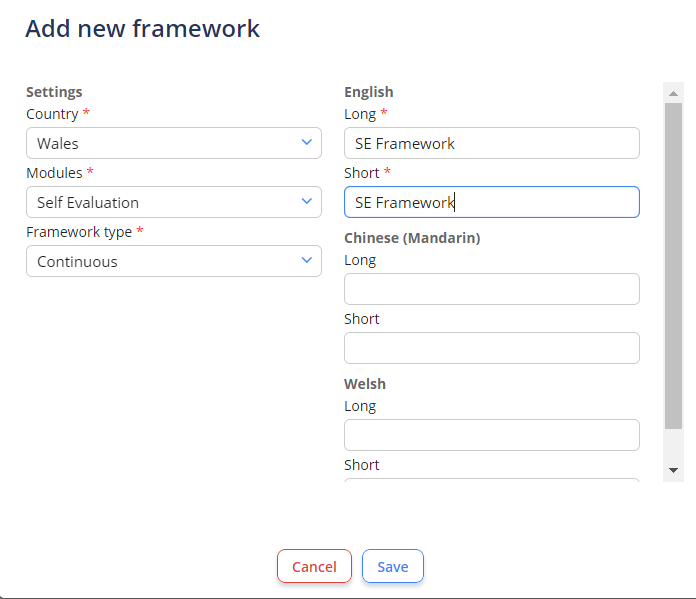
1. Select "Add New Framework" - located in the top right hand corner of the screen.
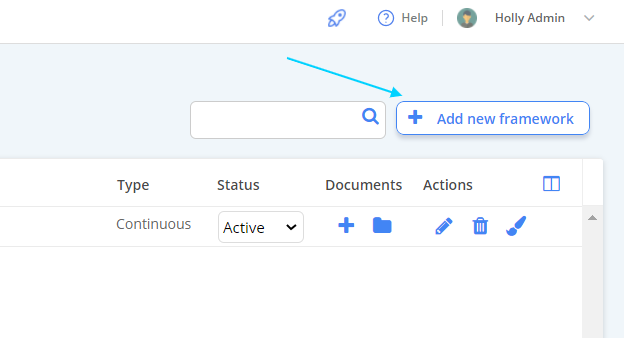
2. A pop-up windows will appear. Build your Framework on this screen.
- What is your Framework called?
- Allocate to the Self-Evaluation module
- Allocate country and Framework type
Save your set-up and proceed to the overview screen when all fields are complete.

 Child nodes can be added using the 3 dots icon next to a Parent Node.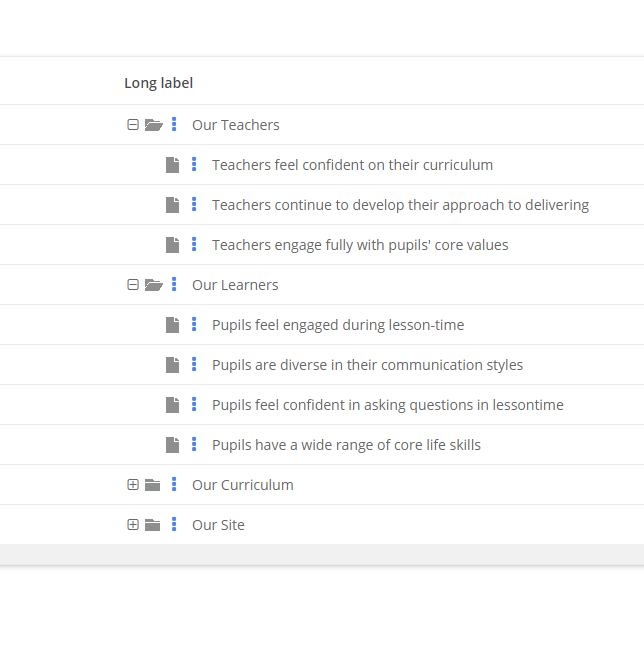
 Tip: You can add new Parent or Child nodes to your Framework at any time by navigating back to this screen.
Create your Grade Set
Navigation Menu / Setup / Advanced Setup / Grades
The grade set is a set of indicators that each Framework item will be graded against.
1. To create a new set of grades, select "Add New Grade Set" - located at the top left of the screen.
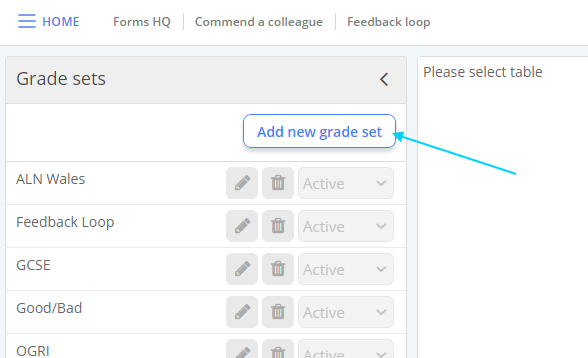
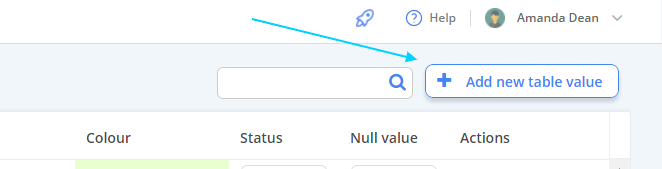
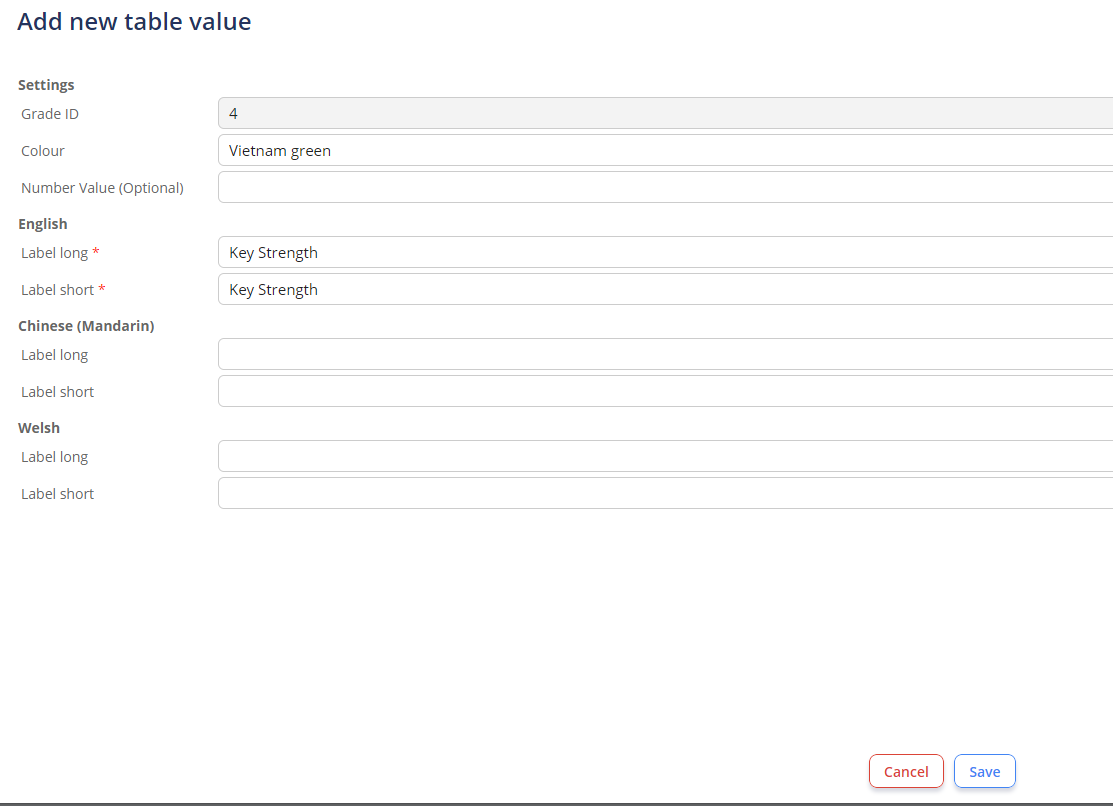
2. Name your grade set - in this case we have used "SE Indicators" - and start adding your values using "Add new table value" - located at the top right of the screen.
From the create table you can allocate an item name, colour code and number indicator (optional).
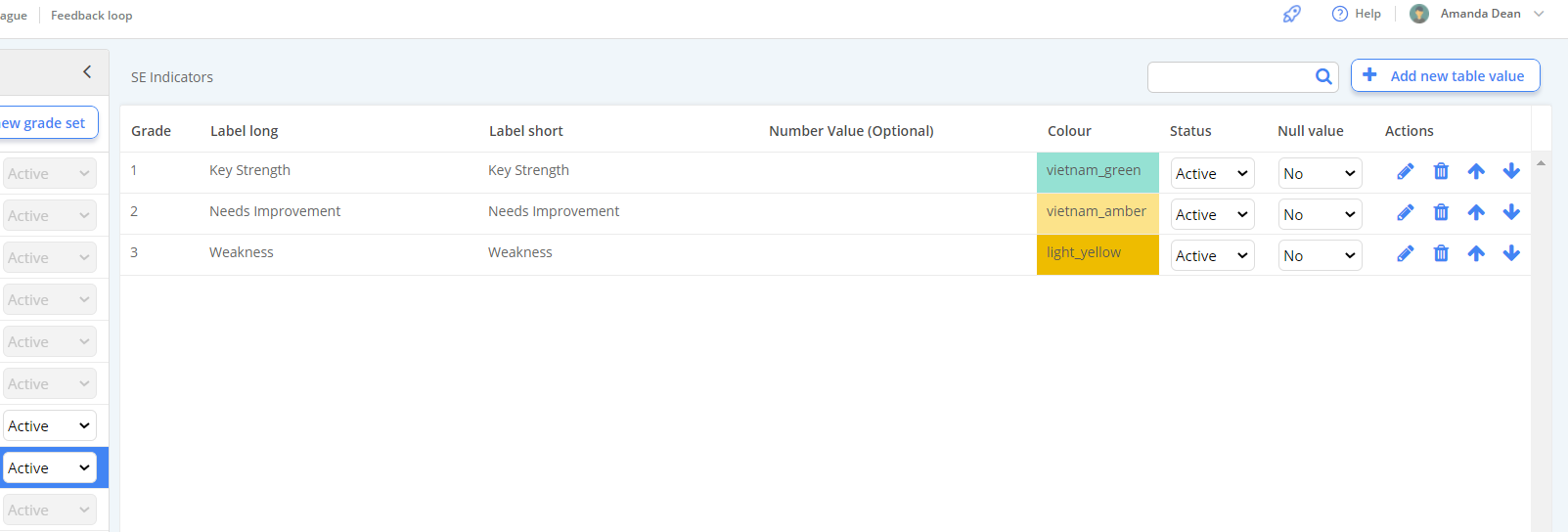
Below is an example of a completed grade set.
Create your Form
Navigation Menu / Setup / Simple Setup / Forms Manager
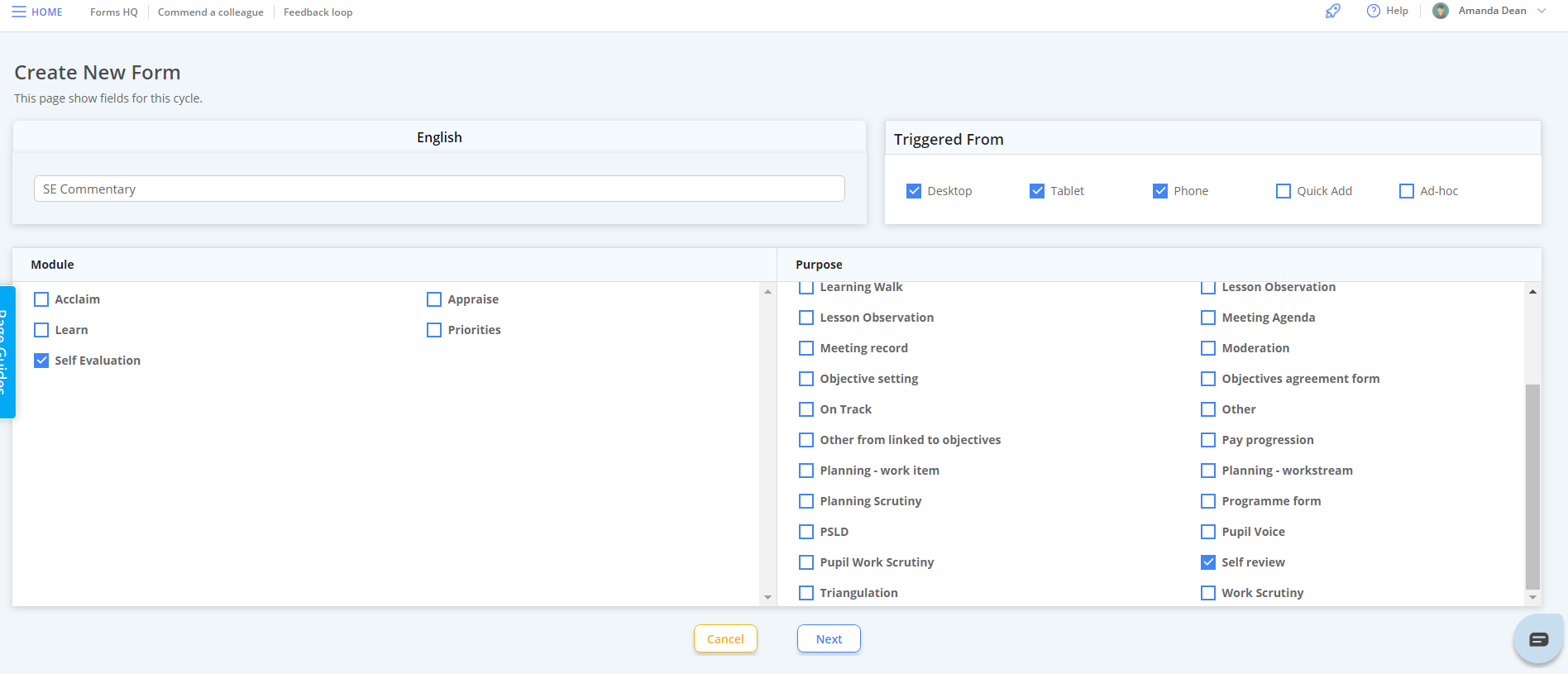
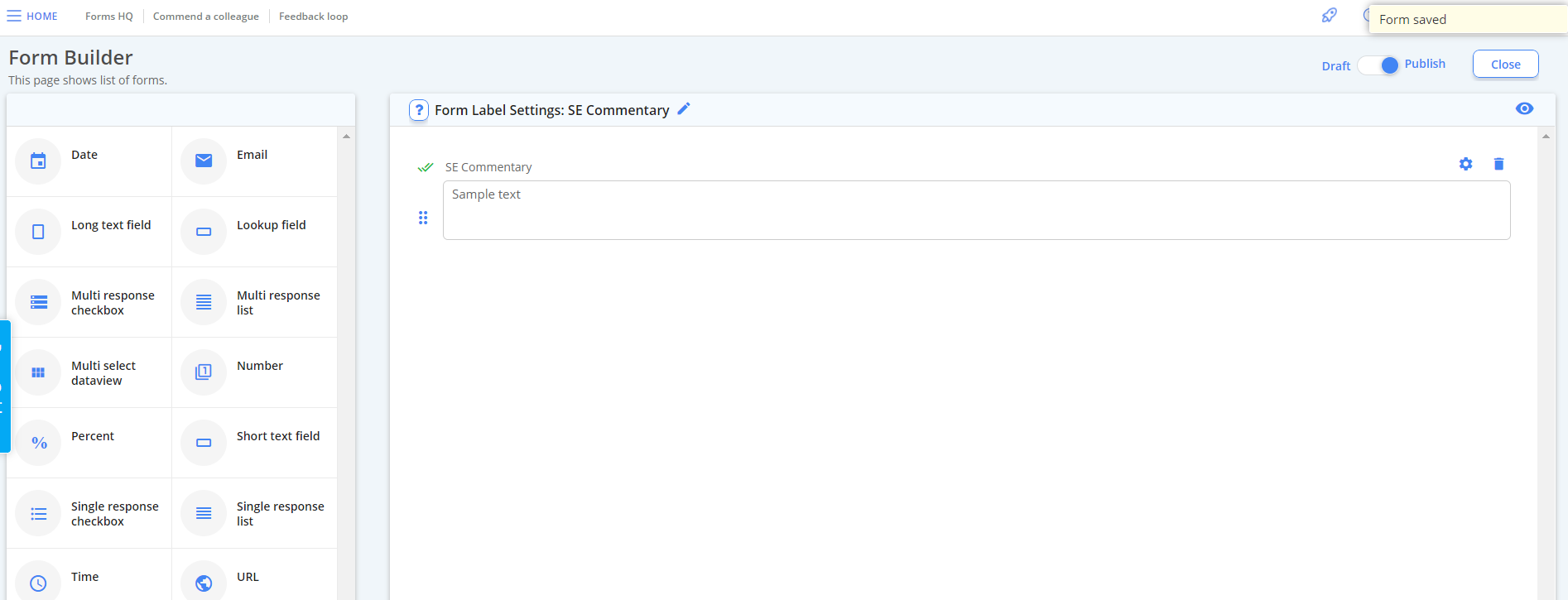
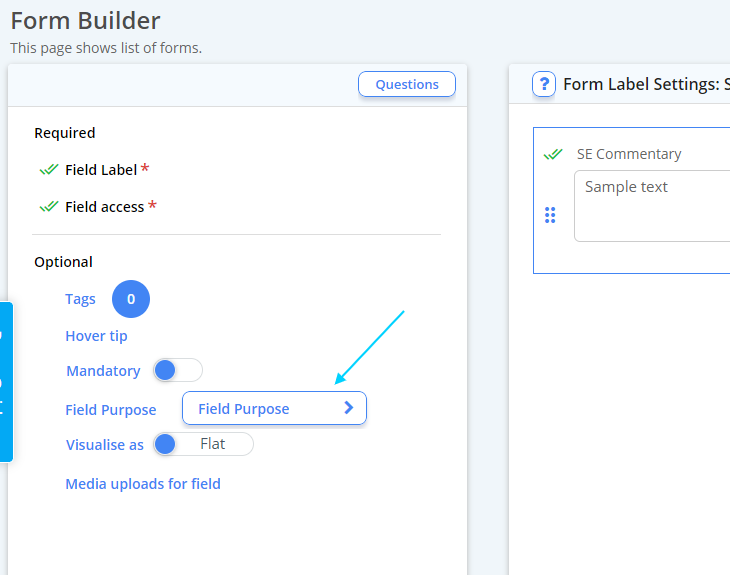
 The minimal fields a form needs is 1 x long text field.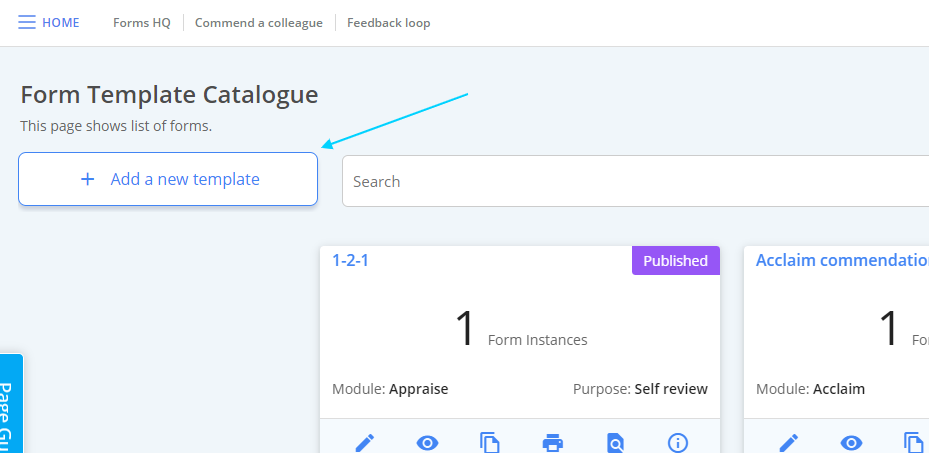
Creating your First Instance
Dashboard / Self-Evaluation
Now all of the components have been set-up, an instance can be created in the module.
1. Select "Create New Instance" located at the top of the screen.

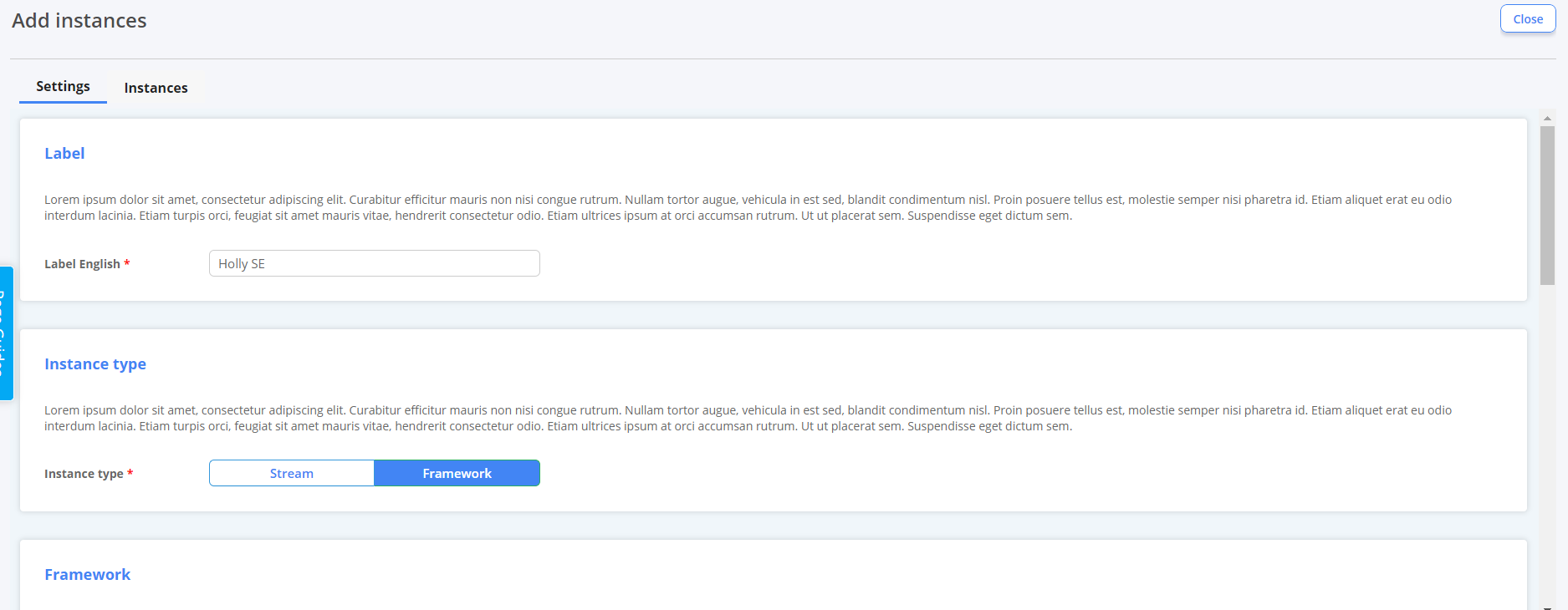
2. From here, work through the creation wizard as prompted.
- Name your Instance
- Instance type = Framework (we are integrating the Framework we created earlier)
- Select the Framework you would like to use
- Select where you would like your Evaluation to be published
- Select the grade set you would like to use
- Select the commentary form you would like to use
- Our Framework is at school level (but you can also create Evaluations on a Subject level too)
- Set evaluation author
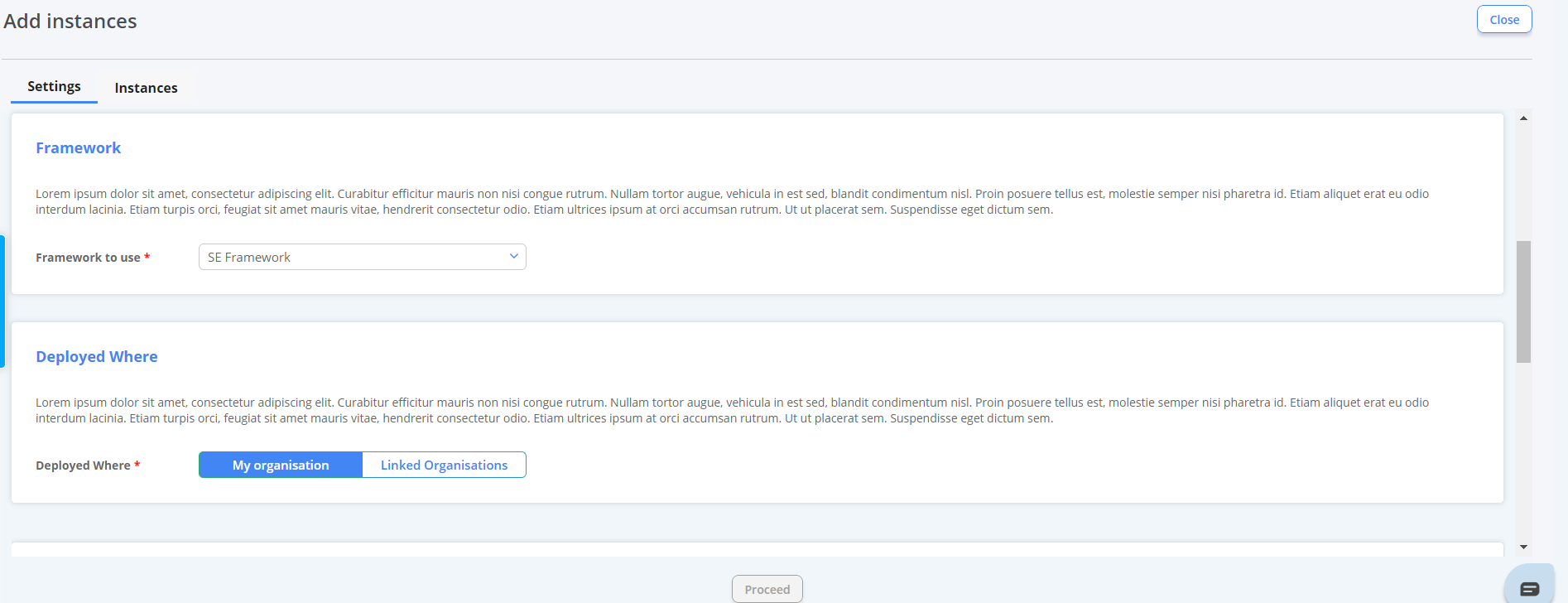
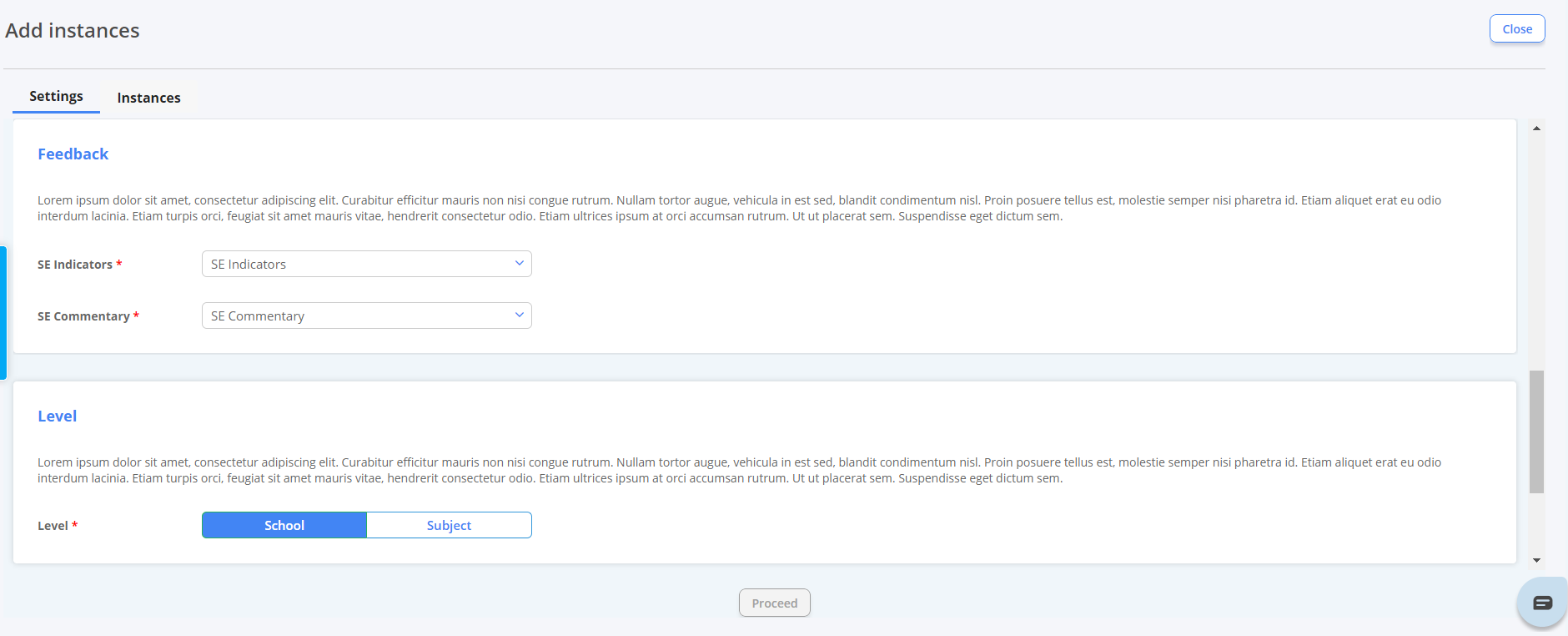
Select "Proceed" when complete.
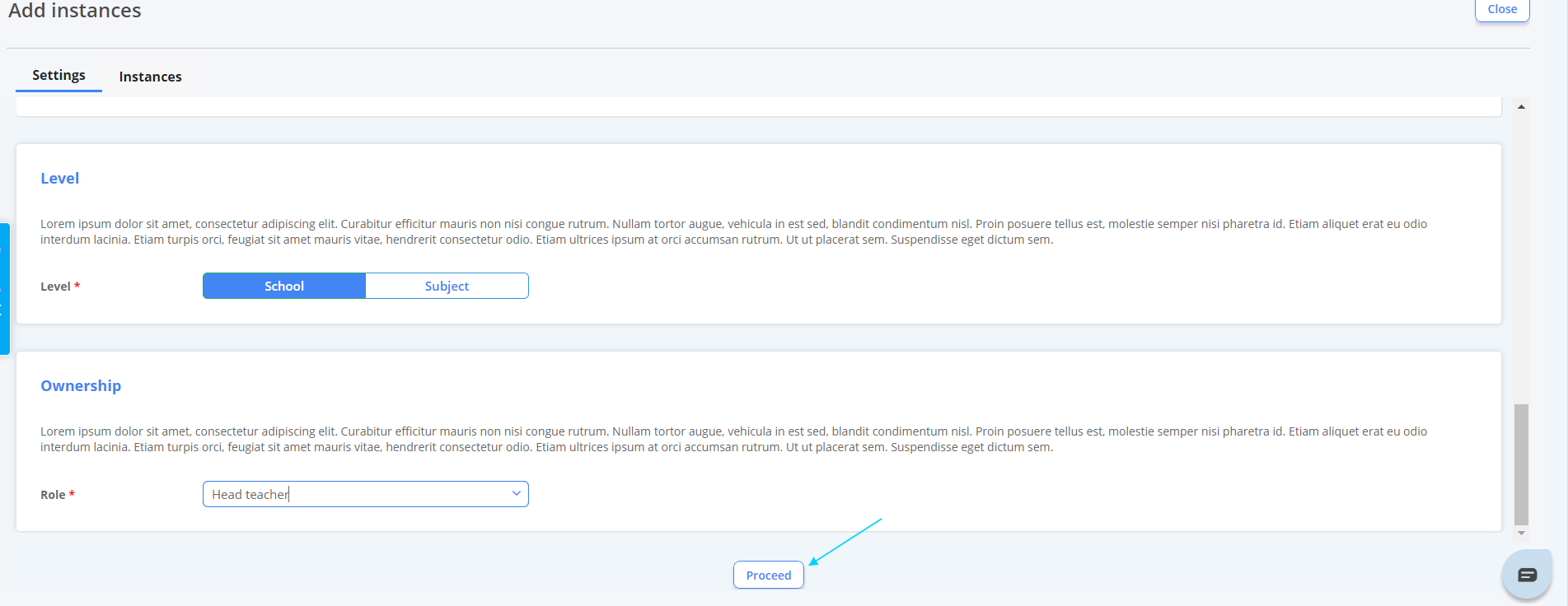
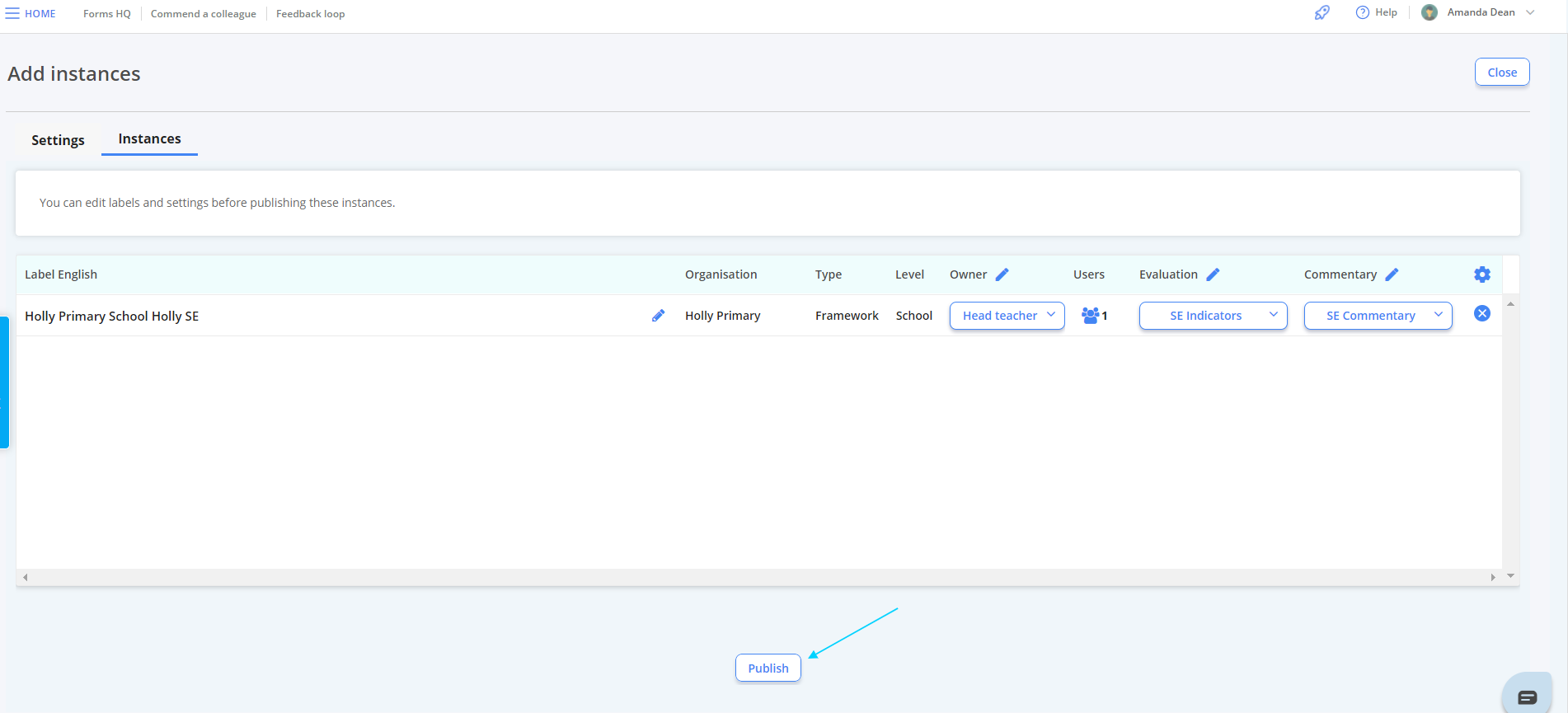
After clicking "Proceed" you will be re-directed to the page below. From here, you can edit the name of your instance, the sharing settings and the driving components.
3. Once happy, select "Publish" to create your instance.
You will then be re-directed to the module home page, where you will see your Instance is live and editable.
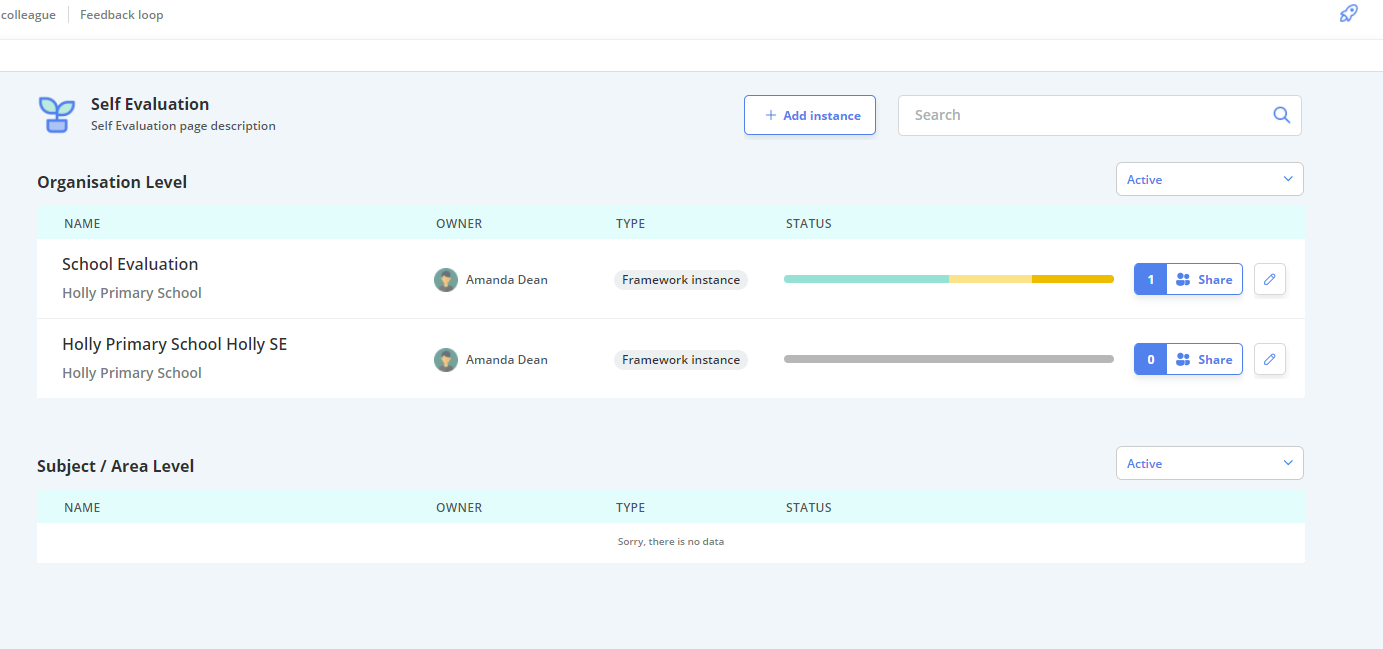
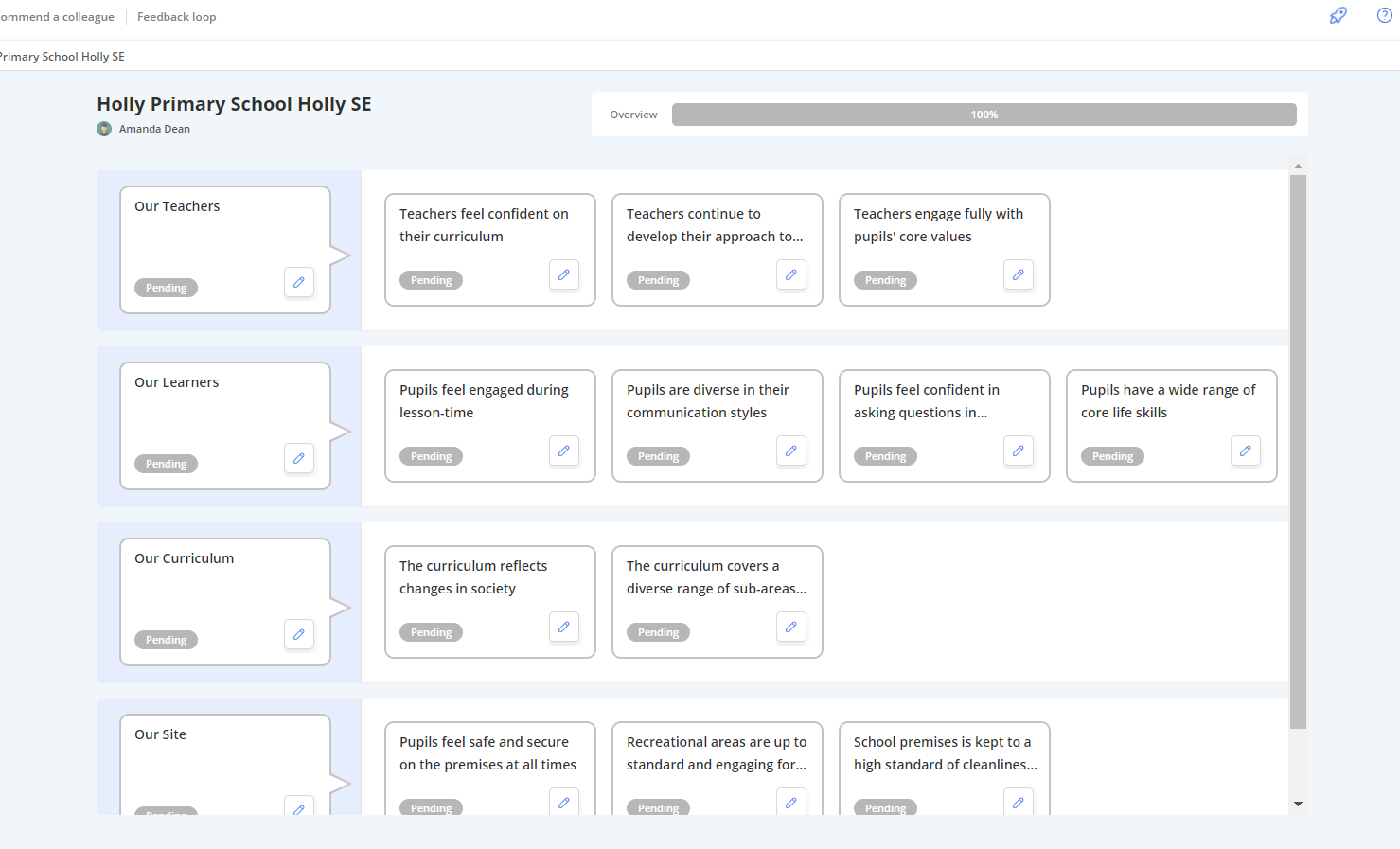
Using Self-Evaluate
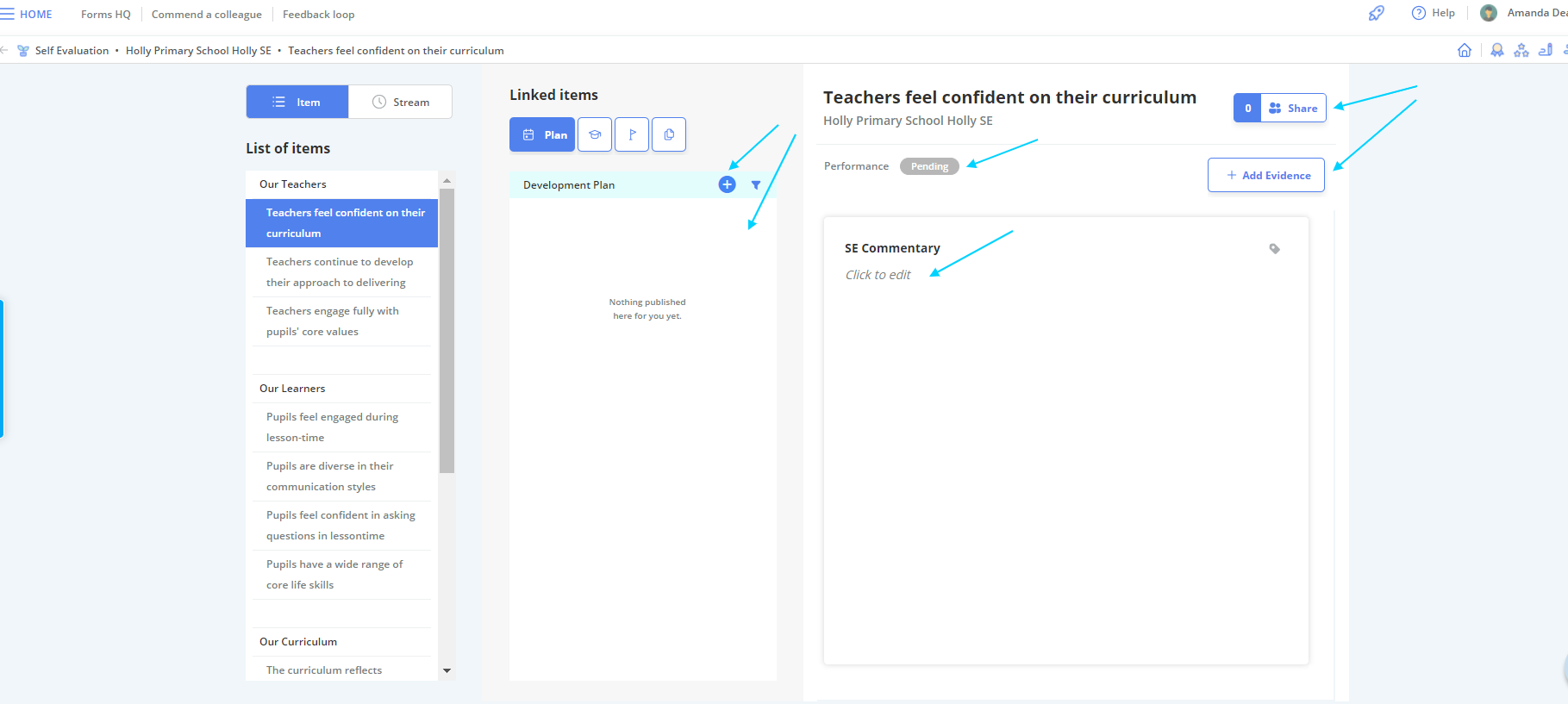
- Add your commentary (far right)
- Update the status of your task using your grade indictors
- Upload evidence against that particular goal