TABLE OF CONTENTS
Introduction
The planning module is a useful tool that allows you to create live action plans for your organisation. As with all our modules, Priorities is a completely customisable and expandable module.
With Priorities you can:
- Generate plans for any organisational level
- Maintain an overview of your progress on a plan at any given time
- Add planning items and sub-planning items to keep track of tasks
- Maintain a commentary against each planning item to keep track of updates
- Link planning items with organisational goals and standards to triangulate school development
An example of a school-level plan is shown below.
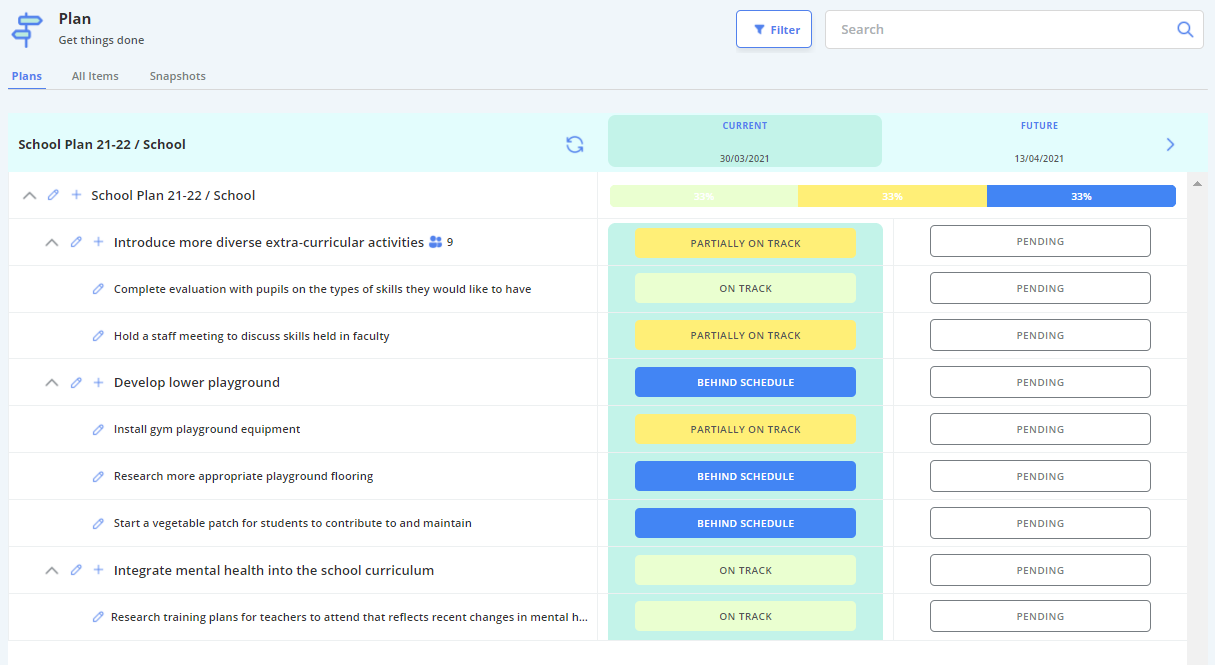
A planning instance needs 3 basic elements:
- A Grading System
- A Commentary Form
- A Plan Definer Form
Create your Grade Set
Navigation Menu / Setup / Advanced Setup / Grades
The grade set is a set of indicators that each planning item will be graded against.
1. To create a new set of grades, select "Add New Grade Set" - located at the top left of the screen.
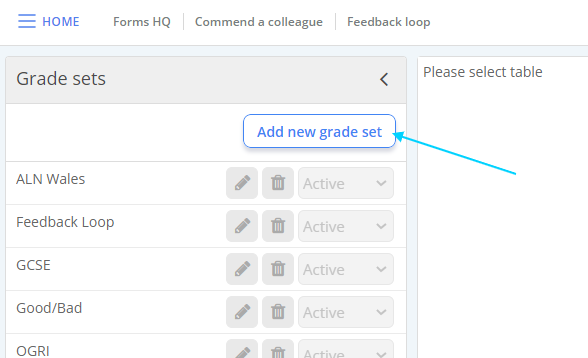
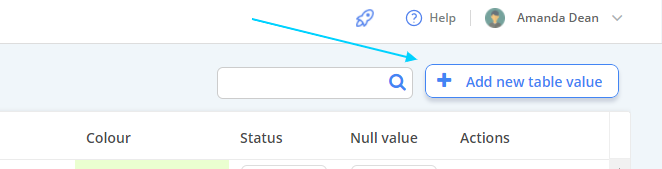
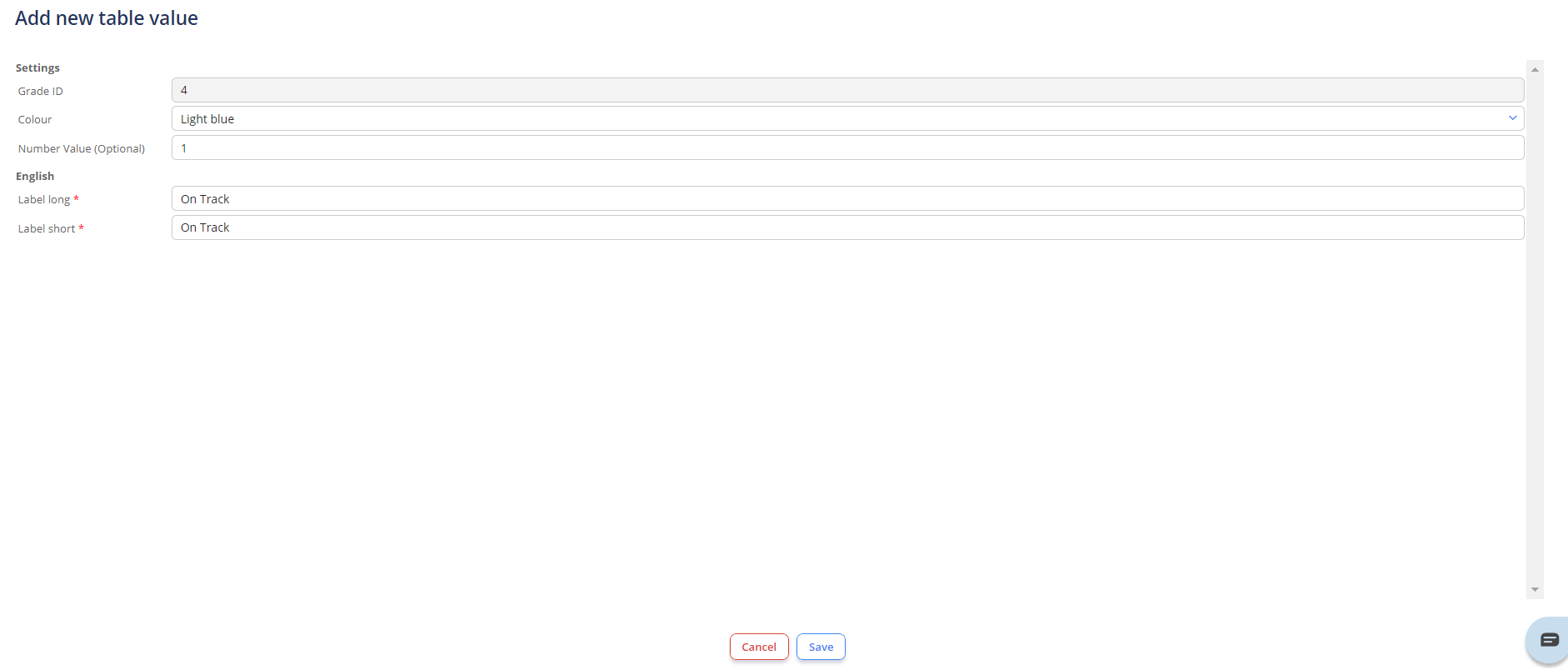
2. Name your grade set - in this case we have used "Planning Indicators" - and start adding your values using "Add new table value" - located at the top right of the screen.
From the create table you can allocate an item name, colour code and number indicator (optional).
Below is an example of a completed grade set.
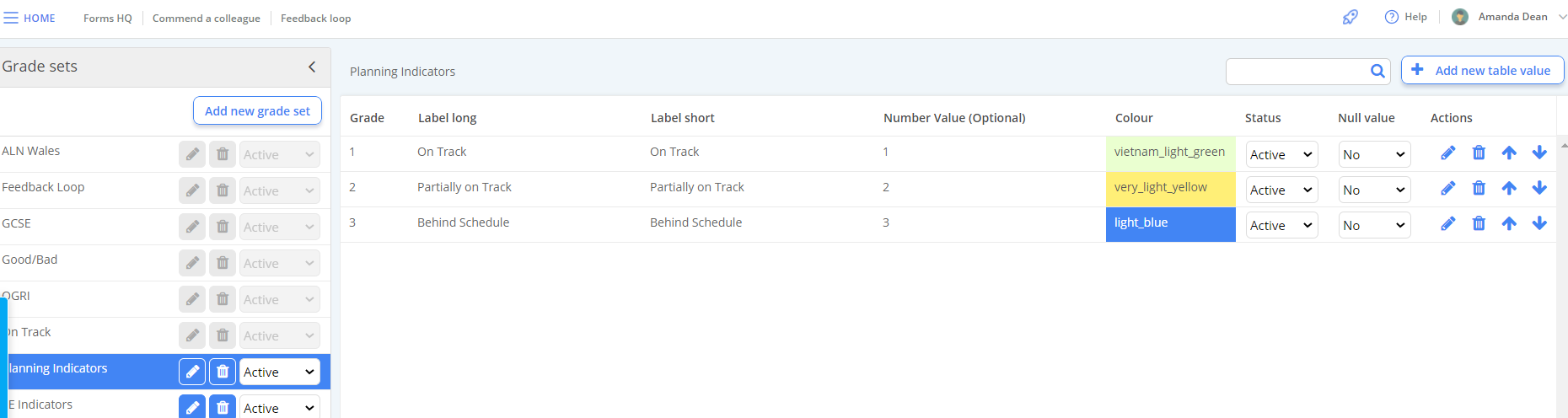
 Tip: You can add new items to your grade set at any time by navigating back to this screen
Create your Forms
Navigation Menu / Setup / Simple Setup / Forms Manager
The Planning module requires 2 forms:
1. Planning Definer Form
2. Planning Commentary Form
The minimal fields each form needs is 1 x long text field.
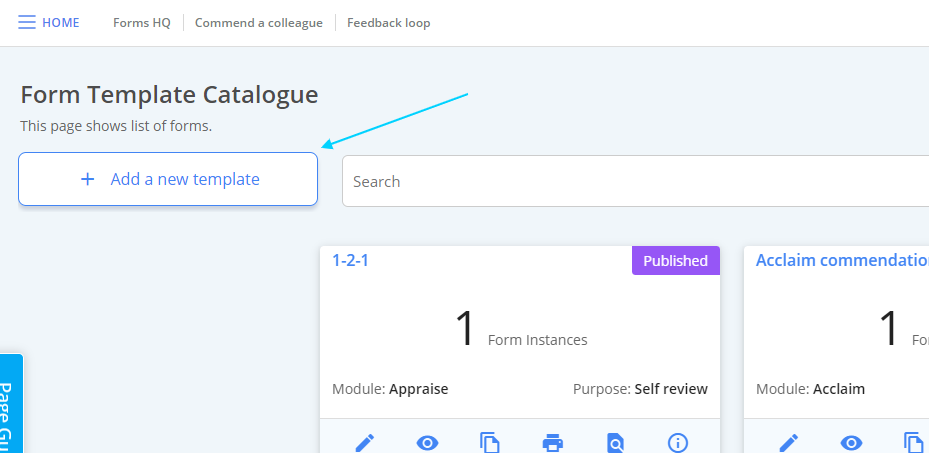
1. Create a new form template using the "Add a New Template" button at the top left of the screen.
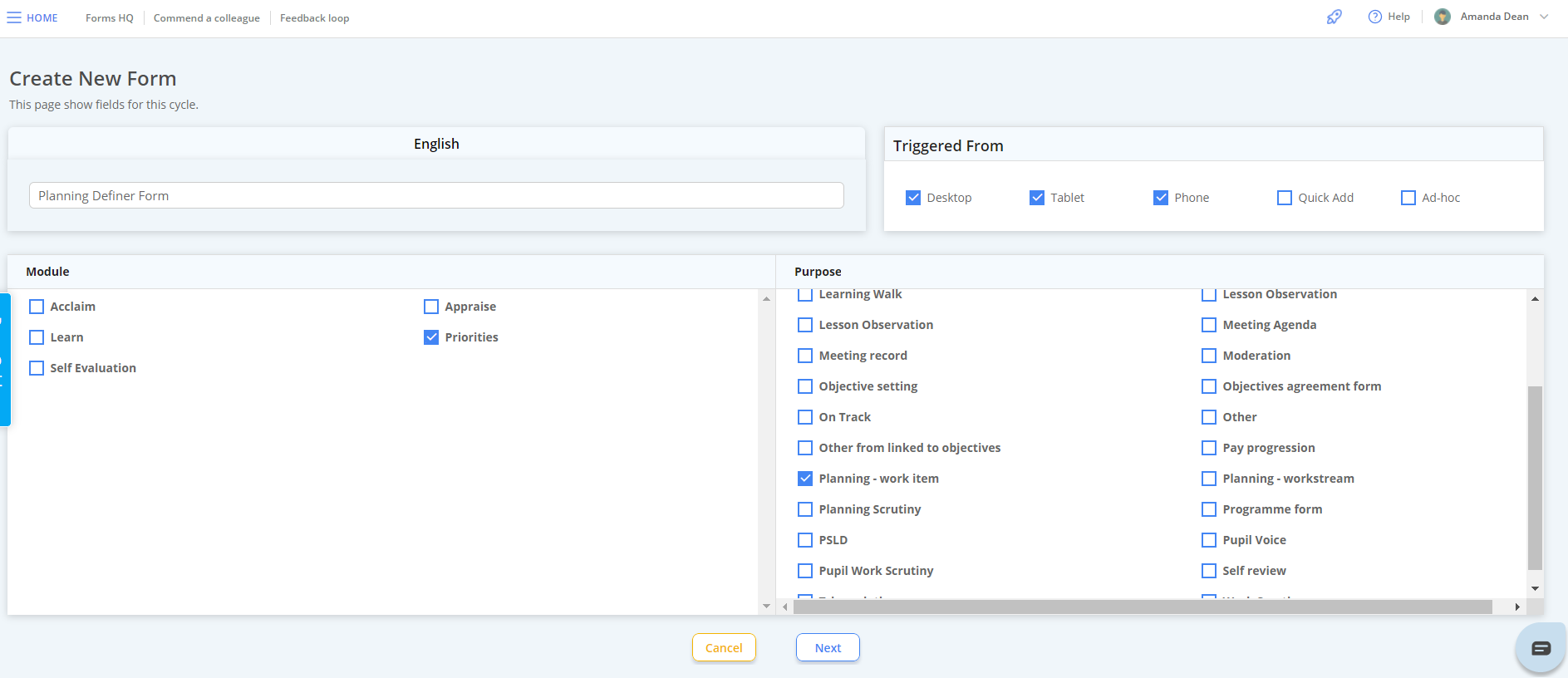
2. Allocate the form to the Priorities module and set its' purpose as "Planning Item" as below
3. Design the form as required
Note: We don't ever make the forms available from Quick Add or Ad-Hoc, because the forms are going to be integrated into the Priorities module.
Planning Definer Form
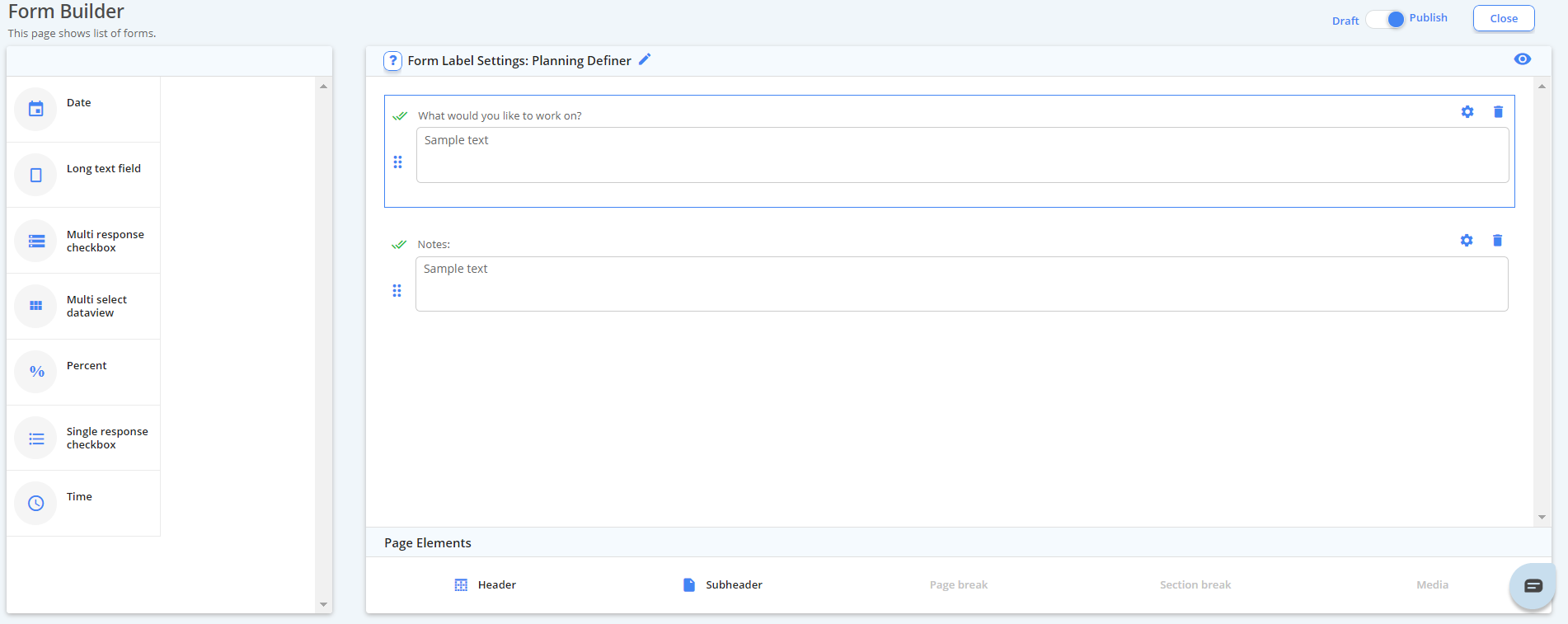
The Planning Definer form integrates into the module to allow us to set planning items.
An example of a planning definer form is as below.
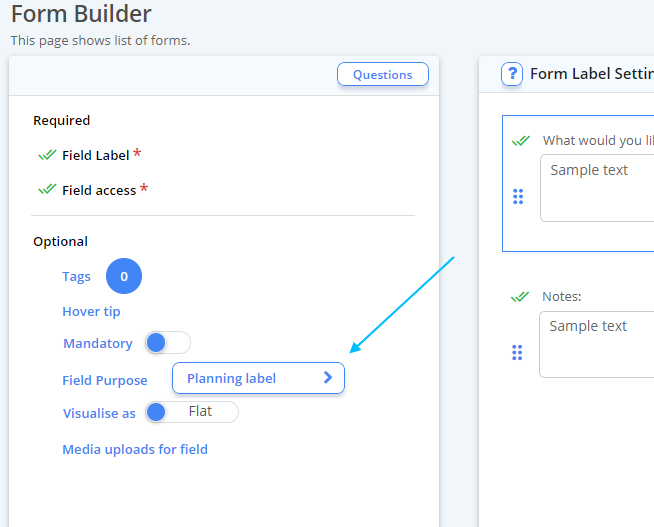
Important: It is important that your commentary text field has the field purpose set to "Planning Label". Setting the field purpose integrates the field box into the module which allows the form to act as the input for a new planning item.
Planning Commentary Form
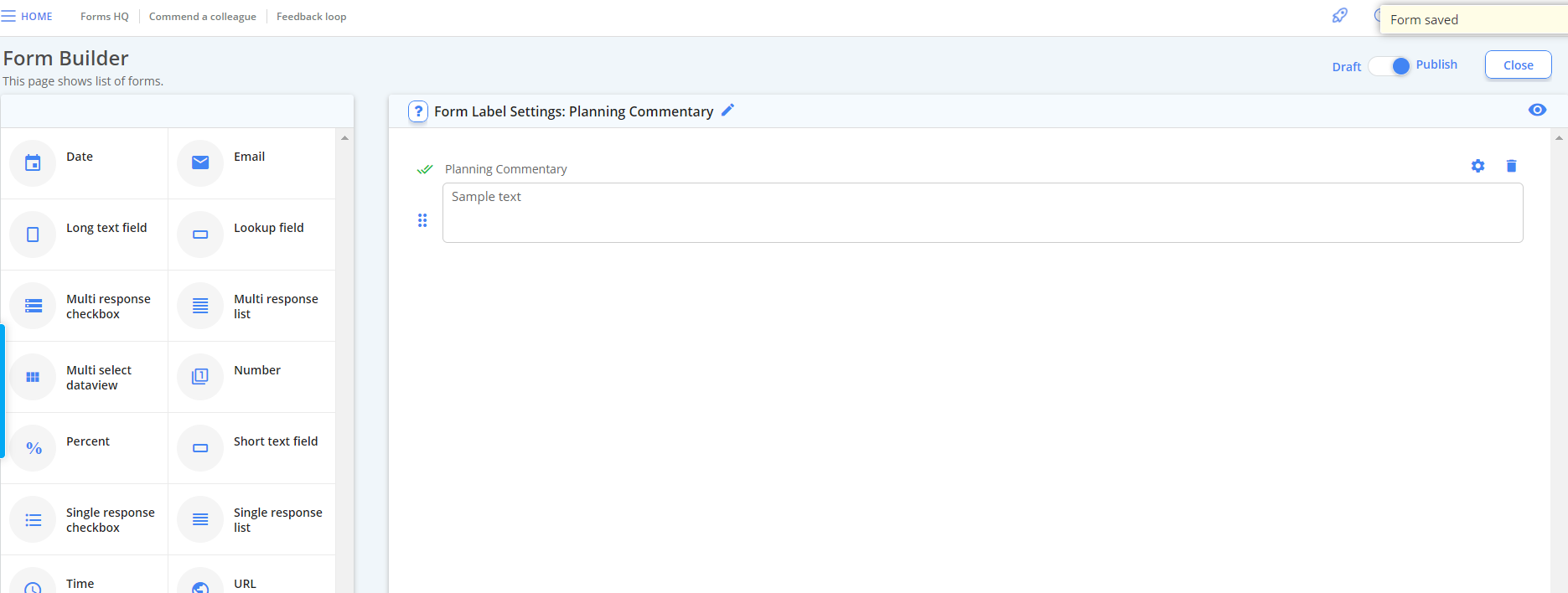
The Planning Commentary form integrates into the module to allow the use of commentaries alongside planning items.
An example of a planning commentary form is as below.
Creating your First Instance
Dashboard / Priorities
Now all of the components have been set-up, an instance can be created in the module.
1. Select "Add" located at the top of the screen.

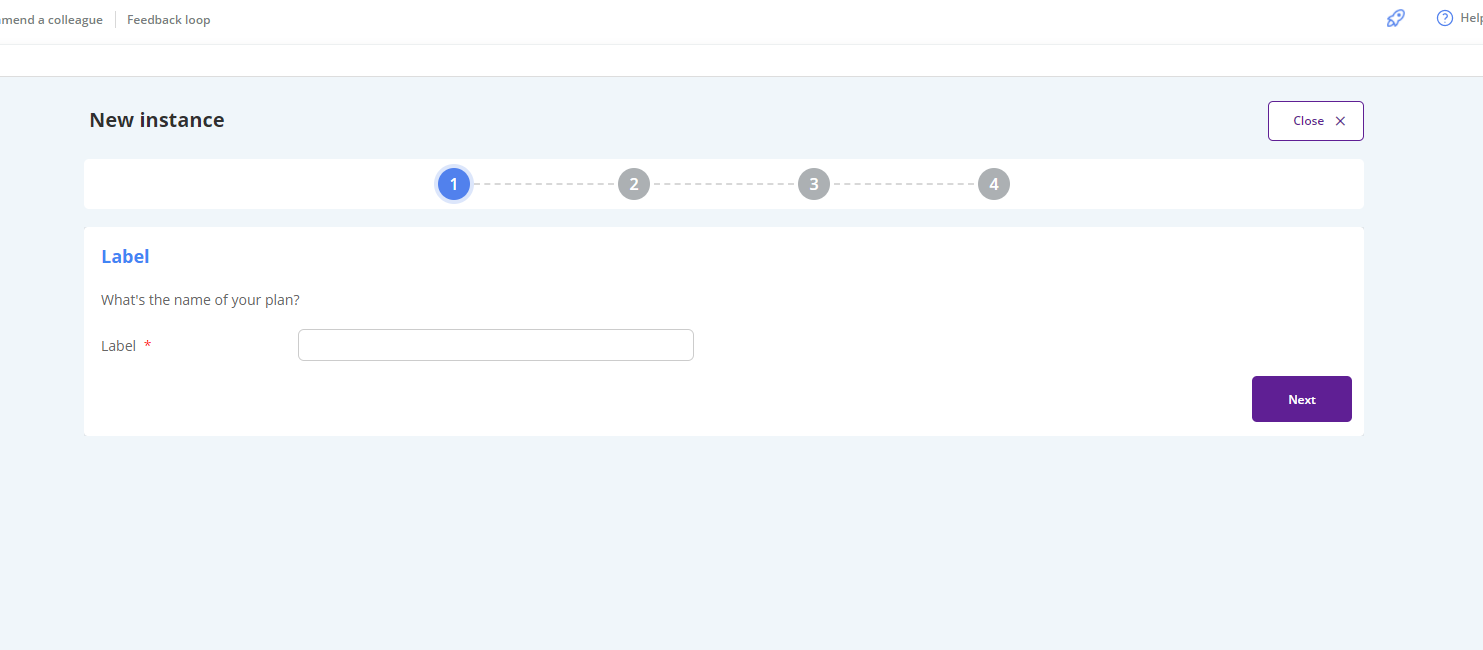
2. From here, work through the creation wizard as prompted.
- Name your Instance
- Select the grade set you would like to use
- Select the definer form you would like to use
- Select the commentary form you would like to use
- Select the amount of levels/sub-levels you would like your plan to have (In our example there is 2)
- Assign ownership and plan level (School/subject)
- Set the Start/End Dates
- Set how often you would like to be prompted to update the plan
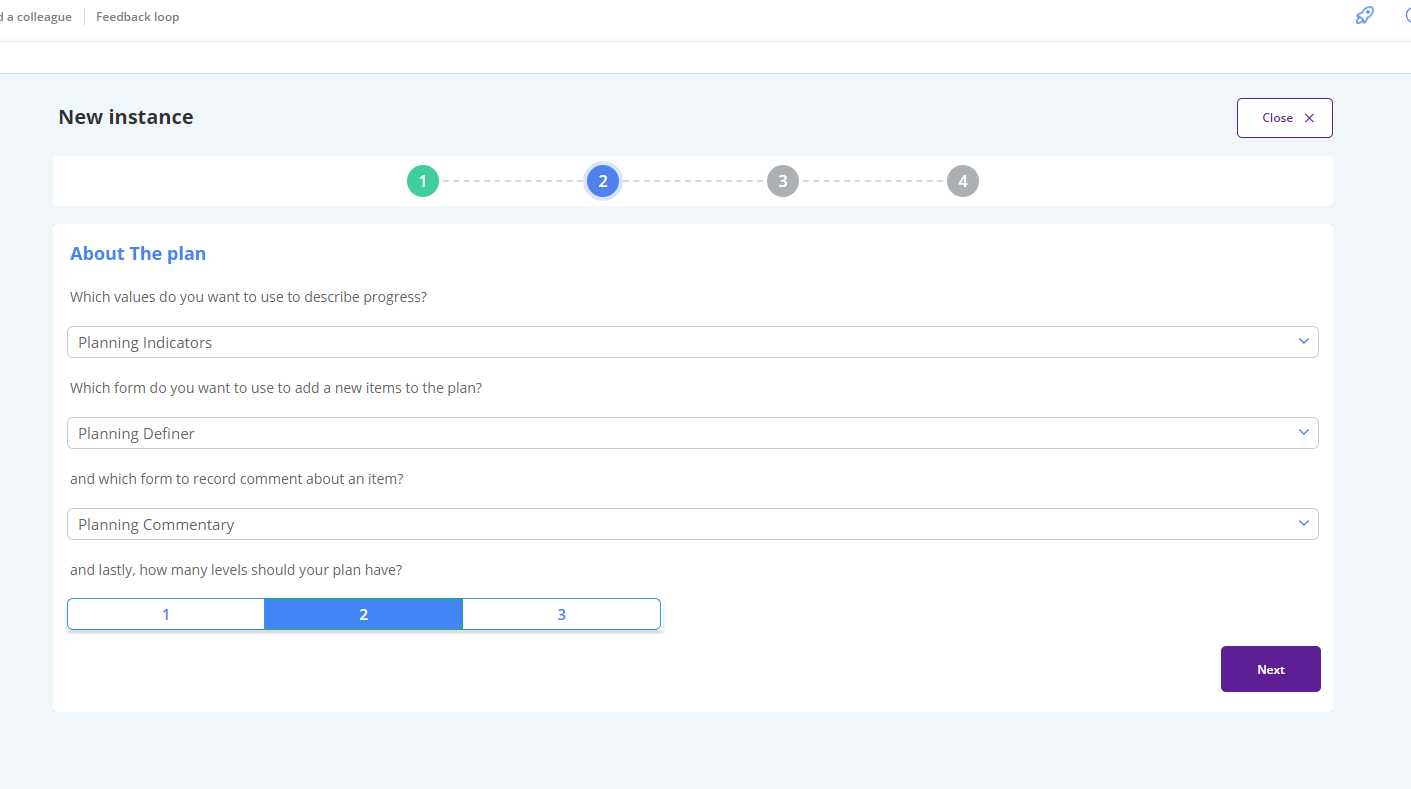
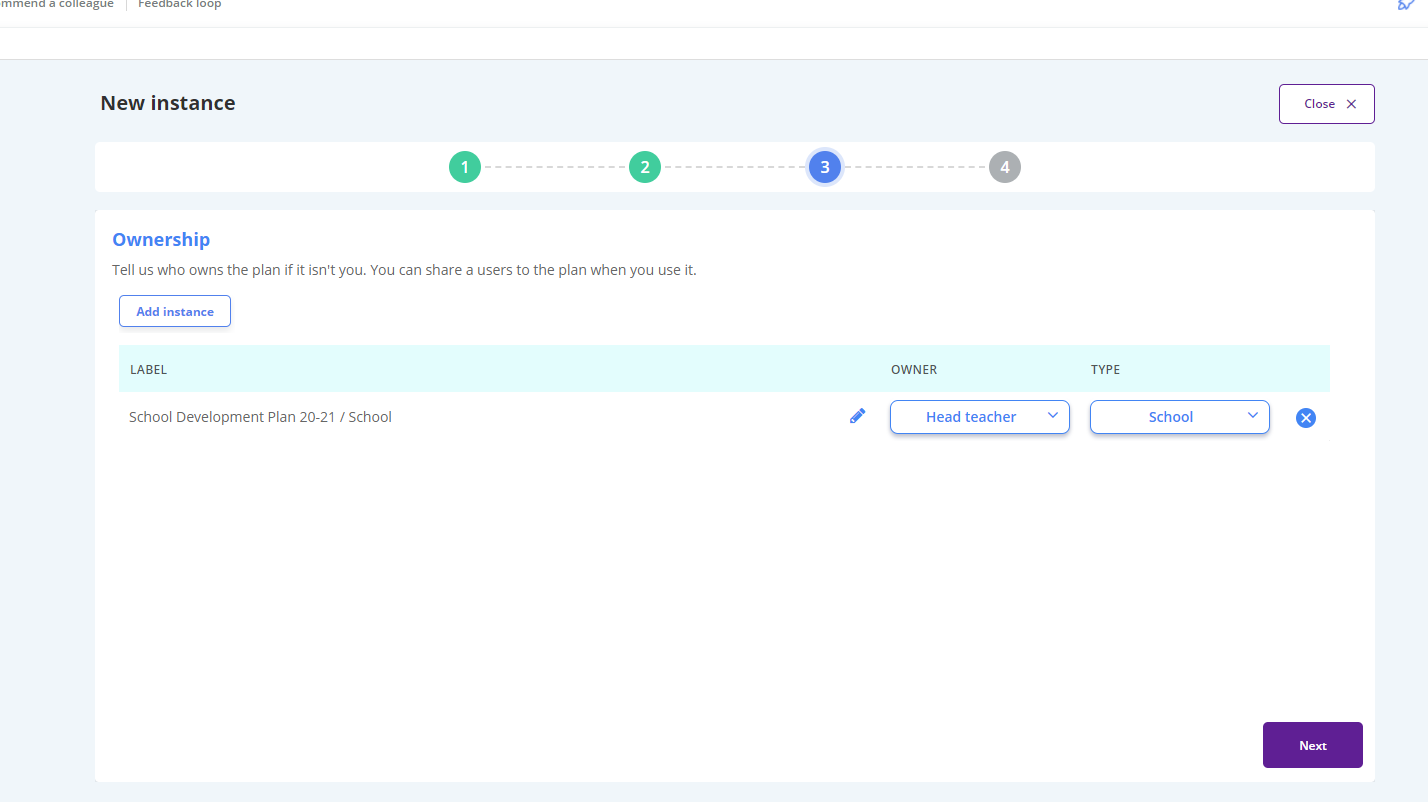
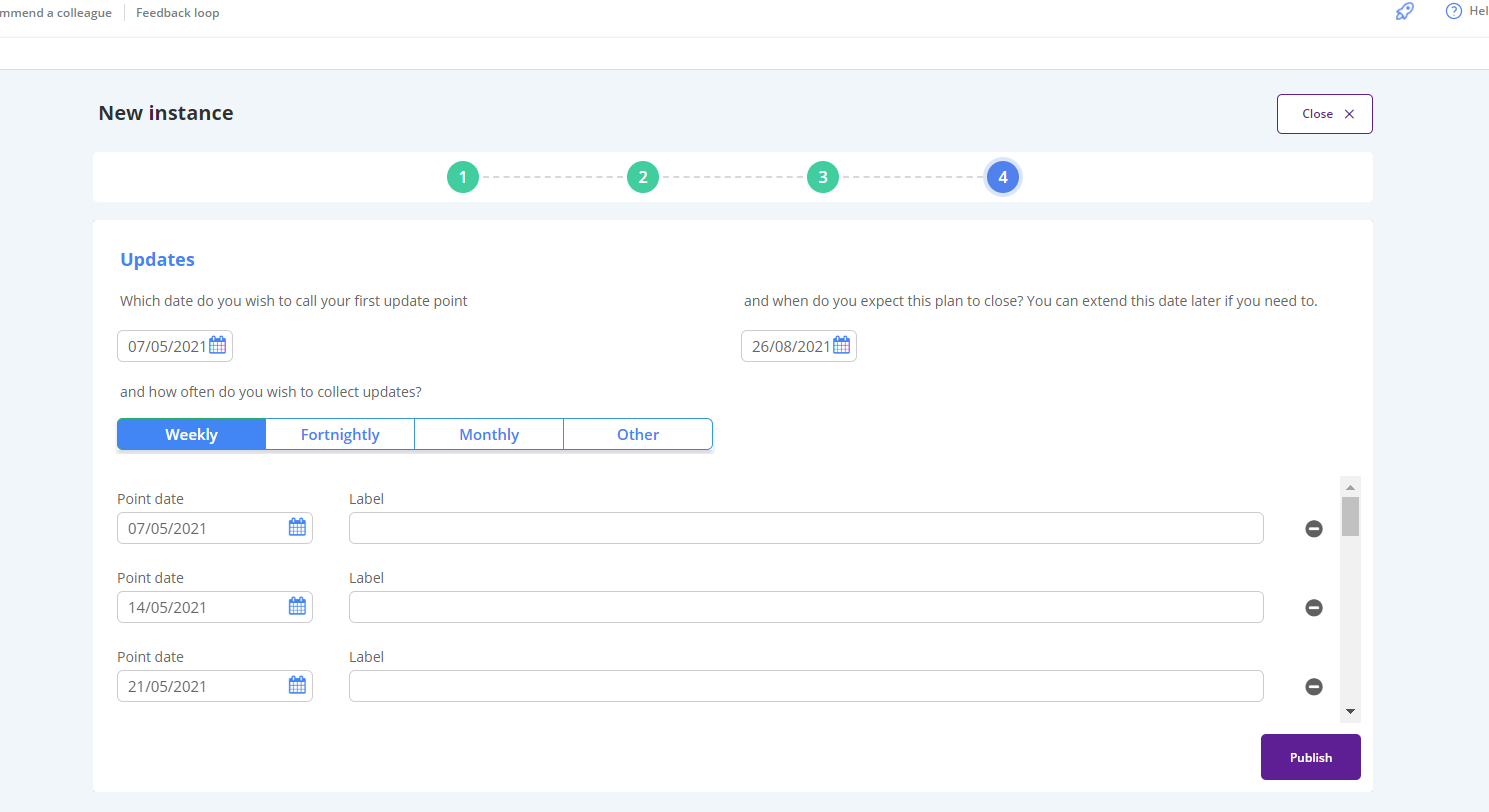
3. Publish when complete
You will then be re-directed to the module home page, where you will see your Instance is live and editable. From here you can click into your plan to start editing.
Using the Planning Module
Editing your Instance is simple and quick.
From here you can:
- Add parent and child planning items using the + signs
- Edit the names of your planning items
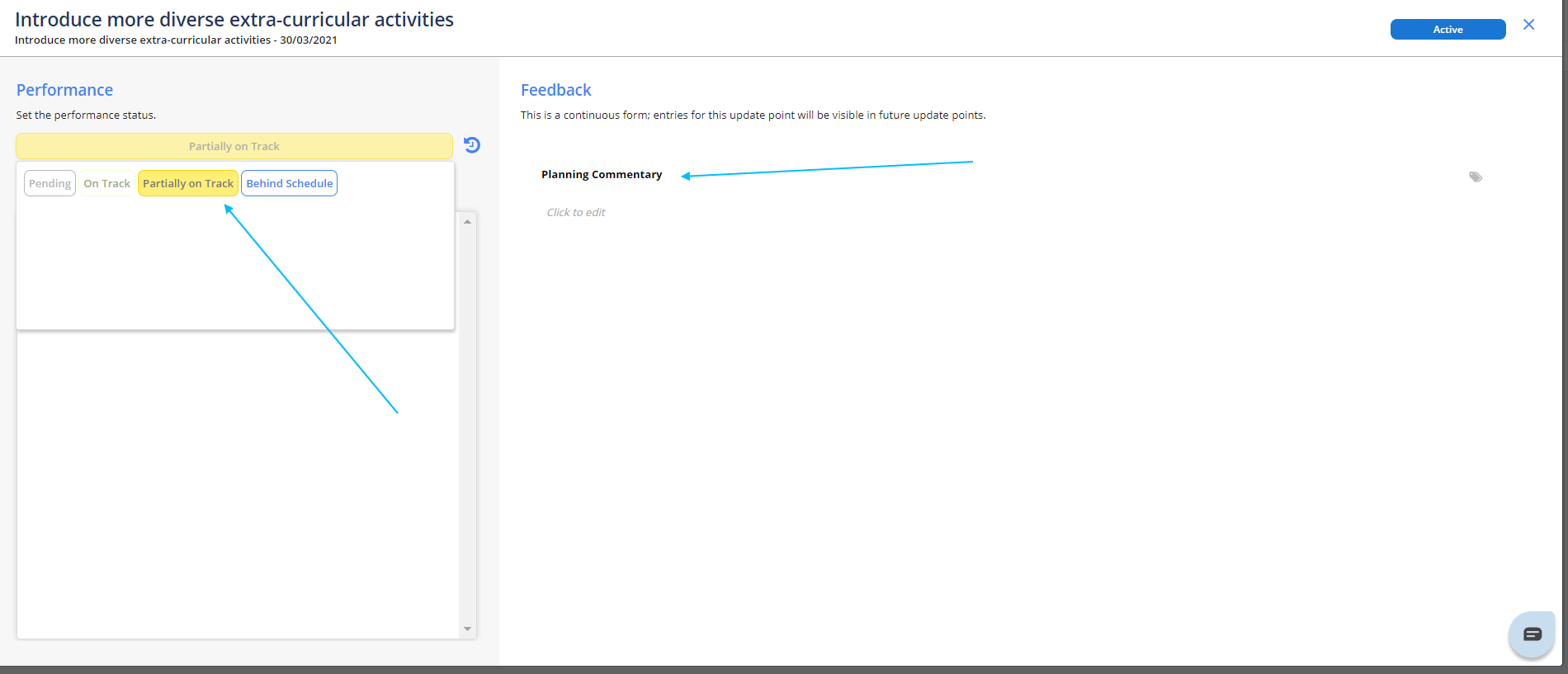
- Update the status and add commentary on your planning items by clicking into the item node
- See/update your future progress nodes
- Share the whole plan or just individual planning items to the relevant teams to stay on track
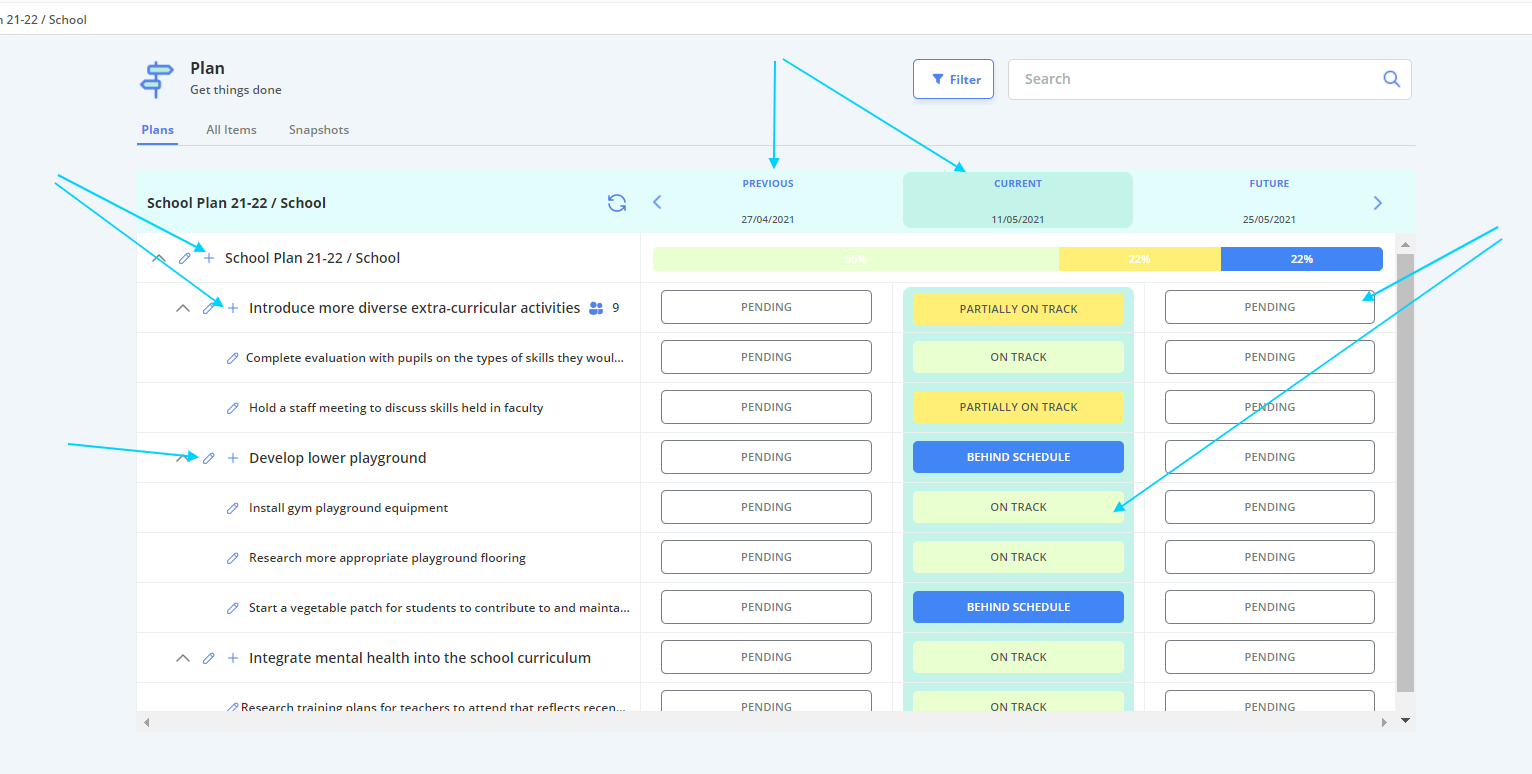
Below is an example of a planning item edit screen.